



Dave is a marketing expert with 15 years experience in the tech and SaaS world. He specializes in educating IT and channel audiences, with a focus on security, privacy, compliance, and marketing technology. With a talent for storytelling and a deep understanding of the industry, Dave transforms complex IT topics into clear, engaging, and impactful narratives.
The new Outlook for Windows: An email signature guide for IT

TL;DR
Default client status: The new Outlook for Windows is Microsoft's unified Outlook client, already the default for Microsoft 365 Business Standard and Premium customers, with Enterprise customers scheduled to switch in March 2027.
Signature deployment breaks: COM add-ins aren't supported, Group Policy approaches that push local files no longer work, and existing local signatures don't transfer to the new client.
Cloud signatures have limits: Microsoft's cloud signatures fix portability for individual users but don't provide governance, cross-client consistency, or application when users send from non-Outlook clients.
Rendering engine changed: HTML signatures display more predictably without Word's quirks, but templates built around Word's limitations need retesting before migration.
Strategic opportunity: The migration is the moment for IT teams to consolidate email signature management rather than rebuild client-side deployment on Microsoft's new architecture.
Microsoft is moving every Outlook user to the new Outlook for Windows. For small and medium businesses, the new client is already the default. For Enterprise customers, the switch is currently scheduled for March 2027.
Email signatures are quietly one of the biggest things changing in the migration. Settings have moved to the cloud. The rendering engine has shifted away from Word. Local signature files, COM add-ins, and Group Policy approaches that worked in the classic Outlook no longer apply.
If your signature setup relies on any of these, the migration becomes a forcing function. Here's what's changing, what to audit before the new Outlook becomes the default, and what centralized email signature management looks like in this new era.
Centralized email signature management is an approach where IT controls email signatures from a single platform, applying them server-side across all users, devices, and email clients without relying on individual client settings or local files.
What is the new Outlook for Windows?
The new Outlook for Windows is Microsoft's unified Outlook client. It replaces the classic Outlook on Windows and shares its codebase with Outlook on the web, which is why the interface feels familiar to anyone who's used OWA.
Underneath the redesign, it's a different product. Settings now live in the cloud rather than locally on each device. COM add-ins no longer work. The rendering engine has decoupled from Microsoft Word. PST and OST support has been partially reintroduced after being absent at launch, and IMAP and POP support remains limited. Exchange on-premises isn't supported.
For most end users, the changes look cosmetic. For IT teams, the architecture shift is the real story. The new Outlook is web-first by design, which means the deployment, configuration, and governance approaches that worked for the classic Outlook need rethinking. Anything that relied on local files, add-ins, or Group Policy is on the audit list.
The migration timeline IT needs to know
Microsoft's rollout has moved in phases, and the dates have shifted more than once. Here's where each customer segment stands today.
Customer segment | Migration status | Key date |
|---|---|---|
Business Standard & Premium | New Outlook is now the default | Available now |
Enterprise | Classic Outlook remains default; opt-in available | March 2027 (full switch) |
All customers | Classic Outlook support ends | 2029 |
Business Standard and Premium customers
The new Outlook is now the default. Users are on the new client unless they actively switch back to the classic Outlook. If you're an SMB, the migration is already underway, and your team may already be on the new Outlook without realizing it.
Enterprise customers
The classic Outlook is still the default. The full switch to the new Outlook is currently scheduled for March 2027, revised from an earlier April 2026 date. Until then, users have to manually opt in to try the new client.
Everyone else
Microsoft has committed to supporting the classic Outlook through 2029. After that, the classic experience retires, and the new Outlook becomes the only option.
If you're an SMB, this is happening now. If you're an Enterprise customer, you have time, but the timeline has already slipped once. Build your plan around the current 2027 date, and stay ready to move it forward if Microsoft shifts again.
Why the new Outlook for Windows matters for email signature management
The new Outlook breaks the email signature setup most IT teams have been running for years.
Signature settings have moved to the cloud, so the local files admins used to push to user devices no longer apply. The rendering engine has shifted away from Microsoft Word, which changes how every existing HTML signature template displays. COM add-ins, the backbone of most third-party signature deployment tools and in-house scripts, are gone. Group Policy approaches that depended on local file paths break for the same reason.
This represents a structural change to how email signatures get created, applied, and maintained across an organization. Any signature setup tied to the classic Outlook needs to be audited, migrated, or rebuilt.
For IT teams, the timing is rough. Our State of Business Email research found that 35% of IT leaders already name email signature management as one of their two most time-consuming tasks. The new Outlook migration adds more audit work, more edge cases, and more user questions.
What breaks in the new Outlook
The following signature deployment methods and features no longer work in the new Outlook:
COM add-ins – Third-party signature tools and in-house scripts relying on COM add-ins aren't supported; only web-based add-ins work
Group Policy scripts – Approaches that push signature files to local file paths have nothing to attach to in the new client
Local signature files – Existing .htm files stored in user profiles are not accessible to the new Outlook
PST/OST files – Only partial support has been reintroduced; full functionality is not available
Exchange on-premises – Not supported in the new Outlook architecture
Cloud signature settings are now the default
In the classic Outlook, signatures lived in local files on each user's device. Move to a second machine, and the signature didn't follow.
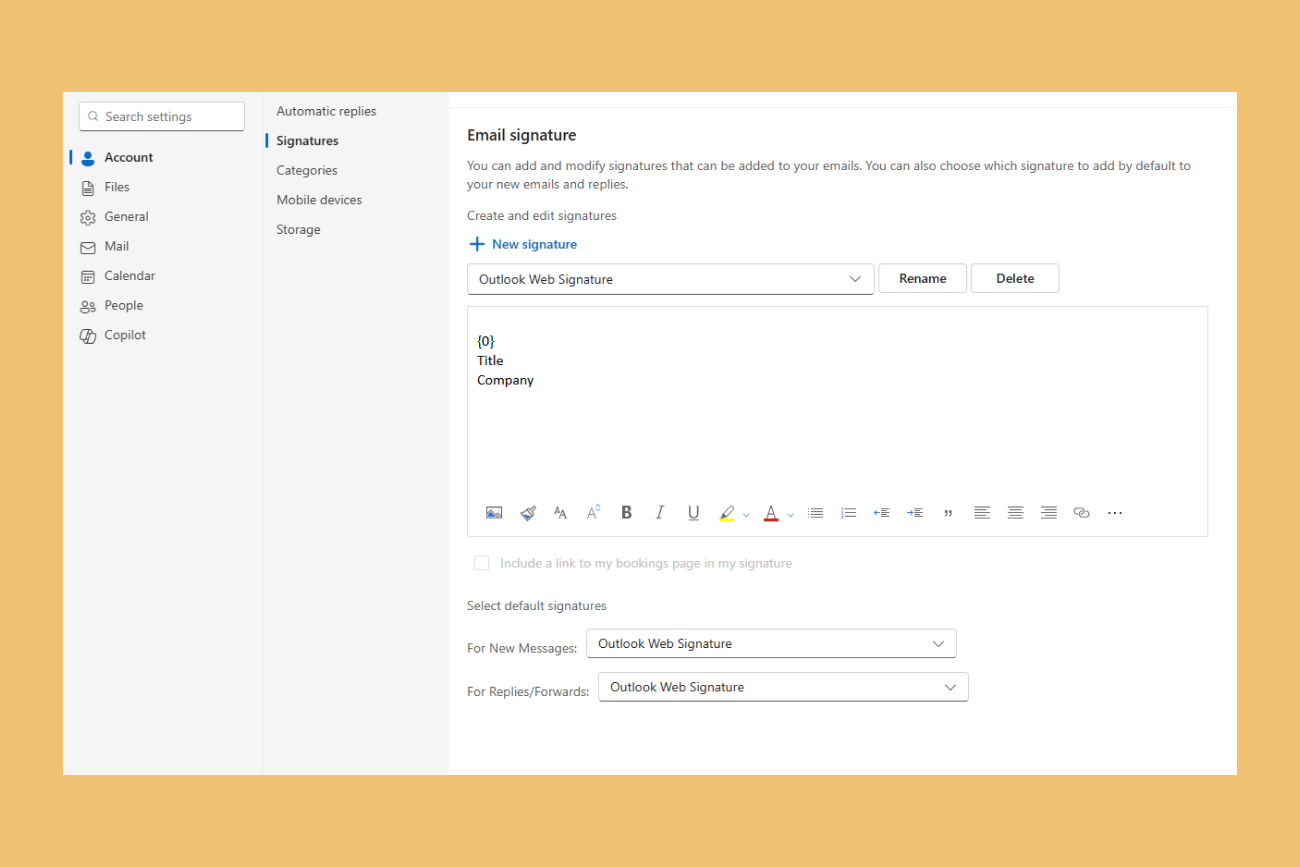
The new Outlook stores signature settings in the cloud and syncs them across Outlook installs. There's no fallback to local storage. Microsoft started this shift before the new client launched, and the new Outlook makes cloud signatures the only option.
For an individual user, this fixes a real annoyance. For IT teams responsible for brand consistency, legal disclaimers, and compliance across thousands of mailboxes, the change is mostly cosmetic. Microsoft's cloud signatures sync per user, not per organization, which means each user still owns their own signature settings and can edit, delete, or replace whatever IT has asked them to use. There's no central template, no audit trail of who changed what, and no way to apply different signatures based on department, region, or recipient type.
The limits get more obvious outside the Outlook ecosystem. Cloud signatures only sync within the Outlook family of clients. When sending from Apple Mail, the Gmail mobile app, or any third-party email client connected to a Microsoft 365 mailbox, the cloud signature isn't applied. For organizations with mixed device estates or BYOD policies, that gap is significant.
Cloud signatures address a portability issue Microsoft has acknowledged for years. But they don't add the governance, enforcement, or cross-client consistency that organization-wide email signature management actually requires.
Microsoft cloud signatures vs. centralized email signature management
Capability | Microsoft cloud signatures | Centralized signature management |
|---|---|---|
Governance | User-controlled; no central enforcement | IT-controlled templates with role-based permissions |
Cross-client support | Outlook family only | All email clients including Apple Mail, Gmail, third-party apps |
Audit trails | None | Full change logging for compliance review |
Compliance enforcement | Manual; users can modify or delete | Automatic; signatures applied server-side without user intervention |
The rendering engine has changed
Every signature template in production needs retesting: the new Outlook renders HTML differently than the classic client did.
Classic Outlook used Microsoft Word as its HTML rendering engine, a decision dating back to Outlook 2007. Word's quirks shaped a generation of HTML signature design: tables instead of modern layout, inline styles instead of stylesheets, defensive coding around how Word handled padding, spacing, and images.
The new Outlook is web-based and renders HTML closer to how modern browsers do. Templates built to defend against Word's quirks can now render with unexpected spacing, font fallbacks, or image positioning, because the fixes that protected against one renderer's problems become new problems in a renderer that doesn't share them.
Specific things worth testing in the new Outlook:
CSS support. The new Outlook handles modern CSS more reliably: stylesheet rules and shorthand properties render as intended. Signatures built with Word's inline-style-only approach may now display differently.
Image handling. Embedded images (CID attachments) and web-hosted images behave differently across clients. Web-hosted images render more consistently across the new Outlook, OWA, and mobile, but depend on the host URL and can be blocked by recipient mail servers. Confirm which approach each template uses.
MSO conditional comments. These once served different signature code to Outlook versus other clients. The new Outlook ignores them entirely, since it isn't Word-based, so any template branching on MSO conditionals falls through to its default code path.
Spacing and line height. Word's renderer added extra spacing that the new Outlook doesn't replicate. Signatures designed to compensate for that spacing look too tight in the new client.
Font fallbacks. Web fonts and system fonts render differently between the two clients. Templates relying on Word-side fallback behavior need retesting for typography consistency.
Testing should cover the new Outlook on Windows, the classic Outlook (while it's still in use), Outlook on the web, the Outlook mobile apps, and any non-Outlook client that a significant portion of users send from. A signature that renders cleanly in one client and breaks in another isn't a new problem. The new Outlook just changes which client breaks it.
Local signatures don't survive the move
The deployment methods IT teams built around the classic Outlook stop working in the new one.
COM add-ins aren't supported. Many older third-party signature tools and in-house scripts relied on COM add-ins to deploy templates or apply signatures at the client level. None of that works in the new Outlook, which only supports web-based add-ins built on Microsoft's modern API.
Group Policy approaches that pushed signature files to local file paths also break. The new Outlook doesn't read from the file paths the classic Outlook used, so scripts that copied .htm files into user profiles have nothing to attach to.
Local signature backups are gone too. If your migration plan involves preserving existing user signatures, that work has to happen before users switch clients. Once a user is on the new Outlook, the local files from the classic client are no longer accessible to the new one.
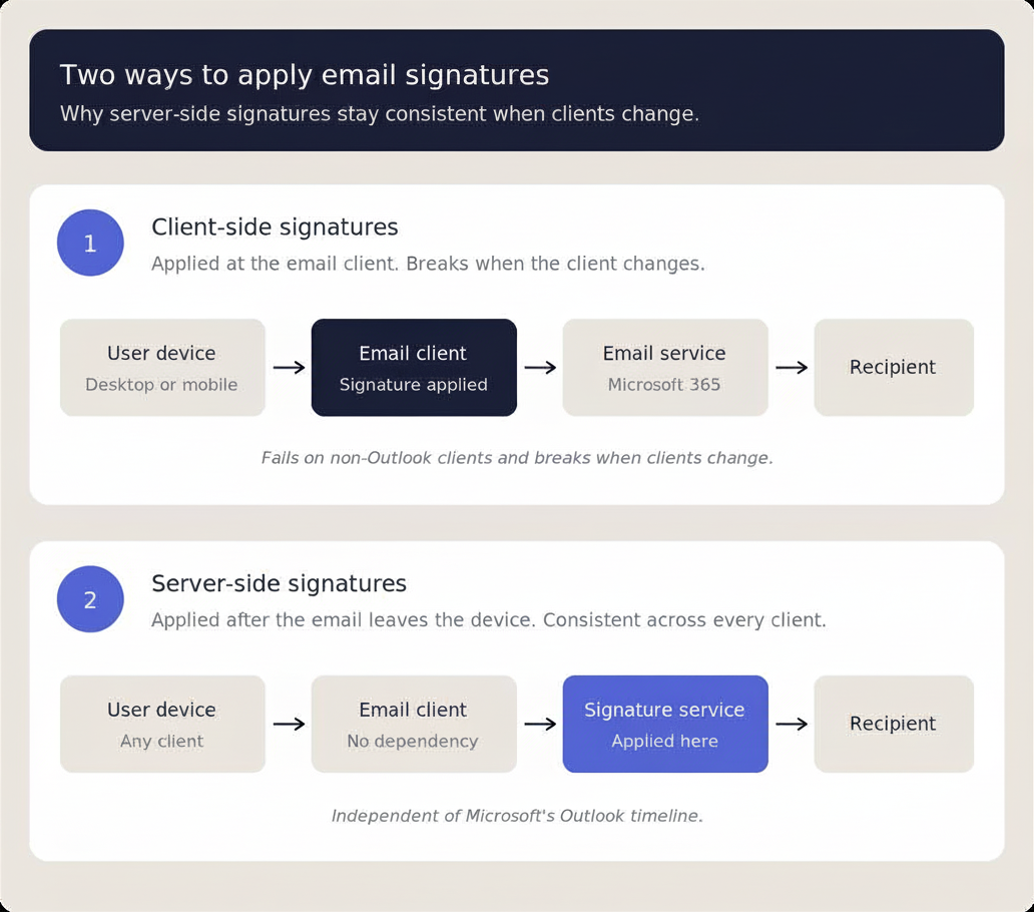
The migration leaves IT teams with two practical options:
Rebuild signature deployment on Microsoft's new architecture
Move to a centralized email signature management platform that handles deployment, governance, and rendering as one system.
Only 18% of organizations currently use centralized email signature management, despite 35% naming it as one of their top two most time-consuming IT tasks.
The new Outlook makes the gap between those two numbers harder to ignore.
What IT should audit before the new Outlook becomes the default
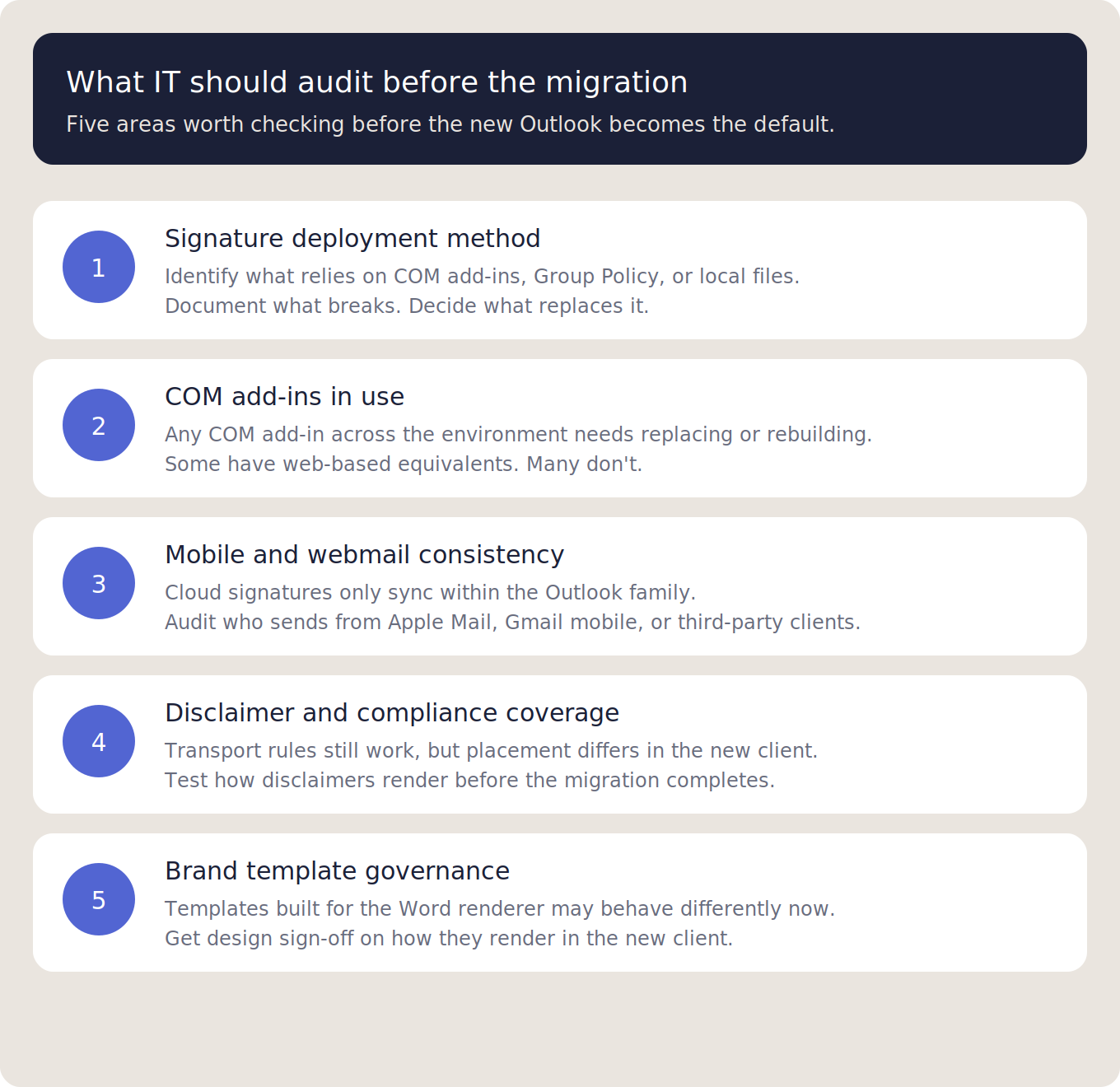
The new Outlook migration is happening on Microsoft's timeline, not yours. The audit work that protects your environment is the work you do before the switch lands. Five areas are worth checking now.
Document your current signature deployment method. If it involves COM add-ins, Group Policy scripts pushing local .htm files, or other tooling tied to classic Outlook, that method stops working in the new client. Identify what breaks and what replaces it.
Inventory all COM add-ins in use, not just signature tools. Some have web-based equivalents; many don't. Add-ins without a replacement need rebuilding, or users need to stay on classic Outlook until a workaround exists.
Assess mobile and webmail consistency. Cloud signatures only sync inside the Outlook family, so users sending from Apple Mail, the Gmail mobile app, or other third-party clients connected to Microsoft 365 won't get their signature applied. Audit which users send from non-Outlook clients, and how often.
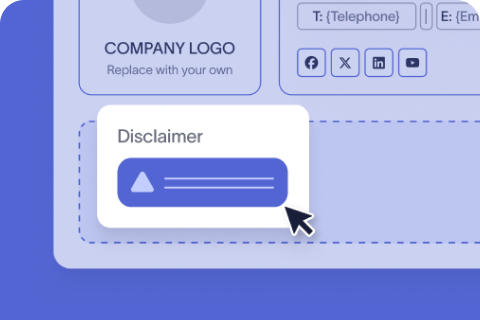
Verify disclaimer and compliance coverage. Legal disclaimers applied through Exchange transport rules still work, but at the server level, so they won't appear under the latest reply or forward inside a thread. Test disclaimer placement in the new Outlook before the migration completes if your compliance posture depends on it.
Confirm brand template governance with stakeholders. Whoever owns brand consistency needs visibility into the migration: templates designed for classic Outlook's Word renderer behave differently in the new one. The team that approves signature designs should sign off on new-client rendering before users start sending from it.
For organizations operating at scale, this audit is also the right moment to review how Outlook signature management is handled across the wider environment.
What centralized email signature management looks like in the new Outlook era
The new Outlook removes the tools IT teams used to deploy signatures at the client level. It moves a portion of signature handling to the cloud, but not enough of it to count as governance. The gap between what Microsoft's native setup covers and what most organizations actually need is now wider than it was a year ago.
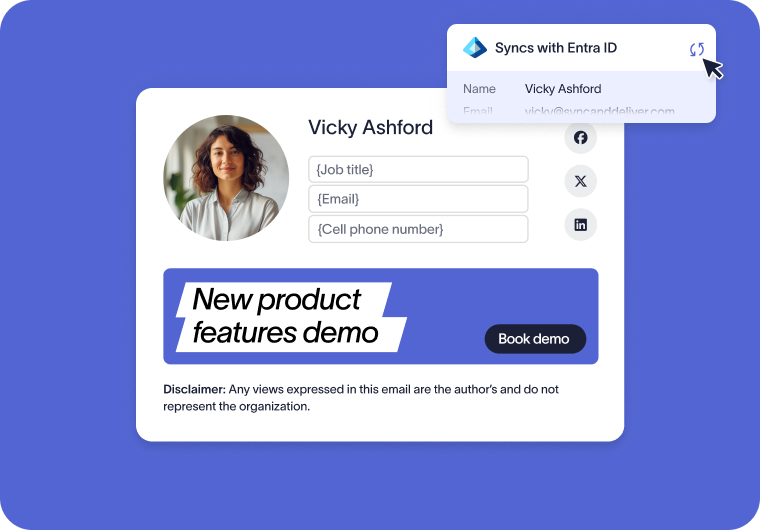
A centralized email signature management platform fills that gap. The category isn't new. Exclaimer created the first email signature software in 2001 and is now trusted by 80,000+ organizations worldwide. What's changed is the underlying architecture. The new Outlook strengthens the case for centralized management rather than weakening it.
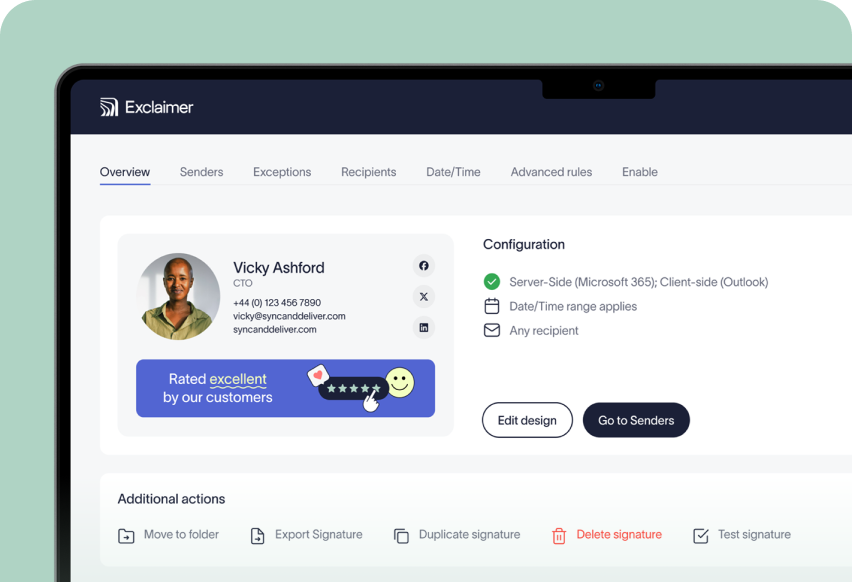
A platform like Exclaimer's cloud solution applies signatures at the server level rather than the client. Signatures are added after the email leaves the user's device and before it reaches the recipient, which means consistent rendering regardless of whether the email was sent from the new Outlook, the classic Outlook, Apple Mail, the Gmail mobile app, or a third-party client connected to Microsoft 365. The infrastructure that makes signatures consistent operates independently of Microsoft's Outlook timeline.
That architecture also changes what IT can delegate without losing governance. Marketing can update Campaigns banners, HR can manage user-level details, and legal can own disclaimer wording, all within Role-Based Access Control that keeps IT in control of the template itself. Directory sync from Microsoft Entra ID keeps contact details accurate automatically.
The bottom line for IT teams
The new Outlook is more than an interface refresh. The deployment methods built around the classic Outlook stop working, and the cloud signature settings replacing them don't add the governance, enforcement, or cross-client consistency most organizations need. For IT teams responsible for brand and compliance across thousands of mailboxes, that's the part of the migration most worth planning for.
The audit work itself is straightforward: inventory what breaks, retest templates, and confirm compliance coverage. The bigger decision is architectural: rebuild signature deployment on Microsoft's new Outlook, or move to a centralized email signature management platform that handles deployment, governance, and rendering as one system. Teams that use the migration to consolidate email signature management will be in a stronger position on the other side than those who rebuild the old setup on Microsoft's new foundations.
If you're auditing your signature setup ahead of the new Outlook becoming the default, Exclaimer's cloud solution applies email signatures server-side, independently of which Outlook client your users have. That means signatures stay consistent through the migration, across mobile and webmail, and beyond Microsoft's 2029 deadline for classic Outlook. See how Exclaimer works with Microsoft 365.