Linn is a technology leader specializing in engineering management, product strategy, and agile delivery. As Director of Engineering Management at Exclaimer, she drives innovation and scalability while fostering high-performing teams. She excels in optimizing engineering processes and guiding teams through complex transitions.
How to connect to Exchange Online PowerShell
TL;DR
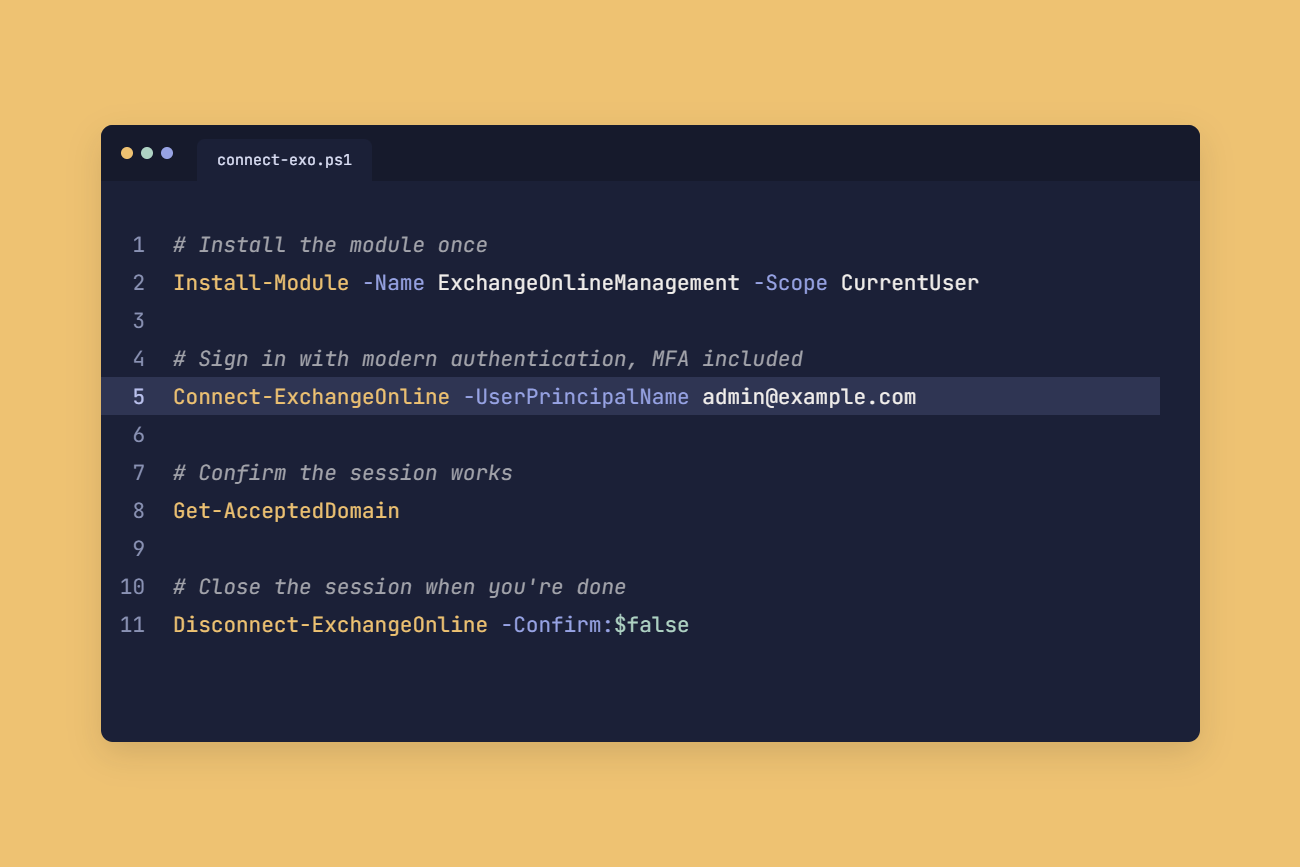
To connect to Exchange Online PowerShell, install the module with
Install-Module -Name ExchangeOnlineManagement -Scope CurrentUser, then runConnect-ExchangeOnline -UserPrincipalName admin@example.com. The same sign-in prompt handles multifactor authentication (MFA).Use ExchangeOnlineManagement 3.10.1 or later. Microsoft's Message Center post MC1483974, published September 30, 2026, says enforcement of stricter sign-in requirements begins March 31, 2027.
ExchangeOnlineManagement 3.10.0 and later needs PowerShell 7.6 or later if you run PowerShell 7, according to the module's release notes on the PowerShell Gallery. Windows PowerShell 5.1 isn't affected.
Microsoft replaced remote PowerShell sessions with REST connections in October 2023, so scripts built on Basic authentication or New-PSSession need rewriting around Connect-ExchangeOnline. Unattended scripts sign in with a Microsoft Entra app registration and a certificate, or with a managed identity in Azure Automation.
Exchange Online PowerShell lets Exchange admins manage Microsoft 365 mailboxes and mail flow from the command line, including bulk changes and settings the Exchange admin center doesn't expose.
As of November 2026, Microsoft's Exchange Online PowerShell documentation points to the V3 module (ExchangeOnlineManagement 3.0.0 or later), which connects over a REST API with modern authentication. Recent releases changed the sign-in flow and raised the PowerShell 7 requirement, so steps from older guides can fail.
What do you need before you connect to Exchange Online PowerShell?
You need a supported PowerShell version with the ExchangeOnlineManagement module installed, plus an admin account that's allowed to use PowerShell.
Check your PowerShell version
$PSVersionTable.PSVersion Windows PowerShell 5.1 runs module 2.0.5 and later, including the current release, and needs .NET Framework 4.7.2. In PowerShell 7, the minimum depends on the .NET version each module release is built on, according to the release notes on the PowerShell Gallery and Microsoft Learn:
Module version | Minimum PowerShell 7 | Built on |
3.10.0 and later | 7.6.0 | .NET 10 |
3.5.0 to 3.9.2 | 7.4.0 | .NET 8 |
3.0.0 to 3.4.0 | 7.2.0 | .NET 6 |
Install the Exchange Online PowerShell module
Install the module from the PowerShell Gallery. With -Scope CurrentUser, you don't need an elevated session.
Install-Module -Name ExchangeOnlineManagement -Scope CurrentUser Update it with the same scope, then confirm the version:
Update-Module -Name ExchangeOnlineManagement -Scope CurrentUser Get-Module ExchangeOnlineManagement -ListAvailable Key takeaway
Microsoft's Message Center post MC1483974, published September 30, 2026, asks admins to run 3.10.1 or later before stricter sign-in requirements begin on March 31, 2027.
The latest release on the PowerShell Gallery is 3.11.1, published November 11, 2026.
In Windows PowerShell 5.1, update PowerShellGet first, since REST connections on Windows depend on it. Import-Module ExchangeOnlineManagement is optional because PowerShell loads the module when you run Connect-ExchangeOnline.
Set the execution policy
Windows client machines block scripts by default, while Windows Server defaults to RemoteSigned and macOS and Linux don't enforce the setting.
Set-ExecutionPolicy -ExecutionPolicy RemoteSigned -Scope CurrentUser Check your admin role and PowerShell access
Role-based access control (RBAC) in Exchange Online decides which cmdlets you can run, and the account has to be enabled for Exchange Online PowerShell access.
How do you connect to Exchange Online PowerShell with modern authentication?
Run Connect-ExchangeOnline with your user principal name and complete the sign-in prompt, including any MFA challenge.
Connect-ExchangeOnline -UserPrincipalName admin@example.com Get-AcceptedDomain If Get-AcceptedDomain returns your domains, you're connected.
Which connection method should you use?
Method | Use it for | Key parameter |
Interactive sign-in | Day-to-day admin work | -UserPrincipalName |
Device code | PowerShell 7 without a browser | -Device |
Certificate (app-only) | Scheduled and unattended scripts | -CertificateThumbprint |
Managed identity | Azure Automation runbooks | -ManagedIdentity |
Partner delegation | Customer tenants you manage as a partner | -DelegatedOrganization |
Connect from a machine without a browser
In PowerShell 7 only, the -Device switch gives you a code to enter at microsoft.com/devicelogin on another device.
Connect-ExchangeOnline -Device Connect to a customer tenant as a partner
Partners in Microsoft's Cloud Solution Provider program, or anyone using granular delegated admin privileges (GDAP), add the customer's tenant:
Connect-ExchangeOnline -UserPrincipalName admin@example.com -DelegatedOrganization <customer>.onmicrosoft.com Connect to Security & Compliance PowerShell
Connect-IPPSSession ships in the same module and opens Security & Compliance PowerShell. Microsoft says the cmdlet currently isn't available in PowerShell 7 on macOS or Linux.
Connect-IPPSSession -UserPrincipalName admin@example.com How do you connect without a sign-in prompt for unattended scripts?
Unattended scripts use app-only authentication, where a Microsoft Entra app registration signs in with a certificate instead of a user account.
Set it up once with Microsoft's app-only authentication steps:
Register a single-tenant app in Microsoft Entra ID.
Add the Exchange.ManageAsApp application permission for Office 365 Exchange Online and grant admin consent.
Create a certificate and upload its public .cer file under Certificates & secrets.
Assign the app a Microsoft Entra role, such as Exchange Recipient Administrator.
Use a certificate from a Cryptographic Service Provider (CSP), because app-only authentication doesn't support the Cryptography Next Generation (CNG) certificates Windows creates by default. Microsoft's example adds -KeySpec KeyExchange for this. Run it in an elevated session:
$cert = New-SelfSignedCertificate -DnsName "example.com" -CertStoreLocation "cert:\CurrentUser\My" -NotAfter (Get-Date).AddYears(1) -KeySpec KeyExchange $cert | Export-PfxCertificate -FilePath .\exo-automation.pfx -Password (Get-Credential).Password $cert | Export-Certificate -FilePath .\exo-automation.cer Then connect:
Connect-ExchangeOnline -CertificateThumbprint "<thumbprint>" -AppId "<application-id>" -Organization "<tenant>.onmicrosoft.com" -CertificateThumbprint works only on Windows, with the certificate in the current user's store. On macOS and Linux, pass a certificate object with -Certificate, or a .pfx file with -CertificateFilePath and -CertificatePassword. -Organization takes the tenant's primary .onmicrosoft.com domain.
Use a managed identity in Azure Automation
Azure Automation runbooks can use a managed identity instead, once it has the permissions in Microsoft's managed identity guide:
Connect-ExchangeOnline -ManagedIdentity -Organization "<tenant>.onmicrosoft.com"
When do you need Connect-MgGraph instead of Connect-ExchangeOnline?
Use Connect-MgGraph for directory work and Connect-ExchangeOnline for mailboxes and mail flow.
Connect-MgGraph | Connect-ExchangeOnline | |
Use it for | Directory work like user properties and licenses | Mailboxes and mail flow |
Module | Microsoft Graph PowerShell SDK | ExchangeOnlineManagement |
Install the SDK and request only the scopes a script needs:
Install-Module Microsoft.Graph -Scope CurrentUser Connect-MgGraph -Scopes "User.Read.All" Scripts still calling MSOnline or AzureAD cmdlets need rewriting, since Microsoft ended support for both modules on March 30, 2025. Email signature scripts are the hard case, because Microsoft Graph has no documented API for Outlook email signatures. Its User Configuration API is still in beta, and Microsoft doesn't support beta APIs in production.
Which Exchange Online cmdlets should you learn first?
Start with Get-EXOMailbox, the REST-based version of Get-Mailbox, which returns a minimum set of properties unless you ask for more.
Where Get-Mailbox returns at least 230 properties per mailbox, Get-EXOMailbox lets you request named groups of properties with -PropertySets or individual ones with -Properties.
Get-EXOMailbox -ResultSize Unlimited -PropertySets Archive Filter with Where-Object and export to CSV
Exchange cmdlets generally run faster with server-side -Filter queries, but Microsoft's filtering guidance for the module says the Get-EXO* cmdlets currently perform better with client-side filtering. This exports mailboxes with SMTP forwarding set:
Get-EXOMailbox -ResultSize Unlimited -Properties ForwardingSmtpAddress |

    Where-Object { $_.ForwardingSmtpAddress } |

    Select-Object DisplayName, PrimarySmtpAddress, ForwardingSmtpAddress |

    Export-Csv -Path .\forwarding.csv -NoTypeInformation
-NoTypeInformation is only needed in Windows PowerShell 5.1.
Filter with Where-Object and export to CSV
Exchange cmdlets generally run faster with server-side -Filter queries, but Get-EXO* cmdlets actually perform better with client-side filtering. This exports mailboxes with SMTP forwarding set:
Get-EXOMailbox -ResultSize Unlimited -Properties ForwardingSmtpAddress | Where-Object { $_.ForwardingSmtpAddress } | Select-Object DisplayName, PrimarySmtpAddress, ForwardingSmtpAddress | Export-Csv -Path .\forwarding.csv -NoTypeInformation -NoTypeInformation is only needed in Windows PowerShell 5.1.
How do you fix common Exchange Online PowerShell connection errors?
Check your module version and PowerShell edition first, then match your error below.
"A window handle must be configured"
Web Account Manager (WAM), the Windows sign-in broker the module has used since 3.7.0, needs a parent window for its prompt. In hosts like PowerShell ISE, sign-in can fail without one. Run the command from a regular PowerShell console, or add -DisableWAM (3.7.2 and later):
Connect-ExchangeOnline -UserPrincipalName admin@example.com -DisableWAM Microsoft's Message Center post MC1483974 says the March 31, 2027 sign-in change is particularly relevant to PowerShell 7 with WAM disabled, so update to 3.10.1 before you disable WAM.
"The term 'Connect-ExchangeOnline' is not recognized"
The module isn't installed for the PowerShell edition you're running. Windows PowerShell 5.1 and PowerShell 7 keep current-user modules in separate folders, so install it from the window you're using:
Install-Module -Name ExchangeOnlineManagement -Scope CurrentUser Import-Module ExchangeOnlineManagement "The term 'Update-ModuleManifest' is not recognized"
REST connections on Windows need PowerShellGet and PackageManagement, and one is missing or a preview build. Check what's installed, then update and reopen the window:
Get-InstalledModule PackageManagement -AllVersions Get-InstalledModule PowerShellGet -AllVersions "Could not load file or assembly 'System.IdentityModel.Tokens.Jwt'"
Another module loaded in the same session is conflicting with the Exchange Online module. Open a new window and connect to Exchange Online before importing anything else.
Connect-ExchangeOnline fails in PowerShell 7 after a module update
Version 3.10.0 and later need PowerShell 7.6 or later. Update PowerShell 7, or connect from Windows PowerShell 5.1 instead.
An old New-PSSession script won't connect
REST connections replaced remote PowerShell sessions in October 2023, so swap the New-PSSession and Import-PSSession lines for Connect-ExchangeOnline. Cmdlet names don't change, though Invoke-Command won't run over REST.
Can you manage email signatures with Exchange Online PowerShell?
Exchange Online PowerShell can set email signatures for Outlook on the web, once roaming signatures are postponed for the organization.
Roaming signatures store email signatures in the mailbox so they follow users between Outlook clients. While the feature is on, Set-MailboxMessageConfiguration ignores its email signature parameters, so postpone it first:
Set-OrganizationConfig -PostponeRoamingSignaturesUntilLater $true Set-MailboxMessageConfiguration -Identity priya.raman@example.com -SignatureHtml "<p>Priya Raman<br>Finance Manager</p>" -AutoAddSignature $true Microsoft's Set-MailboxMessageConfiguration reference says the settings apply to Outlook on the web and aren't used in other clients, so classic Outlook for Windows won't read them. Because the HTML is static, every new hire or job title change also means rerunning the script, and any mailbox the script misses after a logo update keeps an off-brand email signature.
To assign email signatures from directory attributes instead of mailbox by mailbox, see how to manage email signature assignments at scale with PowerShell and how to assign email signatures by Active Directory group.
 If you're maintaining email signature HTML mailbox by mailbox, see how Exclaimer manages email signatures at scale.