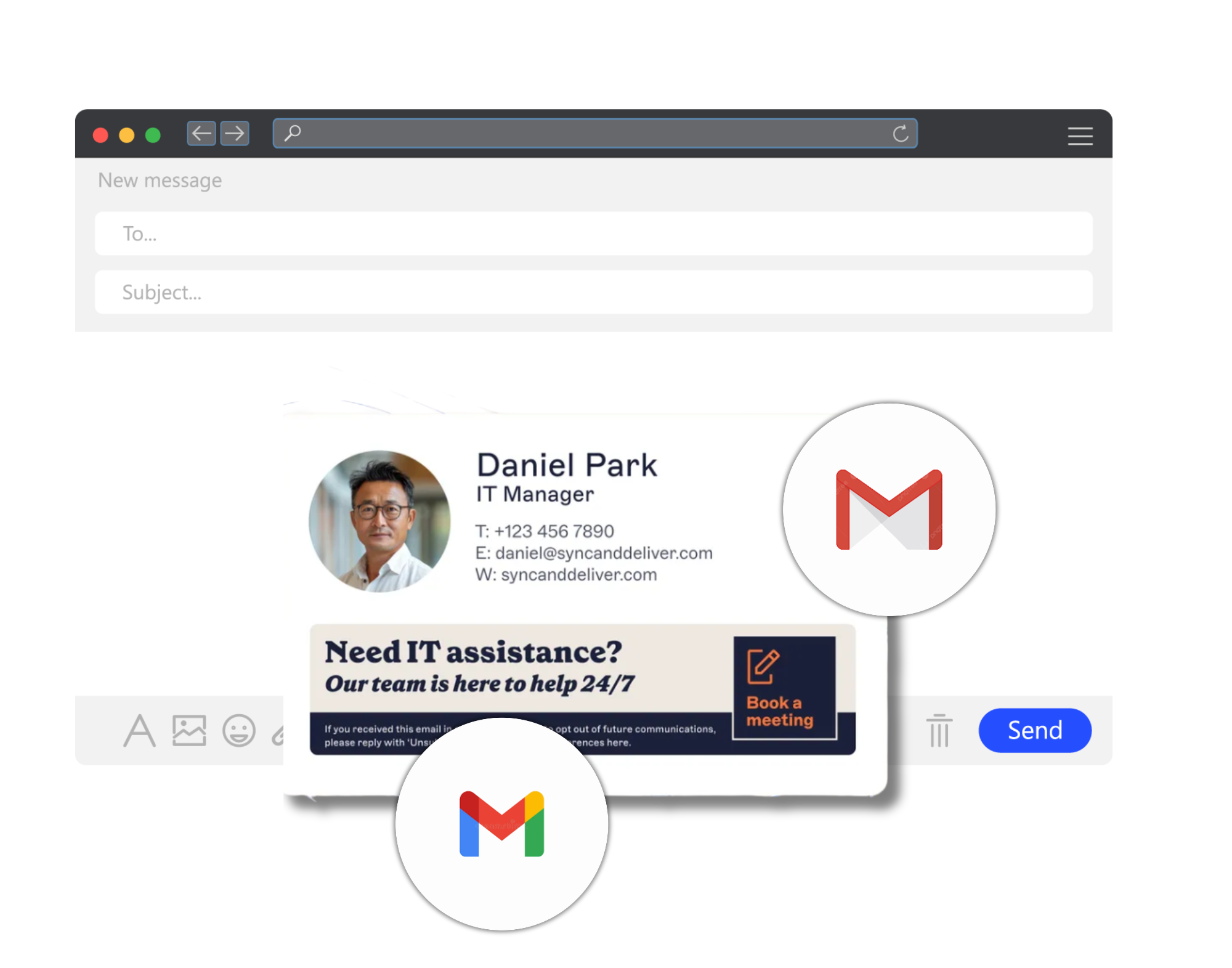
How to create a signature in Gmail
18 December 2025
0 min read
Creating a Gmail signature doesn’t need to be complicated. This walkthrough covers how to create a signature in Gmail, including basic setup, mobile signature settings, and the main ways signatures can be customized and updated.
Why creating a Gmail signature matters
A Gmail signature helps emails stand out and promotes your brand. The video explains how a signature goes beyond basic contact details by sharing key information like your role, company, and links.
What this video covers about Gmail signatures
The video explains how Gmail signatures are set up and managed on desktop and mobile. It shows where signature settings live, how signatures are edited, and how updates are saved.
Creating a basic signature in Gmail
A basic signature in Gmail is created using the signature settings on desktop. The video shows how a new signature is named, added in the editor, and saved.
Creating a Gmail signature on mobile
Gmail signatures can be added in the Gmail mobile app on Android and iOS. The video shows how a signature is set by selecting the account in settings and entering the signature text.
Customizing a professional Gmail signature
A Gmail signature can include more than plain text. The video shows how contact details, basic formatting, hyperlinks, and an image such as a company logo are added within the signature editor.
Editing and updating an existing Gmail signature
An existing Gmail signature can be updated through the signature settings. The video shows how changes are made to the signature and saved using Gmail’s editing options.
Managing Gmail signatures across a company
Managing Gmail signatures manually becomes more difficult when it’s done for a whole company. The video highlights the challenge of updating signatures one by one when each user manages their own settings.
Learn how Exclaimer helps manage Gmail signatures
For teams managing Gmail signatures across a company, the video introduces Exclaimer as a way to centrally design and manage everyone’s signatures.
The focus is on maintaining consistency and reducing manual updates when signatures are managed at scale.
Need more help creating a Gmail signature?
Whether you're setting up your first Gmail signature or looking to improve consistency, our step-by-step guide has you covered.