Stop writing PowerShell: The smarter way to manage Office 365 email signatures
8 December 2025
0 min read
TL;DR
- PowerShell can manage basic email signatures, but scripts age quickly and break as Outlook clients and devices change.
- Maintaining HTML inside scripts leads to inconsistent layouts, missing images, and issues across desktop, web, and mobile clients.
- Supporting multiple templates, departments, or regions multiplies scripting work and increases the risk of drift between versions.
- Compliance text and branding updates take longer because every change requires editing, testing, and redeploying scripts.
- Centralized automation applies signatures consistently, uses directory data for updates, and scales across thousands of users without manual scripting.
IT teams are busier than ever, often stretched thin by routine, manual tasks that leave little room for strategic projects. From provisioning accounts to troubleshooting day-to-day issues, the backlog never seems to end.
One of the most time-consuming jobs? Managing email signatures in Microsoft 365. Outlook versions behave differently, mobile clients drop formatting, HTML breaks when people copy and paste, and even small updates turn into coordination exercises across teams. When that happens, IT often leans on PowerShell to regain some order.
PowerShell works for a while, but it doesn’t scale. Scripts need to be maintained, tested, and secured. A minor design or branding tweak becomes a project. And any shift in devices, clients, or policies usually means rewriting the whole thing.
This article looks at why relying on PowerShell has run its course and how centralized email signature management gives IT more control with far less operational drag.
What is PowerShell?
PowerShell is a command-line shell and scripting language widely used by IT teams to automate tasks across Microsoft environments. It gives administrators deep control over Microsoft 365, Azure, Windows Server, and Exchange by allowing them to run commands, modify settings, and manage large numbers of users or objects at once.
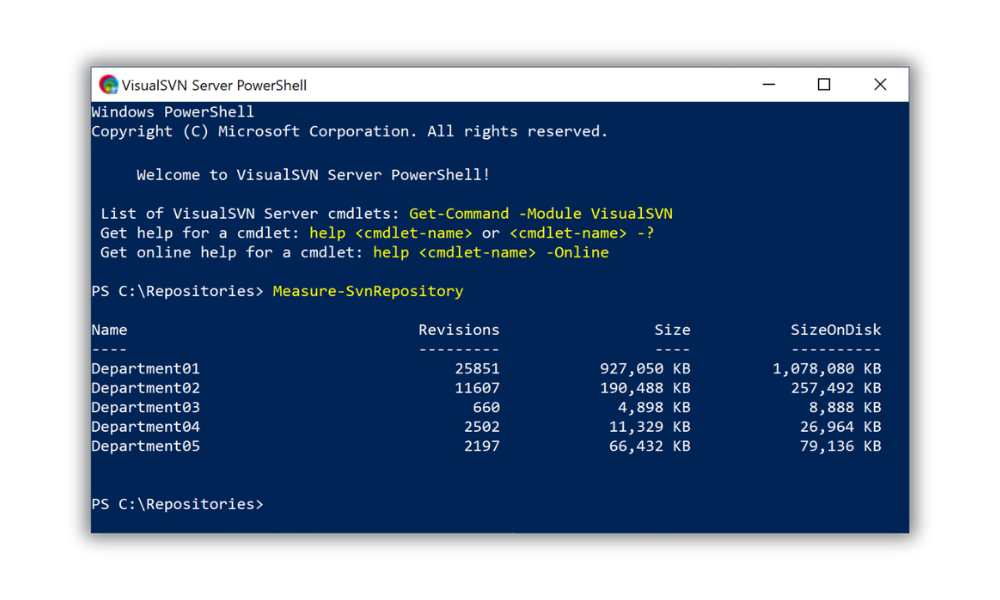 When Microsoft 365 became the standard for enterprise email, many IT admins turned to PowerShell to control and update user signatures. For small businesses, this was a decent solution. You could write a script, push an update, and move on. There weren’t many users, and changes were infrequent.
But what started as a workaround quickly became outdated. PowerShell isn’t built for branding or marketing flexibility. And it certainly wasn’t designed to make email signature updates fast, scalable, or accessible to non-technical users.
PowerShell requires elevated permissions and advanced scripting knowledge. That means IT becomes a bottleneck every time someone wants to make a small change. Multiply that by dozens of departments and thousands of users, and it’s easy to see how quickly this becomes unsustainable.
Why IT teams use PowerShell for email signatures
PowerShell became the go-to method for managing email signatures long before dedicated tools were available. It gave IT a way to standardize signatures when native Microsoft 365 features weren’t enough. With scripts, teams could automate updates, push new templates, and keep user details aligned with directory data.
For smaller environments with simple layouts, this can still work. PowerShell removes most manual edits, limits user involvement, and lets IT roll out bulk changes. It also fits naturally into workflows for teams that already script much of their Microsoft 365 management.
The challenges appear as soon as requirements grow. More departments, more signature variations, or a wider mix of devices and email clients all add pressure. Scripts that were once straightforward start needing frequent updates. HTML becomes harder to manage. Branding changes add rework. User expectations shift. What started as a helpful workaround often becomes an ongoing maintenance load for IT.
The limitations of using PowerShell for email signatures
PowerShell gives IT direct control in Microsoft 365, but that control comes with limits. As signature requirements grow, the trade-offs become harder to ignore.
Scripting updates for every change
Every adjustment—a new field, a branding tweak, or an updated disclaimer—needs a script change. Even minor edits require testing and a careful rollout. Over time, these updates stack up and turn into ongoing work for IT.
Limited flexibility with HTML
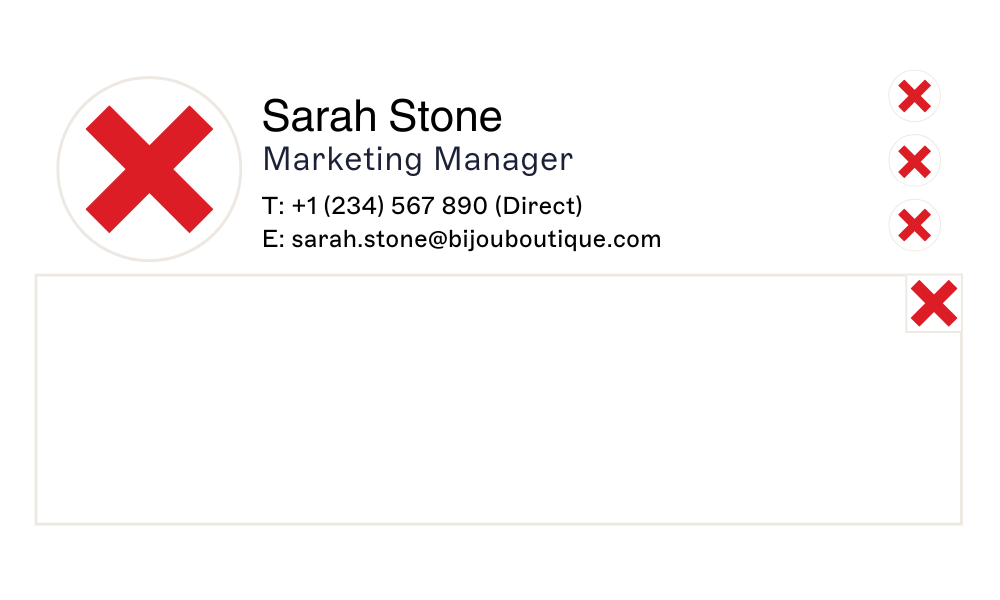
Email clients don’t treat HTML the same way. PowerShell doesn’t offer validation or preview tools, so formatting behaves differently across Outlook versions, web clients, and mobile apps. As layouts become more detailed, keeping HTML stable inside scripts becomes a challenge.
Higher risk of errors during bulk updates
One misplaced character can break a script, block a deployment, or push out partial updates. Bulk changes raise the stakes because a single mistake affects a large group of users at once.
No cross-device consistency
PowerShell only pushes signatures to specific clients. But most employees move between desktop, web, and mobile apps. Each one handles HTML differently. Mobile clients in particular strip formatting, which causes signatures to drift over time.
No preview for end users
Employees can’t see what their signature will look like until after it’s sent. If something appears off, IT gets another ticket.
No visual template control
PowerShell requires everything to be coded manually. There’s no visual editor, no drag-and-drop layout, and no simple way to standardize design elements. Even small adjustments take more time than they should.
Scripts age poorly as the environment changes
Microsoft 365 changes often. Outlook updates, new clients appear, and organizations roll out more devices. These shifts affect how signatures render. Scripts that once worked smoothly need regular upkeep, and older versions often break without warning.
A mid-sized company starts with one PowerShell-managed signature. As it grows, departments ask for variations. Sales needs campaign banners, HR requests internal messaging, and regional offices require localized disclaimers. At the same time, mobile usage increases, the new Outlook rolls out, and more Mac devices enter the mix.
Each change adds rules, testing, and exceptions. Scripts get harder to manage. Signature consistency drops. What began as a practical workaround becomes a significant operational burden for IT.
DIY scripting vs centralized automation
When IT teams rely on PowerShell to manage email signatures, they take on the responsibility of writing, maintaining, and troubleshooting scripts. Centralized automation takes a different approach. Instead of updating signatures through code, signatures are managed through a single control point designed for scale.
The table below outlines the key differences between these two methods.
| Area | DIY scripting with PowerShell | Centralized automation approach |
|---|---|---|
| Branding consistency | Consistency depends on script accuracy and manual testing. Variations appear as layouts break across clients. | Signatures follow a defined template, applied uniformly across users and devices. |
| Update effort | Every change requires script edits, testing, and redeployment. | Updates are made once and applied automatically. |
| User experience | No preview for users; layout issues often surface after an email is sent. | Users see predictable, consistent signatures without manual setup. |
| Device and client coverage | Limited to certain clients; mobile and cross-platform support is inconsistent. | Applied across devices and email clients without separate rules. |
| Compliance handling | Disclaimers and legal text may be applied unevenly if scripts fail or aren’t updated in time. | Compliance content is applied centrally and stays up to date. |
| Long-term maintenance | Scripts age as Microsoft 365 updates; technical debt grows over time. | Centralized systems scale with organizational growth and environmental changes. |
The admin burden behind PowerShell-based signature management
Managing signatures through PowerShell seems manageable at first, but the workload grows fast. A simple script turns into a steady cycle of fixes, updates, and user support.
Repeating the same updates across multiple scripts
Every branding change, job title update, or disclaimer tweak means revisiting scripts. If different regions or departments use variations, each script needs its own update. This creates repetitive work and increases the risk of versions drifting apart.
Troubleshooting across inconsistent environments
Microsoft 365 environments rarely behave the same way. Users switch between Outlook versions, desktop and web apps, and a wide mix of devices. When a signature displays incorrectly, IT has to work out whether the issue is the script, the client, or the device. This slows down troubleshooting and extends ticket resolution times.
Ticket spikes during onboarding and offboarding
User lifecycle changes expose cracks in scripted setups. New hires may not receive the correct signature if directory attributes lag behind. Departing employees leave unused logic in place. Both scenarios create more tickets and more reactive work for IT.
Cross-team friction when changes are delayed
Marketing relies on IT for campaign swaps. Compliance teams expect fast updates to legal text. When every change requires scripting, timelines stretch and hand-offs slow down. Over time, this creates frustration for teams that expect quick turnaround and adds pressure on IT to juggle competing requests.
Growing maintenance load with no end point
Scripts need continuous care. As the organization evolves, requirements shift, new clients appear, and older scripts fall out of sync. The maintenance load increases year after year, often without IT having the time to rethink the approach.
Managing signatures with PowerShell creates visible and hidden overhead. Instead of a one-time solution, it becomes a constant pull on IT’s time — especially in environments with frequent updates or complex signature needs.
Why scripts struggle in large or hybrid environments
PowerShell can work for small teams, but it becomes harder to manage as organizations grow. More users, more devices, and mixed environments all add pressure to scripted solutions.
More users mean more exceptions to manage
Signature needs rarely stay uniform. As headcount increases, departments request tailored layouts, regional disclaimers, or alternate branding. PowerShell can only support these variations by adding more logic, which makes scripts harder to read, maintain, and trust.
Device diversity increases the chance of failure
Larger organizations rely on a wide mix of laptops, mobile devices, operating systems, and email clients. Each one renders signatures differently. Scripts can’t reliably account for all those variations, so inconsistencies become more common as the device landscape expands.
Hybrid environments introduce added complexity
Many organizations run Microsoft 365 alongside on-premises systems during long transition periods. This creates different mail routing paths and inconsistent client behavior. Scripts have to accommodate all of it, but keeping them aligned is difficult. Signature reliability usually drops during hybrid coexistence.
Scaling scripts increases maintenance workload
A script that once supported a few hundred users now needs to cover thousands. Updates take longer to test, and the risk of disruption increases. What used to be a quick change becomes hours of verification, with far more people depending on the result.
Organizational changes require constant adjustments
Mergers, rebrands, new departments, and regional expansion all influence how signatures should look. PowerShell wasn’t designed to handle frequent reconfiguration at this scale. IT ends up rewriting code instead of managing policy.
Scripts weren’t built for large or fast-moving environments. As organizations grow, the effort needed to keep signatures consistent rises far faster than the scripts themselves can adapt.
How centralized automation works
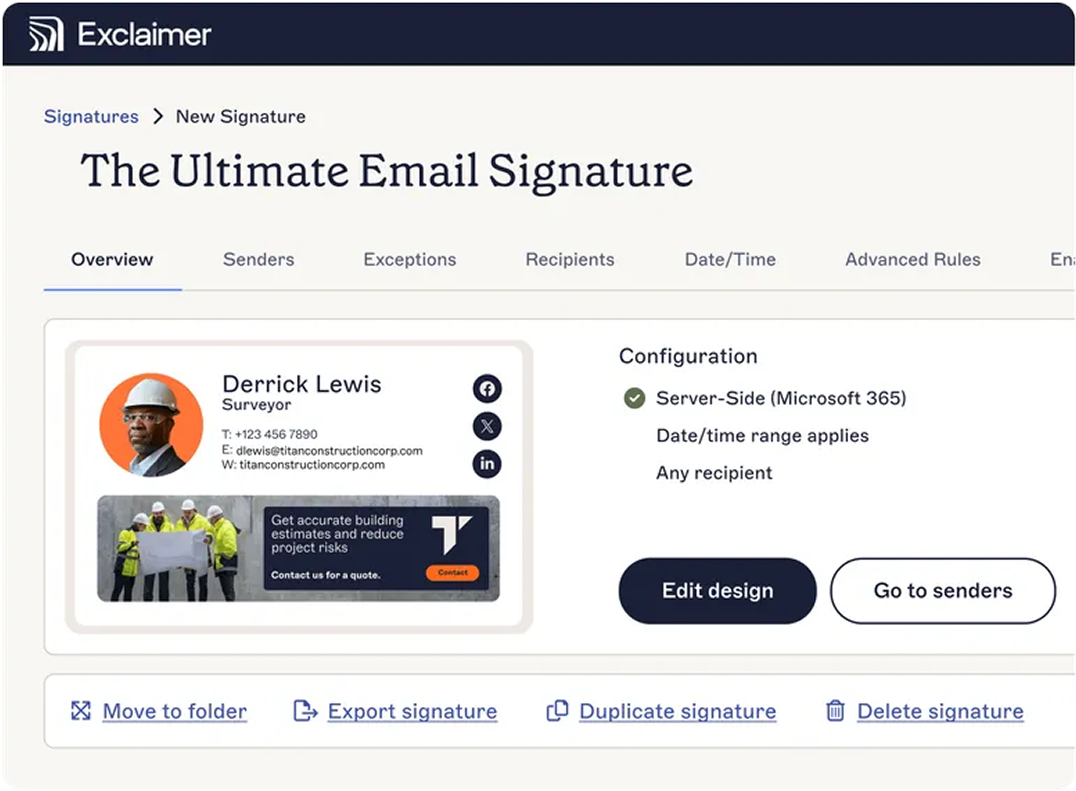
Centralized automation changes how organizations manage email signatures. Instead of relying on scripts, signatures are controlled through a single management layer that connects to directory data and applies signatures at scale.
Automatic use of directory information
A centralized platform pulls user attributes directly from the directory. When job titles, phone numbers, or department fields change, signatures update automatically. This removes the need for scripted edits and reduces the chance of outdated information appearing in email.
Consistent application across devices and clients
Centralized automation avoids per-device limitations. Signatures apply the same way whether users send mail from a desktop client, browser, or mobile device. Formatting stays predictable, and signatures behave consistently across the environment.
Separation of design and administrative control
Template design doesn’t need to sit with IT. A centralized model lets design teams focus on layout while IT manages directory logic, access rights, and deployment. Branding stays accurate, and IT retains control over how signatures are assigned.
Repeatable, policy-driven management
Once rules are defined, they apply the same way every time. Departments, locations, and user groups receive the correct signature without custom code or manual adjustments. Policies scale with the business, and updates follow a predictable workflow instead of a growing script library.
Built for long-term reliability
Centralized automation adapts as the environment evolves. New devices, new clients, and OS changes are handled through the management layer, not through individual script updates. This reduces maintenance and provides a more stable foundation for signature management.
Centralized automation turns email signature management from a scripting challenge into an operational process. It supports growth, removes manual effort, and gives IT a consistent way to manage signatures across the entire organization.
The key benefits of moving away from PowerShell
Moving beyond PowerShell isn’t about replacing technical skill. It’s about removing the barriers that make signature management more work than it should be. When updates no longer depend on scripts, IT gains time, consistency, and control.
Efficiency: PowerShell requires script edits for almost every change. Centralized management removes that dependency. Updates can be made quickly, applied reliably, and rolled out without writing or reviewing code. This shortens turnaround times and reduces IT’s involvement in routine requests.
Consistency: Brand alignment becomes easier when signatures aren’t managed through scattered scripts. With a single source of truth, templates stay consistent across devices and Outlook versions. This reduces brand drift and cuts down on formatting issues.
Compliance: Scripts fall out of sync when email disclaimers change or regulations shift. Centralized control keeps required text current and applied everywhere it needs to be. This reduces compliance gaps and gives legal teams confidence that every email is aligned with policy.
Flexibility: Departments often need different messages, and regions may require localized content. Centralized management supports these variations without custom scripts. IT defines the rules, and signatures follow them automatically.
Scalability: PowerShell doesn’t scale smoothly as organizations expand. Centralized systems handle new hires, new teams, and new signature variations without rewriting logic. This becomes essential for organizations with multiple departments, brands, or global locations.
Together, these benefits free IT from low-value tasks and support more reliable, compliant communication across the company.
Transitioning to smarter tools
Moving from PowerShell doesn’t have to be disruptive. Most organizations start by auditing their current email signature setup and identifying areas where control is lacking. It’s often eye-opening: inconsistent designs, missing disclaimers, and hours wasted on support tickets.
Simple migration from existing PowerShell-based setups
Directory attributes already used in scripts can usually be carried over. Existing HTML layouts can be reused or improved. IT can migrate templates gradually while keeping current signatures in place, making the transition smooth and low-risk.
Best practices for rolling out centralized signature management
Start with a pilot group to confirm targeting rules and formatting.
Work with department leads to gather layout and compliance requirements.
Keep directory data accurate so signatures update automatically.
Assign clear ownership: IT manages logic and deployment, while design-focused teams manage content.
Highlighting ROI
Organizations see measurable improvements when they replace scripting with centralized control:
Reduced time spent on updates
Fewer formatting issues
Fewer support tickets
Stronger brand governance
Centralized management frees IT from maintenance-heavy scripts and provides a long-term foundation for consistent, compliant signatures at scale.
From scripts to simplicity
PowerShell has served IT teams well, but it wasn’t designed for the long-term demands of email signature management. The script-first approach becomes harder to maintain as organizations grow, compliance needs shift, and users move across different devices and clients.
 Centralized automation offers a more reliable path forward. It reduces manual work, keeps signatures consistent, and helps teams maintain compliance without relying on code. For IT, it removes an ongoing maintenance burden. For the wider organization, it delivers a controlled, repeatable way to manage every signature.
By moving to a centralized solution, teams gain the consistency, flexibility, and governance needed to support modern communication at scale.