How to keep Outlook signatures updated with Exclaimer
20 January 2026
0 min read
TL;DR
Outlook signatures drift because each device stores its own version, leading to inconsistent designs and outdated details.
Exclaimer replaces local files with a central source of truth, so updates apply once and stay consistent everywhere.
Client-side deployment syncs the updated signature into Outlook; server-side deployment applies it after send, regardless of device.
Directory data updates flow automatically into signatures, removing manual edits and reducing IT workload.
One change in Exclaimer updates every assigned user, keeping Outlook signatures accurate and aligned long-term.
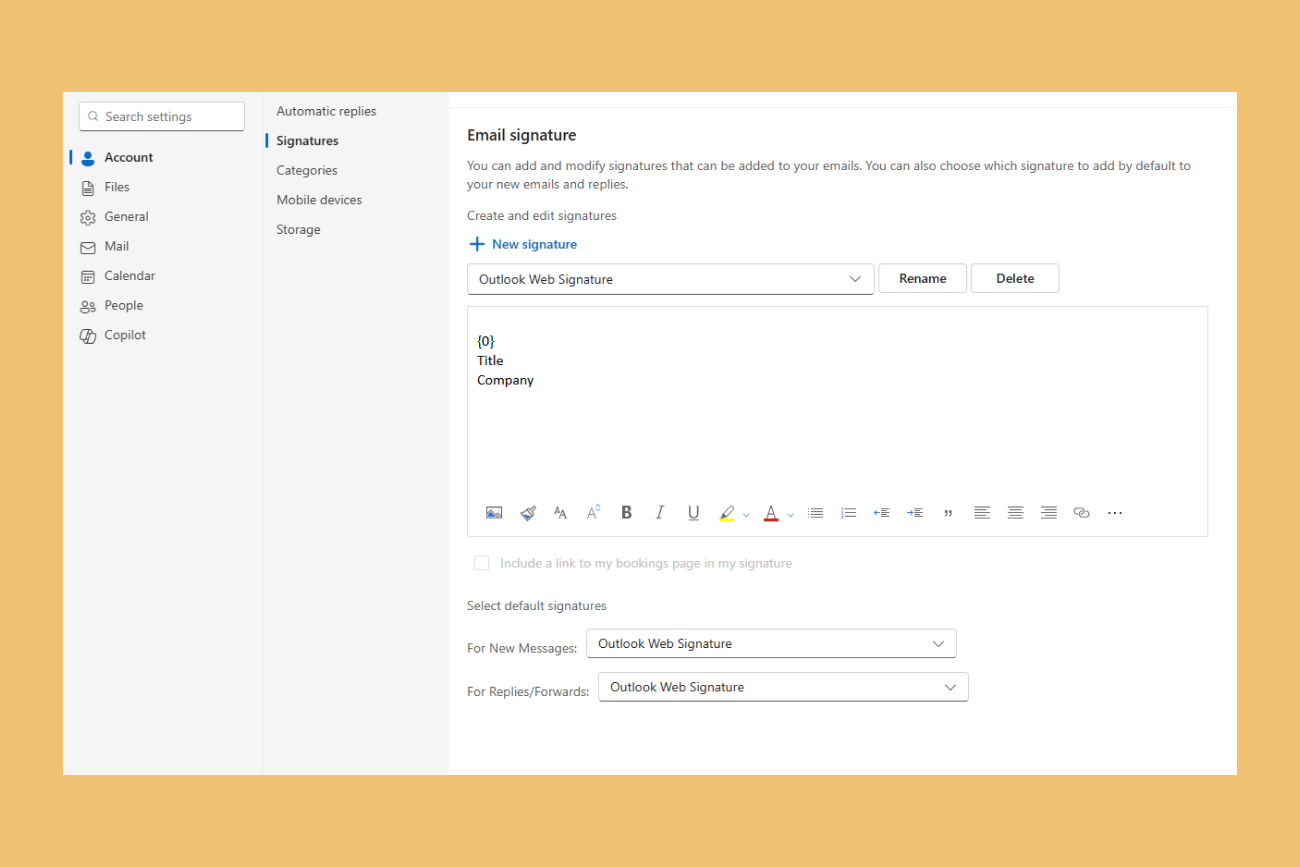
Outlook stores signatures locally, so they drift. Users change titles, switch devices, or edit templates on their own. Small updates stack up, and before long IT is fixing inconsistent designs, outdated details, and formatting issues that shouldn’t exist in the first place.
When your organization uses Exclaimer, updates don’t rely on Outlook or on users. You make one change in Exclaimer, and signatures stay current everywhere they're applied. Directory data stays accurate. Formatting stays intact. And signatures no longer depend on who updated what, or on which device they used.
This guide explains how Exclaimer keeps Outlook signatures up to date and removes the manual work that typically slows teams down.Why Outlook signatures fall out of date
Outlook stores signatures on each device. That means every laptop, desktop, and mobile app holds its own version. When someone updates a title or phone number, only that device reflects the change. Everything else falls behind.
 Local storage also invites user edits. People copy older versions, tweak formatting, or rebuild signatures from scratch. Small changes accumulate, and soon no two signatures match.
This isn’t a software fault. Outlook was never designed to manage signatures across users, devices, or departments. Without a central source of truth, drift happens fast and IT inherits the cleanup.
What changes when you manage Outlook signatures centrally
Centralized email signature management replaces local signature files with a single, controlled source of truth. Instead of every device storing its own version, Exclaimer applies one organizational design everywhere it’s used.
 Directory details stay accurate because updates happen at the source, not on a user’s machine. When someone’s title or phone number changes, their signature reflects it automatically.
This shift removes the guesswork. Users don’t edit templates. Teams don’t rebuild signatures when something changes. And IT doesn’t spend time tracking down outdated versions.
One update in Exclaimer applies everywhere, giving you consistent Outlook signatures without manual oversight.
How Exclaimer updates Outlook signatures automatically
Exclaimer keeps Outlook signatures current by controlling the update process centrally. When you change a template or adjust user details, Exclaimer applies those updates through one of two deployment methods.
Client-side updates
With client-side deployment, Exclaimer syncs the assigned signature directly into Outlook. Users see the updated layout in their compose window, and Outlook applies it automatically. No one needs to edit local files or switch between versions.
Server-side updates
With server-side deployment, users don’t manage signatures in Outlook at all. Exclaimer applies the correct signature after the message is sent, so updates take effect without relying on local devices or stored templates.
What this means in practice
One change in Exclaimer updates every assigned signature.
Directory data stays accurate without manual edits.
Users don’t rebuild or adjust layouts.
Outlook signatures stay aligned across desktop, web, and mobile.
Exclaimer removes the local variables that cause Outlook signatures to drift, giving you a controlled, consistent update path every time.
How to change Outlook 365 signatures in Exclaimer
Looking to easily update Outlook 365 signatures? This step-by-step guide will show you how to change and update email signatures across all devices using Exclaimer.
Step 1: Sign up with Exclaimer
Start by signing up for an Exclaimer account.
Complete the quick and easy registration process to set up your account. Gain full access to the Exclaimer email signature management platform.
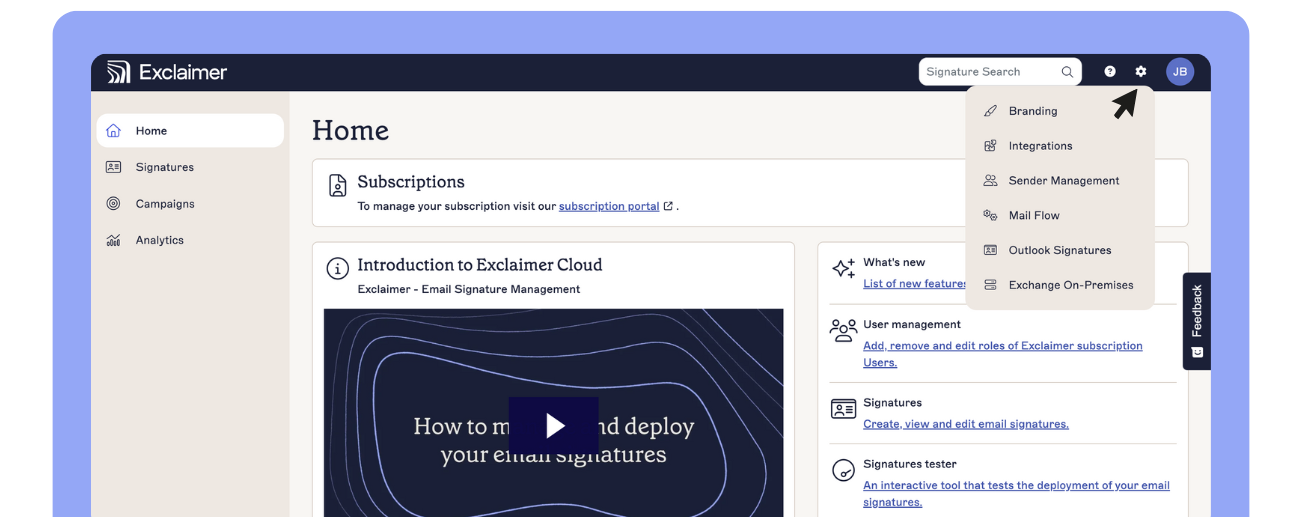
Step 2: Create Outlook signatures
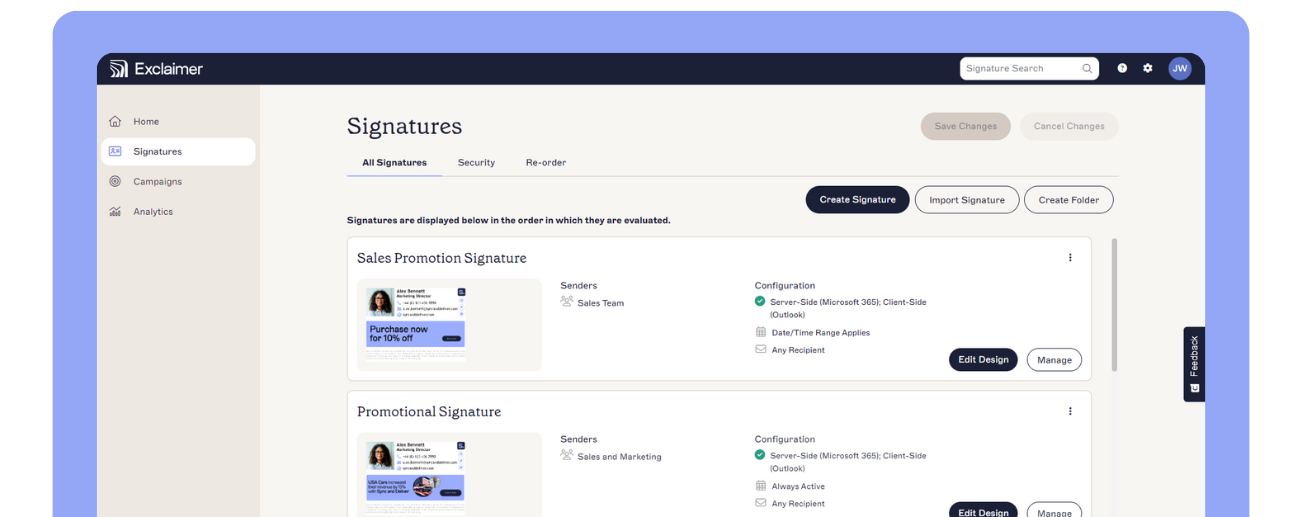
Easily create an email signature in Outlook 365 with our drag-and-drop signature editor.
Build professional email signatures for multiple users, departments, or specific roles. Manage them effortlessly with contact details, such as job titles.
Step 3: Automatically deploy on all devices
Outlook automatically applies email signatures for users. This ensures professional and consistent branding across all communications.
An advanced Outlook Add-in uses Microsoft’s latest API technology for seamless integration.
Your team’s email signatures remain uniform and high-quality across all platforms. This includes desktop, mobile, and web-based services like Outlook 365. You don't need to log in to additional apps like OWA as signatures are added automatically.

Step 4: Send up-to-date, on-brand emails
When composing an email in Outlook on desktop or mobile, the updated email signature now appears automatically.
Your Outlook 365 Directory directly pre-fills the email signature with contact details. This means they're accurate and consistent.
For users with multiple email signatures, Outlook offers a convenient drop-down menu to select the preferred signature.
How to edit your Outlook 365 signature design in Exclaimer
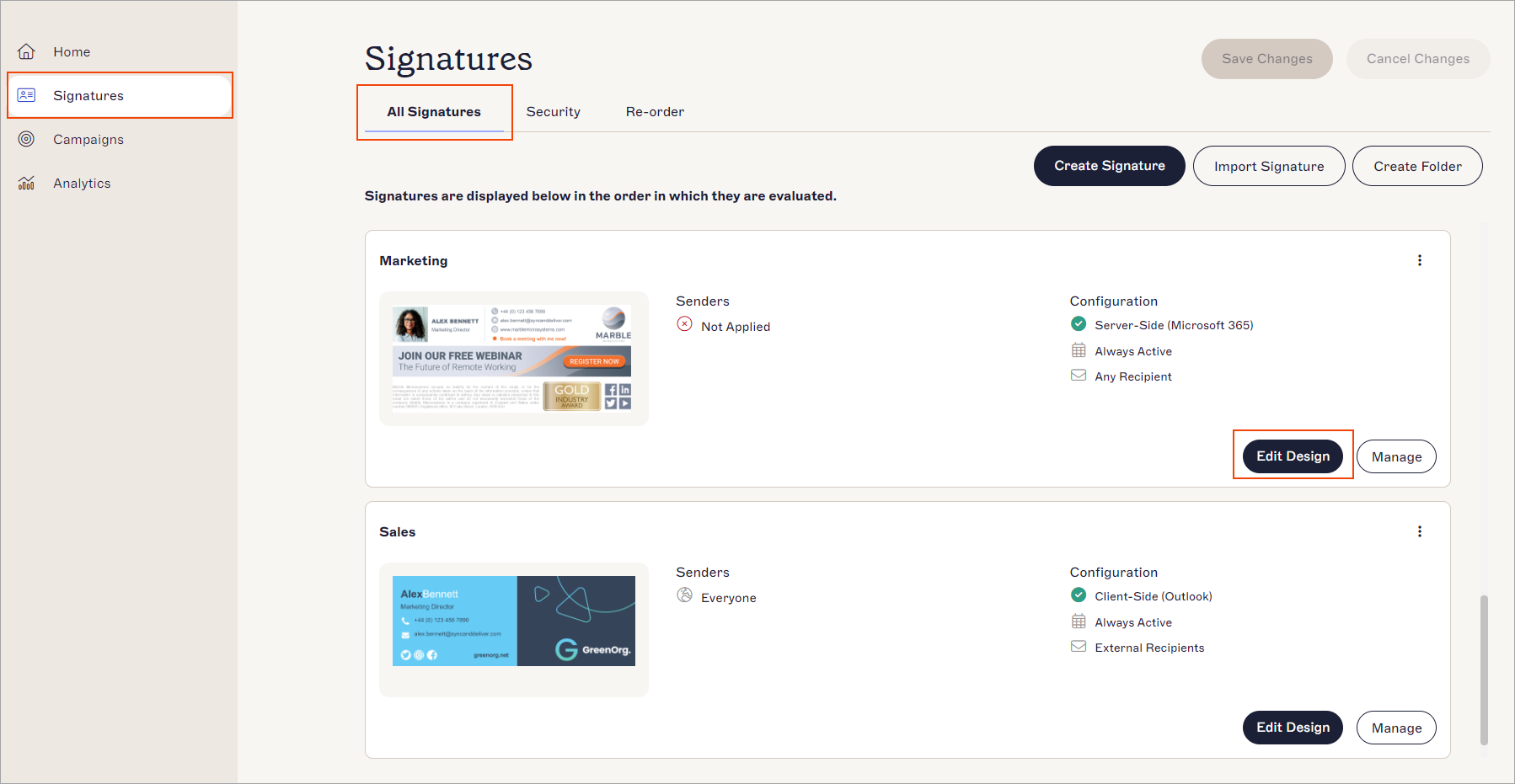
There are two ways to edit your Outlook signature designs in Exclaimer:
Using Edit Design in the Signatures tab
Using Manage in the Signatures tab
Change or add any elements that you need to
Preview your edits in the Preview pane
When you're happy, Save your changes
Options when changing your Outlook signatures in Exclaimer
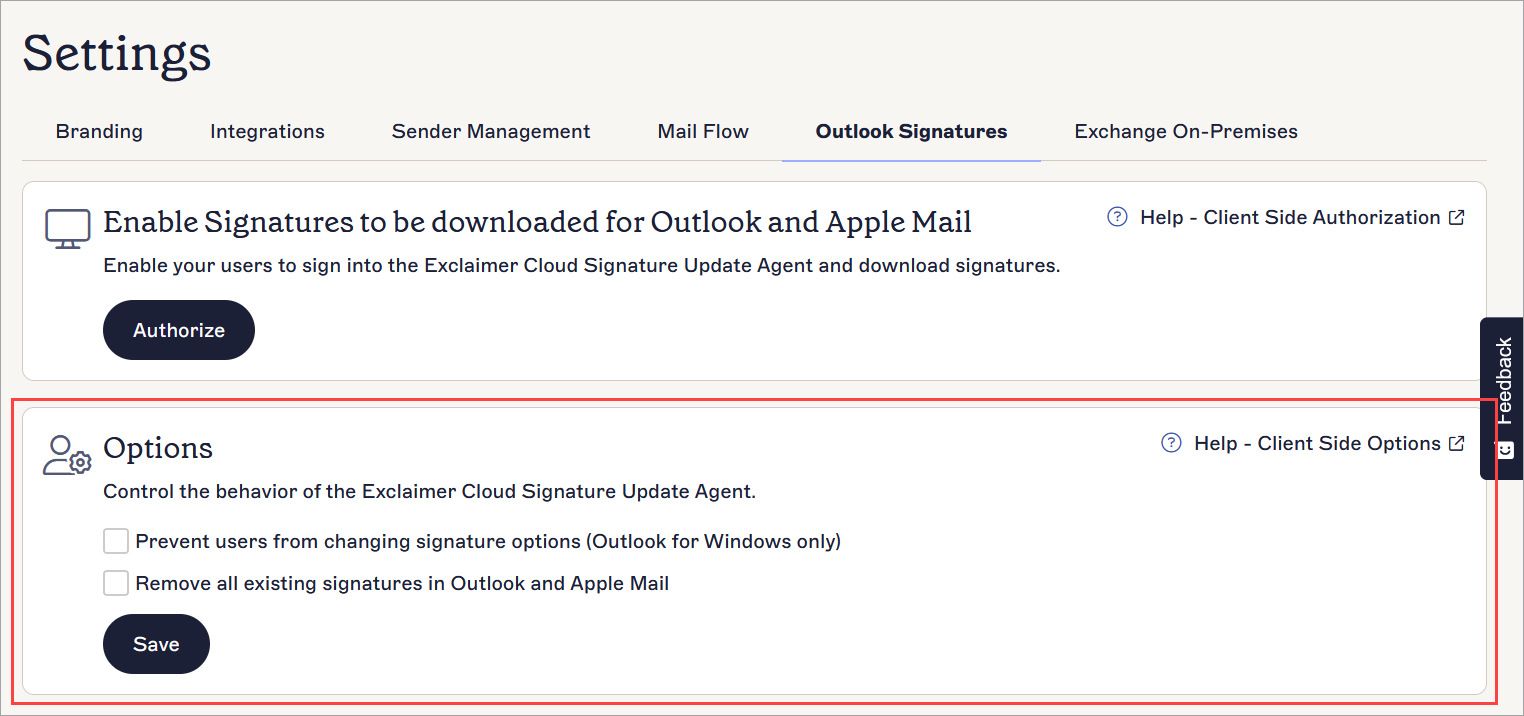
Exclaimer Administrators can set Outlook client restrictions to determine what changes users can make to their signatures locally, in Microsoft Outlook. Simply use the Exclaimer Options menu.
The restrictions you can set include:
Ability to overwrite or modify signatures
Ability to remove signatures
Ability to add new signatures
You can also use restrictions to remove any existing local signatures
Here's how to change these options in your Outlook signatures using Exclaimer:
Navigate to the Outlook Signatures menu in Settings, then find Options
Select your chosen restrictions
Save changes
Change Outlook signatures with the Exclaimer Outlook Add-In
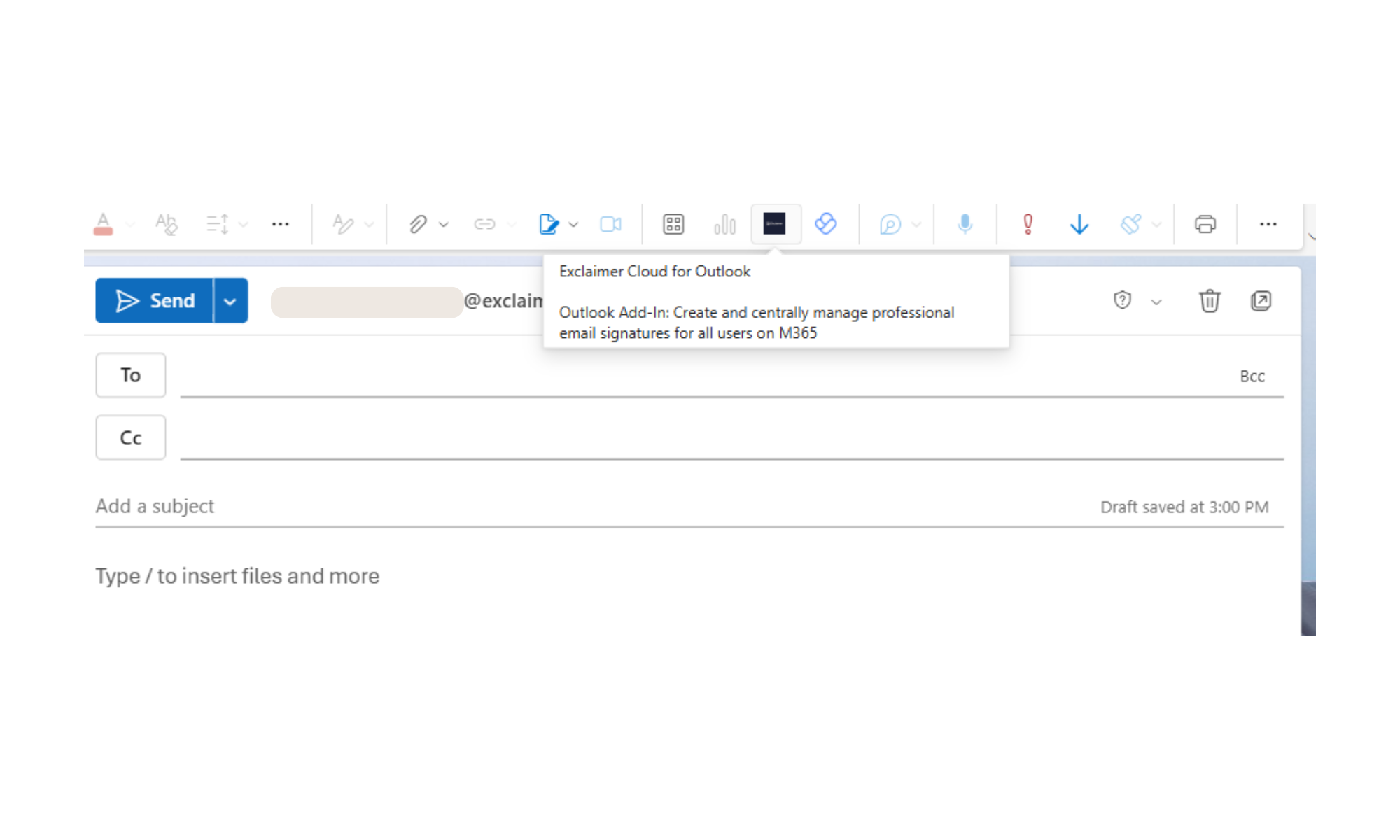
The Exclaimer Outlook Add-in is an application that allows users to add email signatures created within Exclaimer while composing an email.
 Signature options are available for users to choose from, and signatures are applied to emails before sending.
Install the Exclaimer Outlook Add-In.
Follow the Outlook Add-In instructions for:
Outlook Web
Outlook Desktop
Android/ iOS
When complete, open a blank email to begin the process of choosing a signature.
Look for the Exclaimer logo in the toolbar
Click the logo for a Signatures pane to appear on the right.
Choose your signature, and continue writing your email as usual.
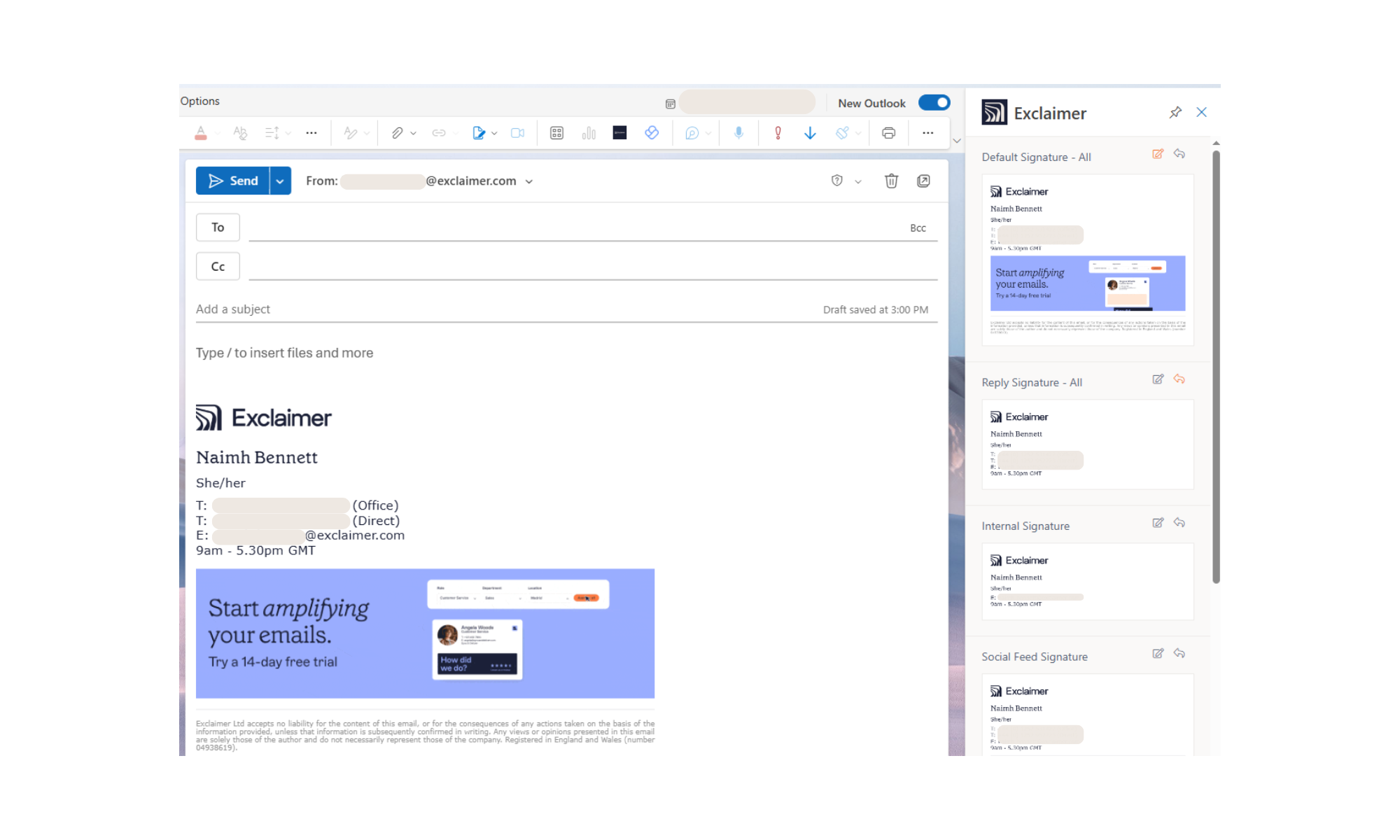
Pro tip: Pin your signatures pane, so it'll appear with every new email you compose!
What to check if an Outlook signature doesn’t look updated
Does Outlook need a manual update?
No. When Exclaimer is deployed correctly, users don’t update signatures themselves. Changes flow from Exclaimer, not from Outlook.
Why would someone still see an old signature?
They may be looking at a cached local version. This doesn’t affect what’s applied to sent mail if you use server-side updates. The correct signature is still applied at send time.
Why do updates appear at different times on different devices?
Client-side updates rely on the device syncing with Exclaimer. Server-side updates apply immediately because they don’t depend on local files.
What if a user created their own signature?
Locally created signatures sit alongside Exclaimer-managed ones, but they don’t affect the signature applied by Exclaimer. The centrally managed version still takes priority where configured.
Why this approach keeps Outlook signatures consistent long-term
Exclaimer prevents the drift that happens when Outlook relies on local signature files. Centralized control keeps every signature aligned over time. Here’s why the approach works:
Templates stay controlled: Updates happen in one place, so layouts don’t change as users switch devices or adjust formatting.
Directory data stays accurate: When someone’s details change, Exclaimer updates the signature automatically instead of relying on manual edits.
No dependence on local storage: Outlook’s device-level files are removed from the process, eliminating the inconsistencies they create.
One update applies everywhere: Any change you make is applied to all assigned users, giving IT a predictable update path and stable long-term control.
This model keeps signatures consistent across the organization without ongoing maintenance or user involvement.
Manage Outlook signature updates at scale with Exclaimer
Imagine completing a major rebrand and needing to update your company's logo in all employee email signatures. Without a centralized solution, this would mean manually changing each signature. It’s an exhausting and time-consuming process that could take hours or even days.
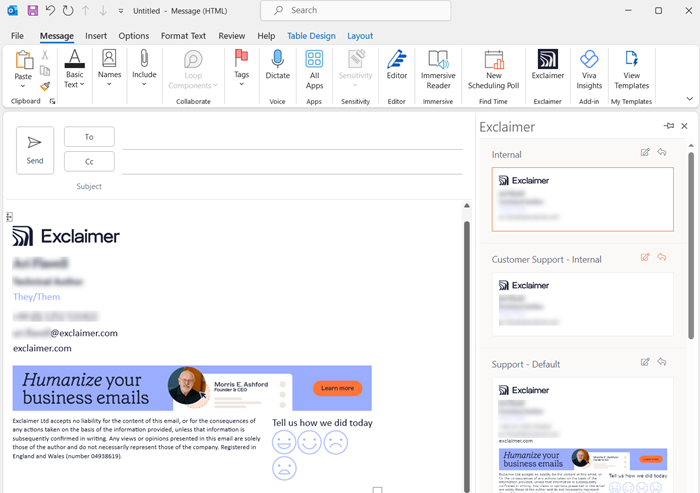 Exclaimer gives you a controlled way to keep Outlook signatures current without relying on users or local devices. Updates happen centrally, flow into Outlook automatically, and stay consistent across the organization.
One template for everyone: You manage the design once, and Outlook uses the correct version across desktop, web, and mobile.
Accurate details without manual edits
Directory data drives each user’s information, reducing the chance of outdated titles or contact numbers.Fewer support requests: Users no longer change or rebuild signatures, which means IT spends less time fixing formatting or troubleshooting device issues.
Predictable, organization-wide updates: When you adjust a banner, legal text, or layout in Exclaimer, it updates everywhere the signature is assigned.
Exclaimer removes the manual work that typically comes with Outlook signatures, giving IT a simpler way to maintain accuracy and branding at scale.
Book a demo today and discover how easy it is to manage Outlook email signatures for your business.