Outlook vs Microsoft 365: Email signature management & setup guide
12 November 2025
0 min read
TL;DR
- Two native paths, both limited: Outlook = user-managed, device-local, no central oversight. Microsoft 365 (Exchange mail flow rules) = server-side after send, no compose-time preview, limited design/personalization, no audit trail.
- As headcount, regions, and devices grow, native tools create brand drift, inconsistent rendering (esp. on mobile), and ongoing admin work.
- Inconsistent or missing disclaimers raise compliance exposure; rebrands and policy changes trigger spikes in help desk tickets
- Outlook is fine for individuals; Microsoft 365 can handle basic, blanket disclaimers; neither is built for complex, multi-brand, multi-region environments
- Exclaimer offers a central platform with client/server/hybrid deployment, enforced brand consistency, delegated updates without losing IT control, audit-ready change history, and policies that scale across the business
IT teams using Microsoft technology within their company will often face a frustrating question: Should we manage email signatures through Outlook or Microsoft 365?
It sounds like a tool choice. But under the surface, it's a governance issue with far-reaching implications for brand consistency, regulatory compliance, and operational overhead.
This guide explains the key differences between Outlook and Microsoft 365 for email signature management, where native tools fall short, and why thousands of IT leaders choose Exclaimer to take control at scale.
What is a Microsoft 365 email signature?
A Microsoft 365 email signature is the block of contact information and branding automatically added to the end of an email sent through Outlook or Exchange Online. It can include key details like a sender’s name, job title, company, phone number, and logo, along with optional elements such as social media icons or legal disclaimers.
From a technical standpoint, Microsoft 365 offers two ways to manage signatures:
User-managed signatures in Outlook. Each user creates and maintains their own signature within the Outlook desktop or web app.
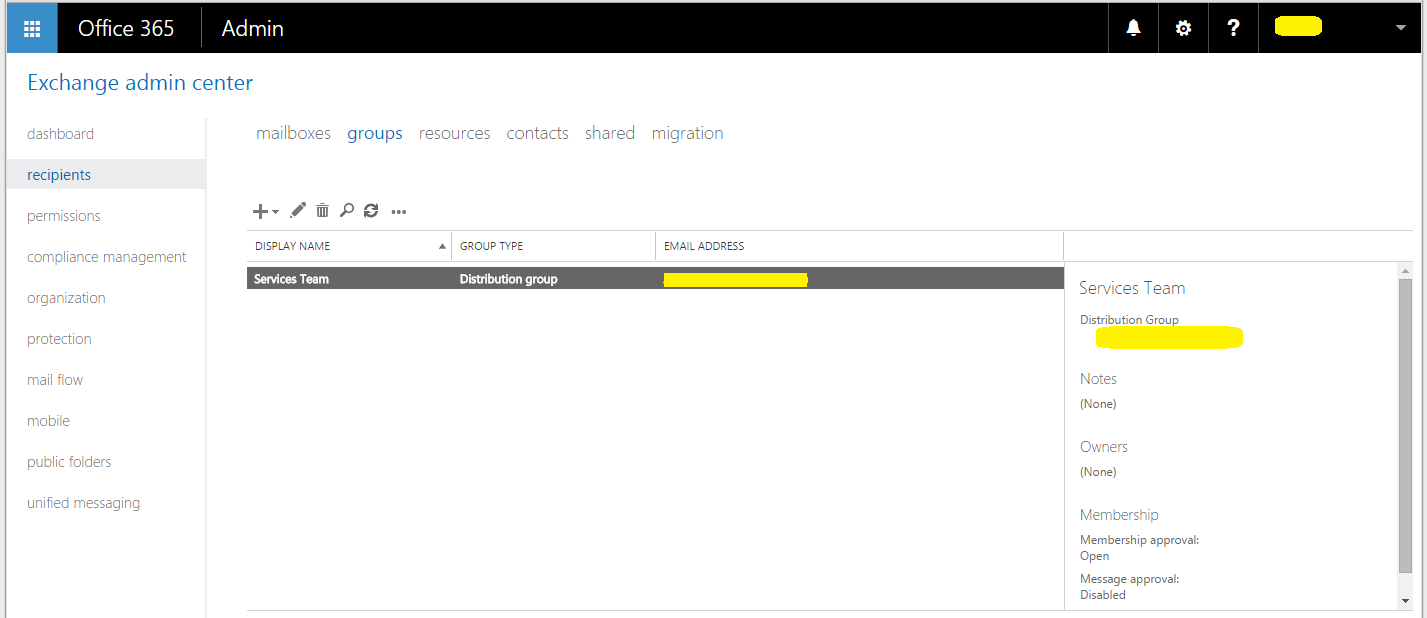
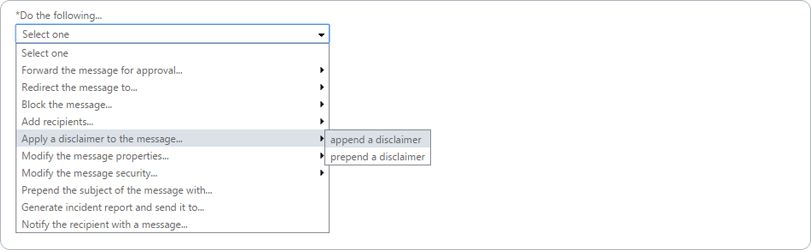
Organization-wide signatures via Exchange Admin Center (EAC). Admins can create mail flow rules—often called transport rules—to append a uniform signature or disclaimer to all outgoing mail.
Both methods work, but they serve very different purposes. Outlook-based signatures give users local control but no central oversight. Exchange rules provide consistency but little flexibility, especially when it comes to design or personalization.
For IT teams, this creates a familiar dilemma: local control leads to inconsistency, while centralized control through native tools can’t deliver the branding precision, automation, or visibility enterprises expect.
How Microsoft 365 handles email signature management
Microsoft 365 provides two main approaches for managing email signatures, depending on whether control sits with individual users or IT administrators.
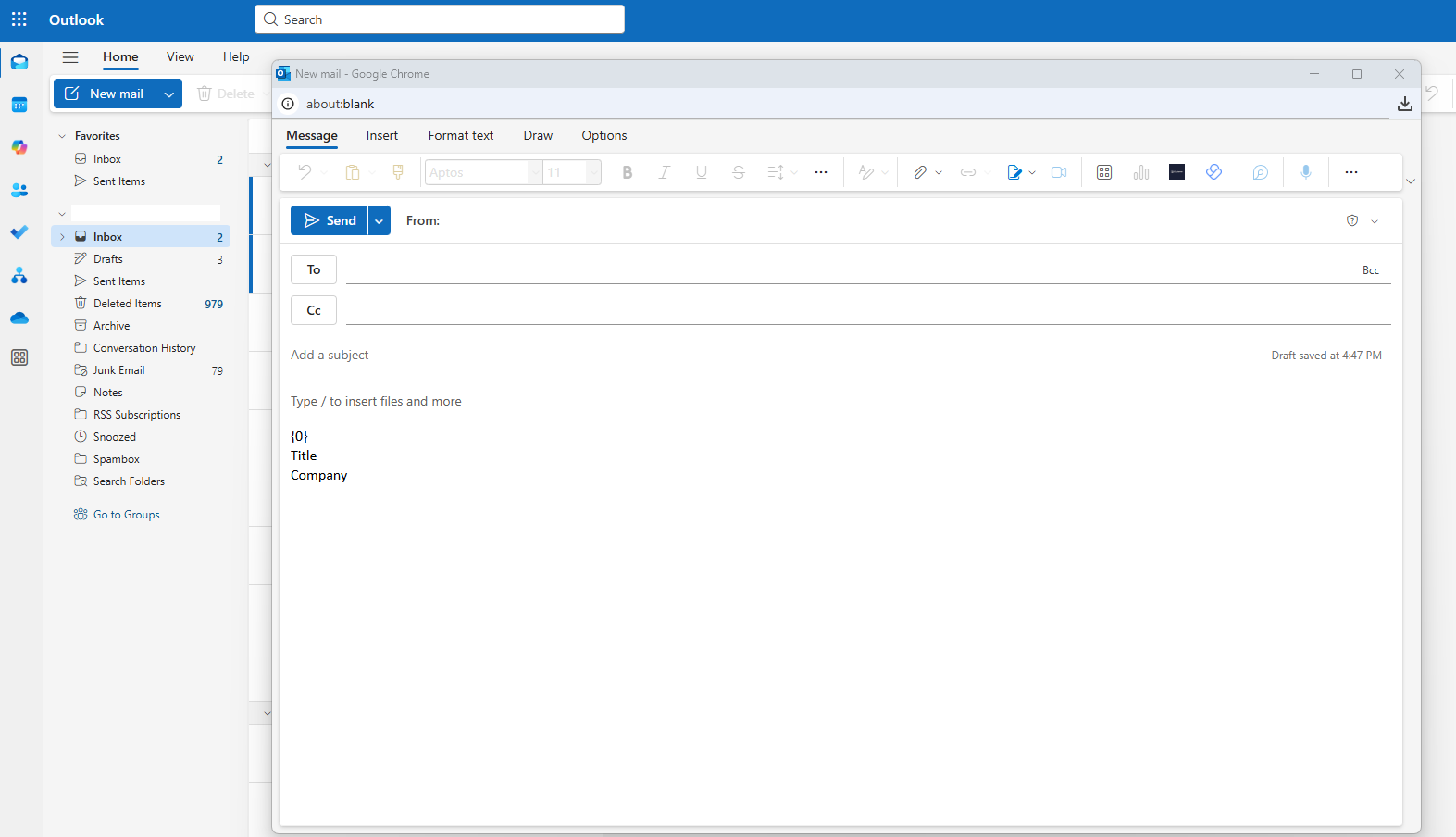
1. User-created signatures in Outlook
Email signatures are stored locally in the user's device settings.
Users can freely modify fonts, images, spacing, and layout.
Outlook provides real-time preview during email composition, which improves user confidence.
Simple to set up for individuals or very small teams.
No IT oversight, centralized control, or audit capability.
Each device must be configured separately—no cross-platform sync.
Why it matters: Outlook works well for individual use or small businesses with minimal brand control requirements. But in larger environments, this decentralized approach leads to inconsistent branding, outdated information, and non-compliant disclaimers.
2. Organization-wide signatures via Exchange mail flow rules
Admins create mail flow (transport) rules to insert email signatures after send.
Rules can apply broadly across departments or domains without user involvement.
Server-side application ensures email signature consistency across all devices—desktop, web, and mobile.
Supports basic HTML and limited dynamic fields using Entra ID (Azure AD) tokens.
No preview for users before sending, limiting visibility and trust.
Limited logic, static templates, and no design control or audit logging.
Neither platform was built for IT to enforce email signature management across modern, complex environments. Microsoft 365 provides basic centralization and broad coverage. It’s a step up from Outlook for organization-wide enforcement. However, it lacks the design flexibility, preview capability, and advanced logic IT teams need for complex environments.
Outlook vs Microsoft 365: Key differences for IT teams
| Feature | Outlook | Microsoft 365 (Exchange Online) |
|---|---|---|
| Email signature location | Stored locally per device | Applied server-side after sending |
| User-level control | Full user control | Admin-controlled via rules only |
| Cross-device consistency | ❌ Not supported | ✅ Universal server-side application |
| Formatting reliability | Varies by client and platform | Limited—HTML often stripped or broken |
| Email signature preview | ✅ Visible in compose view | ❌ Not visible before sending |
| Dynamic fields from Azure AD | ❌ Manual entry required | ✅ Basic token support (limited flexibility) |
| Branding and layout enforcement | ❌ No standardization | ❌ No design enforcement or templates |
| Delegated access for non-IT roles | ❌ Not possible | ❌ Not supported |
| Change history or audit trail | ❌ None | ❌ None |
Neither platform was built for IT to enforce email signature management across modern, complex environments.
What IT teams face with manual email signature management
Native tools may work for very small teams. But at scale, manual email signature management quickly creates brand, legal, and operational risk. These scenarios show what IT professionals experience daily.
Scenario 1: Rebranding chaos
A mid-sized company needs to roll out updated logos and brand fonts. Outlook email signatures are locally managed by each user. Some still use outdated designs, others copy and paste formatting inconsistently.
The impact:
A week of internal coordination across time zones
Multiple devices requiring manual reconfiguration
A spike in help desk tickets due to broken layouts
Scenario 2: Legal disclaimer updates
The legal team mandates a new company-wide email disclaimer. Microsoft 365’s mail flow rules can’t apply variations based on geography or entity. IT creates six new rules and manually assigns them. However, some stack redundantly, while others misfire due to incorrect group memberships.
The impact:
Legal disclaimers missing from key regions
Duplicated footers on email threads
No audit trail to prove policy enforcement.
Scenario 3: Mobile rendering fails
Executives report that their email signatures are unreadable on mobile. Images don’t load, fonts collapse, and spacing disappears.
Microsoft 365 injects the email signature after send, but mobile clients like iOS strip HTML or display it inconsistently, especially in reply chains.
The impact:
Damaged brand perception
Lack of compliance on mobile communications
Escalations to IT with no practical fix using native tools
Industry-specific email signature requirements
Every industry has unique compliance, branding, and operational needs—none of which are fully supported by native Outlook or Microsoft 365 email signature management tools.
Financial Services
Disclaimers, registration numbers, and legal footers are mandatory.
Regulatory frameworks demand traceability for every sent message.
Inconsistent or missing disclaimers can lead to compliance violations and financial penalties.
Healthcare
U.S. HIPAA regulations require strict confidentiality notices.
Without audit logs, legal accountability becomes impossible.
Poor rendering may miscommunicate patient data or disclaimers, exposing the organization to risk.
Manufacturing
Multiple sites, brands, and languages complicate email signature deployment.
Disconnected tools and regional teams often use inconsistent templates.
Requires logic-based targeting to assign the right email signature per business unit, brand, or region.
According to The State of Business Email 2025, only 41% of organizations have integrated email into their compliance stack. 80% still rely on manual or user-managed email signatures.
Why Outlook and Microsoft 365 email signature management breaks down
Native tools work fine for individual users or very small teams. But once you're managing multiple departments, devices, or domains, the cracks show quickly.
1. No single source of truth
Outlook stores email signatures locally. Microsoft 365 applies rules without preview. Both systems operate independently. IT can’t manage branding, compliance, or user data in one place, let alone guarantee it’s applied correctly.
2. Formatting fails across devices
Outlook for Windows uses a different rendering engine than Outlook for Mac or iOS. Microsoft 365 server-side rules often remove HTML formatting altogether. Mobile email signatures frequently appear broken or stripped down entirely.
3. Transport rules don’t scale
Microsoft 365 mail flow rules are rigid: “if X, then insert Y.” Managing variations across brands, departments, and geographies requires a complex web of rules that don’t support dynamic templates, conditional logic, or visual configuration.
4. No preview means user confusion
With Microsoft 365 server-side rules, senders can't see their email signature when composing. That leads to formatting errors, duplicated content, and user distrust of the system driving more help desk tickets back to IT.
5. No delegation, no audit trail
There’s no safe way to delegate control of disclaimers or marketing banners to Legal or Marketing. IT is stuck owning every edit. There’s also no way to prove what changes were made, when, or by whom.
The common misconceptions about native Microsoft email signature tools
Even experienced IT teams often overestimate the control Microsoft 365 and Outlook provide. These six common misconceptions reveal why native tools break down in real-world scenarios.
1. “Server-side rules mean consistency.”
Not always. Microsoft 365 transport rules apply after an email is sent. If it is sent via mobile or a third-party SMTP relay, it may bypass Exchange Online entirely. This means no email signature is applied. Even when routed correctly, formatting often breaks on reply chains or mobile clients.
Use case: An executive replies from a tablet while traveling. The email skips server-side rules, and the email signature with legal disclaimers is never applied.
2. “Users can manage their own email signature.”
Yes, and that’s the problem. With Outlook, users have full control to edit their own email signatures. That means inconsistent logos, outdated titles, or missing email disclaimers are inevitable, especially when users copy and paste formatting from Word or web browsers.
Use case: Sales reps add custom banners or font styling. Marketing loses brand control, and IT gets flooded with requests to fix broken layouts.
3. “We can just use Group Policy.”
Only on Windows desktops. Group Policy Objects (GPOs) work for Outlook desktop on domain-joined Windows machines. They don’t cover macOS, mobile apps, Outlook Web Access (OWA), or non-managed devices. This makes them useless in hybrid or remote environments.
Use case: A remote employee working from their personal MacBook has no enforced email signature. Their emails go out unbranded and non-compliant.
4. “Mail flow rules can handle disclaimers.”
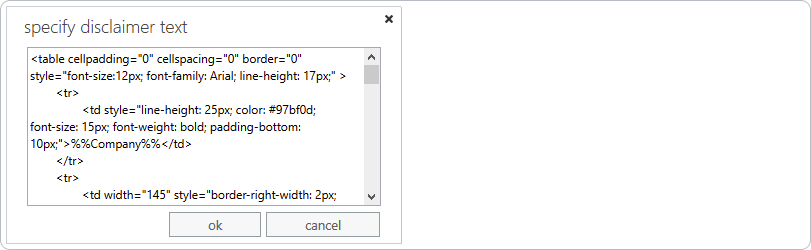
Partially. Microsoft 365 can insert static disclaimers with transport rules. However, there’s no logic for applying region-specific legal text, no way to prevent duplication, and no dynamic targeting per business unit without complex scripting.
Use case: A legal disclaimer meant only for EMEA users ends up applied to North American teams. Meanwhile, forwarded emails contain disclaimers stacked five messages deep.
5. “One email signature template is enough.”
Not when your business has multiple teams, brands, or locations. Native tools can’t easily assign different email signature layouts based on brand, department, or language. IT ends up manually managing multiple transport rules.
Use case: A manufacturer supports three brand identities. Sales needs promotional banners. HR needs a recruitment message. Microsoft 365 has no native way to apply the right template per user role.
6. “We’ll just copy and paste our signature template into Outlook.”
That breaks more often than it works. Copying HTML from Word, SharePoint, or a browser into Outlook’s editor leads to rendering issues. Embedded images can break, fonts can collapse, and spacing becomes inconsistent.
Use case: An internal email signature template looks perfect in Outlook desktop, but when viewed by the recipient in Gmail or on mobile, it’s unreadable and unprofessional.
Which platform should you use?
While Outlook and Microsoft 365 offer basic tools for email signatures, neither was designed for enterprise-level governance. This comparison highlights when native tools might suffice and where they fall short.
| Requirement | Best option |
|---|---|
| One-off personal email signature | Outlook (user managed) |
| Company-wide legal disclaimers | Microsoft 365 (basic rules) |
| Consistent branding across all devices | Native tools can't guarantee |
| Multi-region or multi-brand deployment | Native tools lack targeting |
| Preview while composing emails | Only with Outlook or Exclaimer |
| Role-based access for Legal or Marketing | Only with Exclaimer |
| Audit-ready change tracking | Only with Exclaimer |
If you're managing a handful of users, Outlook may be manageable. But for organizations with hundreds or thousands of employees especially across regions or brands, native tools aren’t built to scale. They lack central oversight, consistent formatting, dynamic targeting, and auditability.
Exclaimer solves for all of these without introducing complexity or additional workload for IT.
How Exclaimer solves the problem of Microsoft email signature management
Exclaimer for Microsoft 365 gives IT teams full control over every email signature—without scripting, formatting issues, or support escalation.
Here’s what you get:
Centralized control
- Manage email signatures for all users in one platform.
- Apply policies based on department, region, or device.
- Remove the need for Group Policy Objects or PowerShell.
Entra ID Sync (Azure AD)
- Automatically pull user details from Microsoft Entra ID (Azure AD).
- Keep titles, departments, and contact info accurate and up to date.
- Dynamically populate email signature fields without manual editing.
Role-based access and approval
- Let Marketing edit design layouts but restrict access to disclaimers.
- Delegate compliance control to Legal.
- Use workflows to review, approve, and log changes before deployment.
Device-agnostic deployment
- Server-side: Ensure consistency across all devices.
- Client-side: Show the correct email signature as users compose.
- Hybrid: Give flexibility where needed.
Compliance-ready infrastructure
- Full change history and audit logs.
- Microsoft 365 Certified.
- SOC 2 Type II, ISO 27001/27018 certified.
- Hosted securely in Microsoft Azure with regional failover.
Outlook vs Microsoft 365 vs Exclaimer: Workflow comparison
| Stage | Outlook | Microsoft 365 | Exclaimer |
|---|---|---|---|
| Preview before sending | ✅ Yes (if configured) | ❌ Not available | ✅ Yes (client-side or hybrid mode) |
| Email signature application | ✅ Client-side only | ✅ Server-side only | ✅ Configurable (client, server, hybrid) |
| Admin design control | ❌ User-controlled | ⚠️ Limited via rules | ✅ Full template control |
| Directory sync | ❌ None | ⚠️ Basic token support | ✅ Real-time Entra ID sync |
| Delegated editing | ❌ Not supported | ❌ Not supported | ✅ Role-based permissions |
| Audit trail and version history | ❌ None | ❌ None | ✅ Full change logs |
Why IT teams choose Exclaimer
Scales with complexity: One platform for all brands, locations, and user types.
Reduces support burden: Changes take minutes—not weeks of back-and-forth.
Meets regulatory needs: Logs, disclaimers, and region-specific policies built in.
Trusted globally: 70,000+ organizations rely on Exclaimer, including Fortune 500s.
Ready to take control of email signature management across Outlook and Microsoft 365?
Thousands of IT leaders use Exclaimer to remove the guesswork, risk, and overhead from email signature management.