Introducing the Office 365 disclaimer function
21 October 2025
0 min read
TL;DR
- Office 365 disclaimers help organizations meet legal, compliance, and security obligations by adding mandatory notices to every outgoing email
- You can create a disclaimer in the Exchange Admin Center or with PowerShell, but Microsoft’s native tools are limited in formatting, placement, and control
- Common issues include duplicate disclaimers, poor HTML rendering, and no audit trail for compliance verification
- Exclaimer automates disclaimers across Microsoft 365, ensuring consistency, accuracy, and regulatory compliance without IT effort
Companies of all sizes are required by law to add a disclaimer to email for Office 365 in all outbound email. In fact, all email clients, including Google Workspace need to have some sort of legal disclaimer. This is true across Europe and North America in most cases.
Legal disclaimers have been needed since the early days of email and are designed to reduce liability risks. They involve an organization adding a block of text to all outgoing emails. This text will include information such as the company name, registered business address, and company registration number. It’ll also be accompanied by a confidentiality notice to protect against legal action.
Learn more about email disclaimers in this article.
What is an Office 365 email disclaimer?
An Office 365 email disclaimer is a short block of legal or regulatory text automatically added to outgoing emails. Its purpose is to protect your organization, clarify data handling responsibilities, and demonstrate compliance with frameworks such as GDPR, HIPAA, and SOC 2.
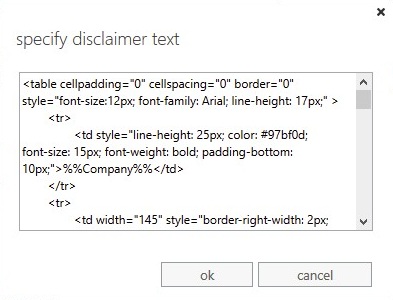
Typical examples include privacy notices, confidentiality statements, and regional legal footers—especially in industries like financial services, healthcare, and education where professional communications must meet strict data protection standards.
However, while Microsoft provides the foundation for adding disclaimers, its native tools were never built for enterprise-scale management. As organisations grow, ensuring consistent, compliant disclaimers across multiple departments, regions, and devices becomes increasingly complex.
That’s why IT teams often turn to centralized email disclaimer management platforms to remove manual processes, eliminate formatting errors, and maintain full compliance oversight.
How to set a disclaimer for Office 365
Microsoft 365 lets administrators add disclaimers using mail flow rules (also known as transport rules) in the Exchange Admin Center (EAC). These rules automatically append the disclaimer text to selected emails before they’re sent.
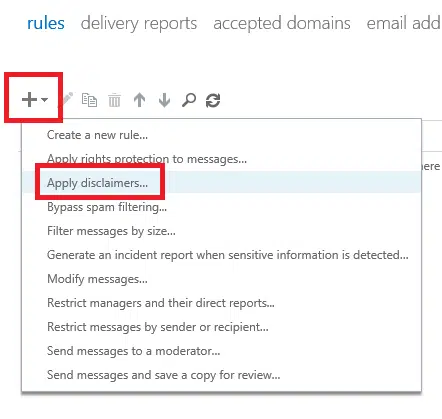
Follow these steps to create a basic disclaimer in Office 365:
Step 1: Sign in to the Exchange Admin Center
Go to admin.exchange.microsoft.com.
In the left menu, select Mail flow → Rules.
Choose Add a rule → Apply disclaimers.
Tip: You’ll need the necessary admin permissions (usually Exchange Administrator) to create or edit mail flow rules.
Step 2: Define your rule
Give your rule a name — for example, Company-wide email disclaimer.
Under Apply this rule if, choose the conditions (e.g., The recipient is located outside the organization).
Under Do the following, select Append the disclaimer and enter your disclaimer text.
You can use simple HTML for basic formatting (bold, italics, or paragraph spacing). However, images or complex layouts may appear incorrectly in Outlook and other clients due to HTML restrictions.
Step 3: Configure fallback action
Microsoft 365 requires a fallback action in case the disclaimer can’t be added (for example, if an email isn’t in HTML format).
Select Wrap (recommended) so the message is enclosed in a new email containing the disclaimer.
Avoid Reject unless your policy mandates blocking emails without disclaimers.
This behavior follows Microsoft’s documented guidance on mail flow rules for disclaimers
Step 4: Test and save
Before applying the rule across your organisation:
Test with a few internal accounts to confirm placement and formatting.
Send test emails to both internal and external recipients.
Once validated, select Enforce and Save.
Testing ensures that mail flow rules behave consistently across devices and clients
Step 5: Monitor results
Monitor the rule to ensure consistent performance:
Check whether disclaimers appear correctly in replies and forwards.
Look for duplicate disclaimers in long email chains.
Review mail flow reports to verify the rule is being triggered as intended.
Limitations to be aware of
Disclaimers are always added at the bottom of the email thread, not under the latest reply.
HTML formatting is basic; advanced layouts or logos may appear broken.
There’s no centralized audit trail to confirm when or where the disclaimer was applied.
Multiple rules can cause duplicate disclaimers on the same message.
These limitations make native Microsoft 365 disclaimers suitable for small organisations, but they quickly become unmanageable in larger, multi-region environments.

Get more from Office 365 disclaimers
Read Conversational Microsoft 365 Email Signatures to uncover how to better use Office 365 disclaimers.
Read nowCommon limitations of native Office 365 disclaimers (and how Exclaimer solves them)
While Microsoft 365 allows administrators to create disclaimers using transport rules, these native tools were never designed for complex, multi-department, or compliance-driven environments.
Here’s how common pain points compare and how Exclaimer addresses them.
| Challenge | Native Office 365 tools | How Exclaimer solves it |
|---|---|---|
| Placement control | Disclaimers are automatically added at the bottom of the entire email thread, often appearing far from the latest message or reply. | Exclaimer applies disclaimers directly beneath the most recent message, maintaining visibility and ensuring recipients see the correct notice every time. |
| Formatting limitations | Microsoft’s disclaimer editor supports basic HTML only. Images must be hosted externally, and CSS styling is often stripped out by Outlook or mobile clients. | Exclaimer provides a full HTML drag-and-drop designer with image embedding, social icons, and dynamic fields. Disclaimers render consistently across Outlook, mobile, and web clients. |
| Personalization | Exchange transport rules can’t dynamically pull user data from Entra ID (Azure AD) beyond a few limited fields. Most disclaimers look generic. | Exclaimer integrates with Entra ID (Azure AD), automatically populating user-specific details (like job title, region, or department) for personalized, compliant disclaimers. |
| Auditability and compliance reporting | Native disclaimers offer no audit trail or visibility into when disclaimers were applied—creating potential gaps during audits or legal reviews. | Exclaimer maintains a complete audit log and version history of all disclaimer and signature changes, ensuring IT and compliance teams are audit-ready. |
| Consistency across devices | Disclaimers often fail to appear on mobile devices or look different in Outlook and web clients. Formatting can break depending on user settings. | Exclaimer applies disclaimers server-side, so every email—sent from desktop, mobile, or browser—includes the correct format and content. |
| Centralized management | Each update requires manual editing of Exchange rules, with no version control or multi-admin permissions. It’s time-consuming and error-prone for IT. | Exclaimer offers centralized control through a secure cloud platform. IT can manage disclaimers for all users from one dashboard and delegate updates safely using role-based access control (RBAC). |
| Compliance enforcement | Microsoft’s disclaimers are not context-aware and can’t differentiate by location or regulation (e.g., GDPR vs. HIPAA). | Exclaimer’s rules engine applies region-specific disclaimers automatically, ensuring the right legal notice appears for each department or jurisdiction. |
Why this matters
For IT and compliance leaders, manual management of disclaimers increases operational risk.
Without centralized visibility, there’s no easy way to prove compliance, enforce branding, or ensure employees aren’t altering legally required content.
Exclaimer closes these gaps by making disclaimer management automated, secure, and audit-ready. And all while giving IT complete control and freeing teams from repetitive maintenance work.
Automating Office 365 disclaimers with Exclaimer
Native Microsoft 365 tools can apply disclaimers, but they require manual updates and provide limited visibility. As your organization scales, those manual processes become unmanageable and risky.
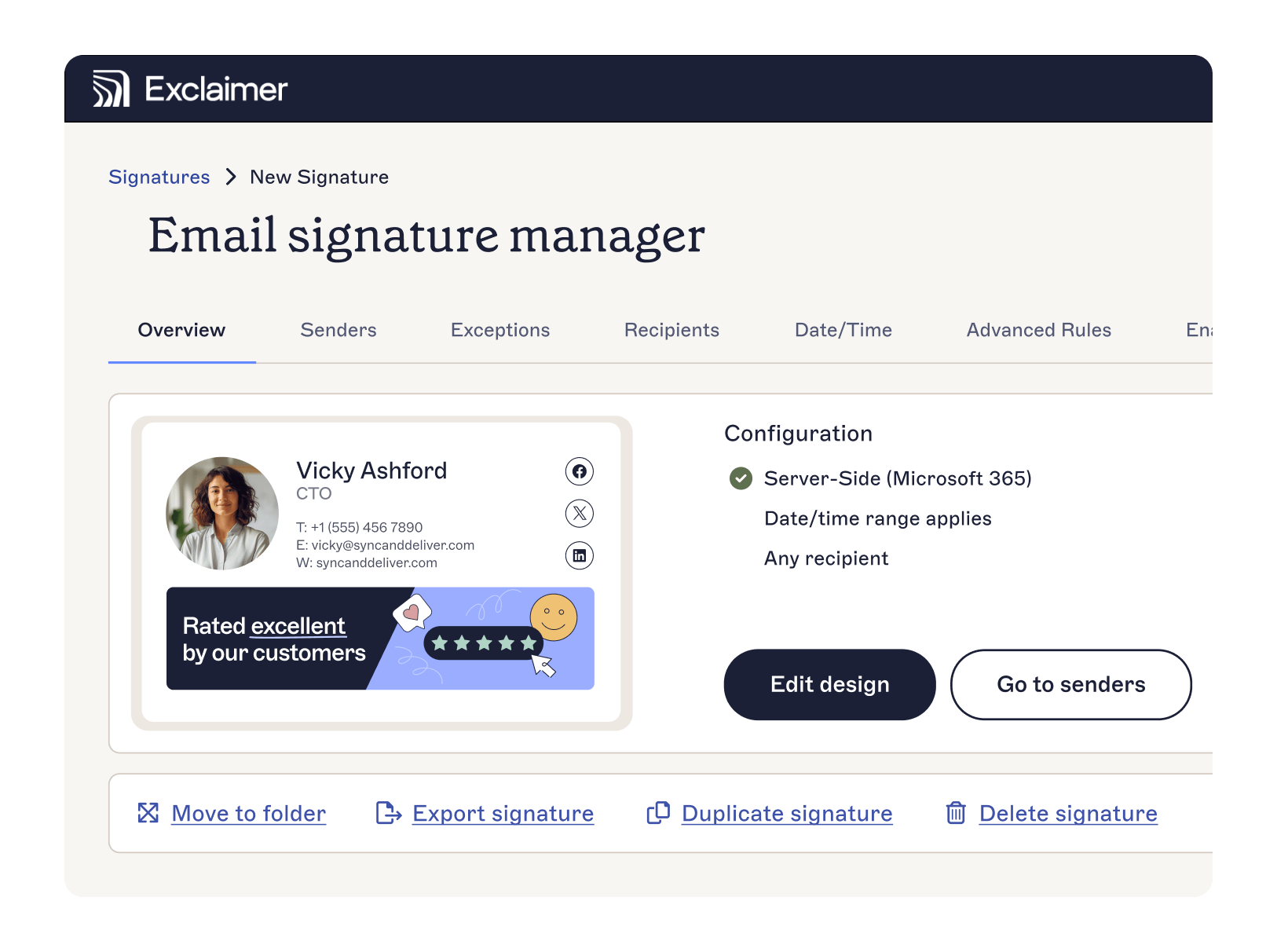
Exclaimer's Office 365 solution automates every part of the process, giving IT full control over disclaimers while removing the need for scripts, PowerShell rules, or user intervention.
Here’s how Exclaimer simplifies compliance and control.
1. Centralized control
Manage every disclaimer from a single, secure cloud platform.
Administrators can create, update, and deploy organization-wide disclaimers instantly, without touching Exchange rules or local installs.
Updates sync automatically across Microsoft 365 tenants, ensuring every email includes the correct disclaimer for its sender, department, or region.
2. Dynamic automation
Exclaimer integrates with Microsoft Entra ID (Azure AD) to pull verified user data, ensuring each email includes accurate sender details and department-specific legal text.
Need different disclaimers for HR, Finance, or international offices? Exclaimer applies the right version automatically.
3. Compliance by design
Every disclaimer can be configured to align with specific legal or industry frameworks, including GDPR, HIPAA, ISO 27001, and SOC 2.
Role-based access control (RBAC) lets IT maintain oversight while enabling Compliance or Legal teams to make content updates safely—without risk of accidental changes or data exposure.
4. Audit-ready visibility
Every update and deployment is logged automatically, creating a complete audit trail for compliance verification and incident response.
This means IT can prove compliance during audits or legal reviews with timestamped version history showing when each disclaimer was applied.
5. Consistency across every device
Exclaimer’s server-side processing ensures that disclaimers appear correctly on every platform.
There’s no risk of employees sending messages without a disclaimer or using an outdated template.
6. Enterprise-grade security
Built on Microsoft Azure, Exclaimer meets the highest standards of security and data protection—with SOC 2 Type II and ISO/IEC 27001 and 27018 certifications, TLS encryption, and 99.99% uptime across 14 global datacenters.
Every email processed through Exclaimer remains within Microsoft’s cloud ecosystem, ensuring end-to-end encryption and zero message storage — your data never leaves the Microsoft environment.
Why IT chooses automation over manual rules
| Manual management | Automated with Exclaimer |
|---|---|
| Individual transport rules for each department | Centralized policies for every user |
| No visibility or reporting | Full audit log and change tracking |
| Limited to one global disclaimer | Dynamic regional and role-based disclaimers |
| Manual HTML edits | Drag-and-drop designer with full preview |
| Inconsistent across devices | Server-side enforcement for every message |
Take control of Office 365 disclaimers without extra workload
Adding disclaimers in Office 365 helps organizations meet legal and regulatory obligations, but managing them manually can quickly become a drain on IT.
Native Microsoft tools do the job for basic needs, yet they lack the automation, consistency, and auditability required at scale.
By automating disclaimer management across Microsoft 365, Exclaimer ensures every outbound email meets compliance requirements—without adding to IT workload. You can manage updates centrally, apply rules by department or region, and maintain a full audit trail for complete visibility and control.
When disclaimers are automated and secure, IT teams spend less time on repetitive admin and more time driving strategy.
See how easy it is to automate disclaimers in Office 365. Start your free trial or request a demo today.