Dave is a marketing expert with 15 years experience in the tech and SaaS world. He specializes in educating IT and channel audiences, with a focus on security, privacy, compliance, and marketing technology. With a talent for storytelling and a deep understanding of the industry, Dave transforms complex IT topics into clear, engaging, and impactful narratives.
How email signatures support Microsoft 365 security and compliance

Key takeaways
- Microsoft 365 is secure, but daily communication risks still arise from misrouting, outdated sender details, and message inconsistency.
- Standardized email signatures reduce confusion, improve clarity, and support trustworthy communication across every device.
- Centralized signature governance strengthens compliance by ensuring accurate sender details and consistent disclaimers.
- Manual email signature management causes formatting issues, version drift, and unreliable results—especially at scale.
- Centralized management platforms ensure consistent templates, accurate info, and reduced IT workload.
Microsoft 365 delivers strong security capabilities, but email still introduces daily risk. Misrouting, inconsistent sender details, and unclear communication practices weaken trust and make compliance reviews harder. These are governance gaps, not technical failures.
Standardized email signatures help close those gaps. They aren’t a security control, but they do support secure communication by keeping every message clear and consistent. Accurate sender details reduce confusion. Consistent disclaimers give legal teams what they need. Uniform formatting helps reviewers work faster and with fewer errors.
Centralized Microsoft 365 signature management improves communication hygiene across the organization. It keeps branding, contact information, and legal text aligned everywhere employees send email. In a Microsoft 365 environment where clarity and accuracy matter, this level of governance reduces avoidable risk and reinforces trust.
Quick answer: Why email signatures matter for Microsoft 365 security
Email signatures support secure communication in Microsoft 365 by improving accuracy, consistency, and compliance. They don’t prevent cyberattacks, but they help recipients recognize legitimate messages, reduce confusion caused by outdated details, and ensure required legal text appears on every email.
When signatures are managed centrally, organizations gain clearer communication, stronger governance, and a more reliable foundation for compliance across all devices and email clients.
Understanding Microsoft 365 security challenges
Microsoft 365 includes strong security features, but its flexibility also introduces risk. Misconfigurations, broad access, and everyday user behavior often create the biggest gaps. Knowing where issues occur helps organizations strengthen security and improve governance.
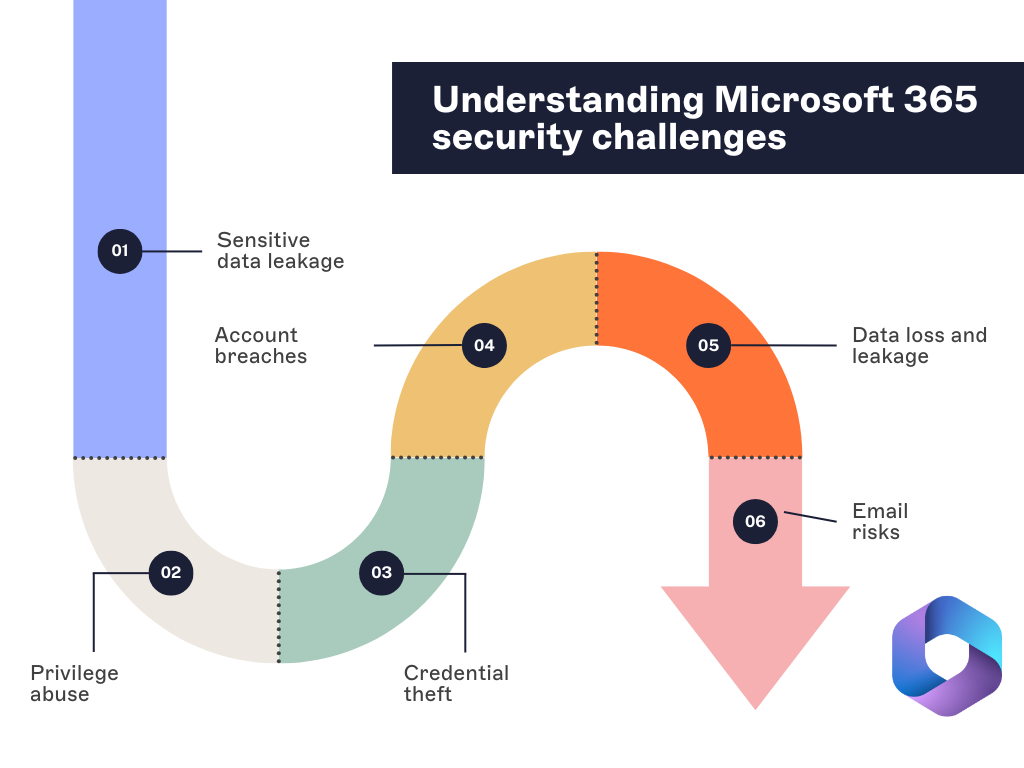
1. Sensitive data leakage
Sensitive data moves across Microsoft 365 all day. Most exposure comes from accidental sharing, weak controls, or simple user mistakes, not advanced attacks. When information reaches the wrong people, it creates operational disruption, privacy issues, and regulatory pressure.
2. Excessive access
Access grows faster than most teams expect. When users hold permissions they don’t need, the risk increases. A compromised account can move farther and faster, and the excess access makes mistakes more likely and investigations slower.
3. Credential theft
Attackers still rely on stolen usernames and passwords to get into Microsoft 365. Weak passwords and inconsistent MFA adoption make it easier. Once inside, attackers behave like legitimate users, often going unnoticed until damage is underway.
4. Account compromise
Phishing, credential stuffing, and poor security hygiene are the usual drivers behind account breaches. A compromised account can expose data, enable fraud, and erode trust. Recovery takes time and drains resources.
5. Data loss or unintended disclosure
Data can be deleted, corrupted, or shared with the wrong audience. These events interrupt daily operations and create compliance challenges, especially when sensitive information is involved.
6. Email risks
Email is still one of the most common entry points for attacks. In fact, 91% of targeted cyberattacks begin with an email. Bad actors often use it to deliver security threats like malware, ransomware, and phishing scams.
These attacks use the trust of email to access systems. They often get past regular security defenses easily.
Malicious actors often spread malware through harmful attachments or links, which can compromise systems or allow unauthorized access.
Ransomware attacks sent through email can lock important data. They often demand large payments to unlock it, causing significant disruptions and financial losses.
Phishing attacks trick people into sharing sensitive information like passwords or financial details. This leads to data breaches or identity theft.
Without proper measures, these attacks can cause serious damage, from harming your reputation to financial and operational losses. Understanding how cybercriminals exploit email is key to preparing for and reducing these risks.
The role of cloud security standards and frameworks
Microsoft 365 users rely on cloud security frameworks to guide configuration, reduce risk, and maintain compliance. These standards give teams a clear path for protecting data, controlling access, and strengthening governance.
| Framework | What it provides | How it supports Microsoft 365 security |
|---|---|---|
| ISO/IEC 27001 | A structured approach to managing information security risks and controls. | Helps organizations build and maintain an effective security program that supports governance across Microsoft 365. |
| NIST Cybersecurity Framework | Five functions: identify, protect, detect, respond, and recover. | Guides ongoing risk assessment and continuous improvement for Microsoft 365 security operations. |
| Cloud Security Alliance (CSA) – Cloud Controls Matrix (CCM) | Cloud-specific security controls and governance guidance. | Reduces misconfigurations and improves policy alignment across Microsoft 365 workloads. |
| FedRAMP | Standardized assessment and authorization requirements for cloud services used by U.S. government agencies. | Highlights expectations for strong cloud security controls and continuous monitoring. |
| Center for Internet Security (CIS) | Practical controls and configuration benchmarks for securing systems. | Helps teams harden Microsoft 365 services and defend against common threats. |
| Federal Information Security Modernization Act (FISMA) | A framework for managing risk within federal agencies. | Reinforces the need for documented, repeatable security practices in Microsoft 365 deployments. |
| MITRE ATT&CK | A knowledge base of real-world attacker tactics and techniques. | Supports better threat detection and helps teams align defenses to known attack behaviors. |
These frameworks lay the groundwork for securing Microsoft 365 and meeting compliance standards. However, organizations also need to account for specific regulations relevant to their industry or region. For instance, healthcare organizations in the U.S must follow HIPAA regulations.
Microsoft 365 security best practices
Strong Microsoft 365 security starts with controlling identity, limiting access, and monitoring activity. These best practices help reduce risk and support a more resilient environment.
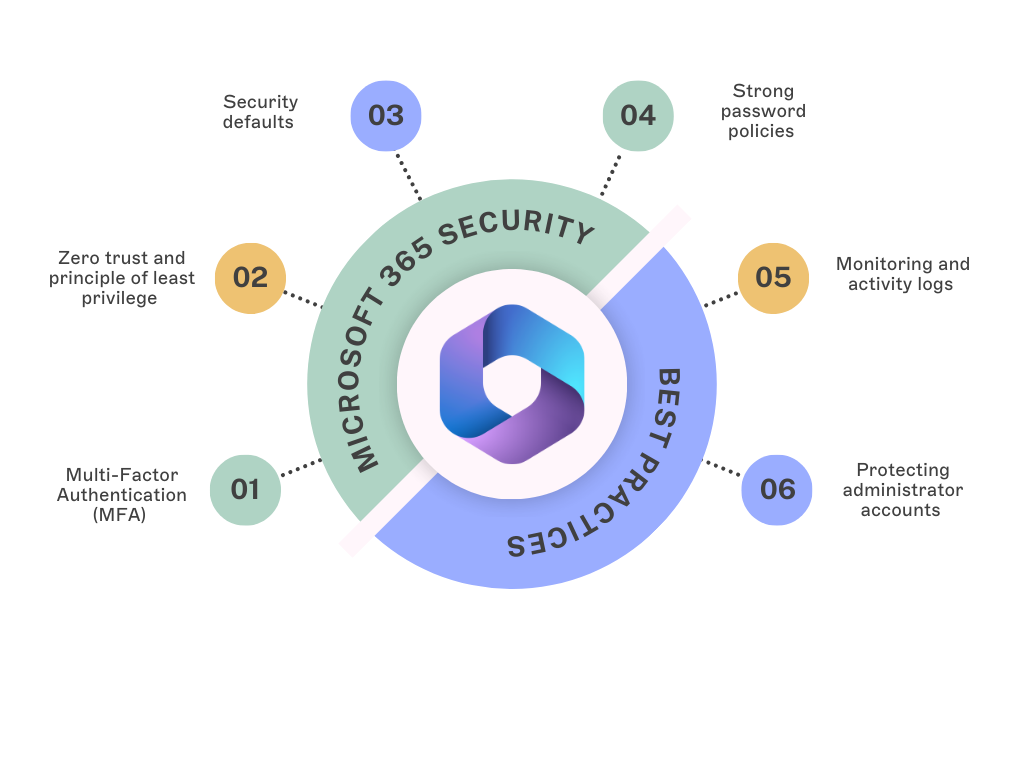
1. Multi-Factor Authentication (MFA)
MFA blocks most unauthorized access attempts by adding a second verification step. It’s one of the quickest and most effective protections to enable in Microsoft 365.
2. Zero trust and principle of least privilege
Zero Trust verifies every request. Least privilege limits users to only what they need. Together, they reduce the impact of compromised accounts and help prevent unnecessary exposure of data.
3. Security defaults
Security defaults enforce MFA, block outdated authentication methods, and activate baseline protections without complex setup. They give organizations a strong starting point for securing Microsoft 365.
4. Strong password policies
If your organization still uses passwords, require length, complexity, and regular updates. Microsoft encourages passwordless authentication, which removes many risks associated with traditional credentials.
5. Monitoring and activity logs
Activity logs highlight unusual sign-ins, configuration changes, and data access patterns. Reviewing them regularly helps teams detect issues early and respond quickly.
6. Protecting administrator accounts
Admin accounts need the strongest safeguards. Use MFA, restrict admin access to trusted devices or networks, and monitor these accounts closely. Use separate accounts for administrative work to limit exposure.
How email signatures in Microsoft 365 ensure compliance and security
Email signatures play a key role in Microsoft 365 governance. When managed centrally, they help organizations meet compliance requirements, reduce communication errors, and maintain consistent, professional messaging across every device.

1. Standardized signatures support compliance
Regulated industries rely on signatures to include required legal disclaimers. Centralizing this content ensures the correct language appears on every email, reducing gaps that occur when employees manage signatures themselves.
2. Improving clarity and reducing confusion
Consistent signatures make legitimate messages easier to recognize. They don’t block phishing, but they do help unusual or off-brand messages stand out. Organizations can also adjust signature content based on message type or recipient to avoid sharing unnecessary information externally.
3. Closing governance gaps
When users edit signatures manually, details can become inaccurate or inconsistent. Centralized management keeps titles, phone numbers, and disclaimers current, helping teams avoid mistakes and maintain clear communication records.
4. Supporting professionalism and trust
Accurate, on-brand email signatures strengthen communication and create a consistent experience for recipients. They also help internal reviewers work more efficiently, since every message follows the same structure.
Governance checklist for secure communication in Microsoft 365
A strong Microsoft 365 environment relies on clear communication practices and accurate sender information. This checklist gives IT teams a simple way to strengthen governance and reduce avoidable risk across everyday email communication.
- Keep sender details synced with directory data
Ensure names, job titles, and contact information come directly from Azure AD or another authoritative source. - Apply required legal and regional disclaimers
Use centrally managed templates to maintain consistent language for compliance, privacy, and regulatory needs. - Use standardized signature templates
Apply the same design structure across all devices and clients to reduce confusion and support trust. - Avoid user-edited signatures
Prevent employees from modifying layouts, adding personal elements, or removing required information. - Separate internal and external communication rules
Remove unnecessary internal fields before messages leave the organization (e.g., extensions or internal routing IDs). - Review signature content during onboarding and offboarding
Add or remove employees from signature policies to maintain accuracy and prevent outdated identities from appearing. - Use email-safe HTML and test across clients
Validate signatures in Outlook, mobile apps, and browser clients to ensure consistent rendering. - Delegate design updates to marketing
Allow marketing teams to control design while IT maintains technical governance.
Internal vs external email governance in Microsoft 365
Internal and external emails serve different purposes, so they benefit from different levels of detail, disclaimers, and formatting. Clear governance helps organizations control what information is shared, reduce confusion, and maintain professionalism across all communication.
Internal email governance
Internal emails support collaboration, routing, and day-to-day decision-making. Accurate signatures help employees identify colleagues quickly, understand roles, and find the right contact details without searching multiple systems.
Internal signatures often include:
Full name and job title
Department
Direct extension or internal routing information
Internal-only fields like pronouns or optional contact details
Shorter legal text, if any
External email governance
External communication carries higher compliance, legal, and brand expectations. Signatures used outside the organization must reflect the company’s identity and regulatory requirements.
External signatures typically include:
Name, role, and primary contact information
Company details, logo, and brand elements
Required legal or regional disclaimers
Links to company websites or approved resources
Marketing banners or campaign messaging when appropriate
External signatures should avoid internal-only fields and avoid sharing information that does not need to leave the organization.
Why separate internal and external rules?
Separating internal and external signature policies helps organizations:
Maintain compliance across regions and industries
Protect internal information that shouldn’t be shared publicly
Create a consistent brand experience for customers and partners
Reduce confusion by tailoring communication to its intended audience
What email signatures can't do in Microsoft 365 security
Email signatures support governance and communication clarity, but they aren’t security controls. The table below outlines what they cannot do in Microsoft 365 and which security features handle those responsibilities instead.
| What email signatures cannot do | Responsible security feature instead | Why signatures cannot perform this function |
|---|---|---|
| Block or detect phishing, malware, or ransomware | Microsoft Defender for Office 365, anti-malware scanning, safe links/safe attachments | Signatures only modify visible message content; they do not inspect or filter messages. |
| Verify user identity or enforce authentication | MFA, conditional access, identity protection in Entra ID | Identity checks occur before a message is sent; signatures cannot validate users. |
| Prevent data breaches or unauthorized access | Data Loss Prevention (DLP), encryption, sensitivity labels | Data protection relies on policy enforcement and encryption, not signature formatting. |
| Control email routing or filtering | Transport rules, mail flow policies, spam filtering | Routing and scanning happen at the service layer, before or after signatures are added. |
| Confirm email legitimacy | SPF, DKIM, DMARC authentication | These protocols validate sender domains and message integrity; signatures cannot guarantee authenticity. |
| Protect sensitive data inside emails | Information protection policies, encrypted message services | Signatures do not shield message content; they only present sender information and disclaimers. |
What email signatures do support
| Signature capability | How it improves Microsoft 365 governance |
|---|---|
| Accurate sender information | Reduces confusion and supports trust in everyday communication. |
| Consistent legal and regulatory disclaimers | Helps organizations meet compliance requirements. |
| Clear, standardized formatting | Makes unusual or off-brand messages easier to spot. |
| Controlled, centralized updates | Prevents outdated titles, branding drift, or missing information. |
| Improved communication hygiene | Supports internal reviews and consistent record-keeping. |
The challenges in managing email signatures
Despite the valuable role they play in compliance and security, managing email signatures in Microsoft 365 can be daunting. Employees use different devices, departments need variations, and updates happen often. Without centralized control, inconsistencies and errors spread quickly. These are the challenges IT teams face most.
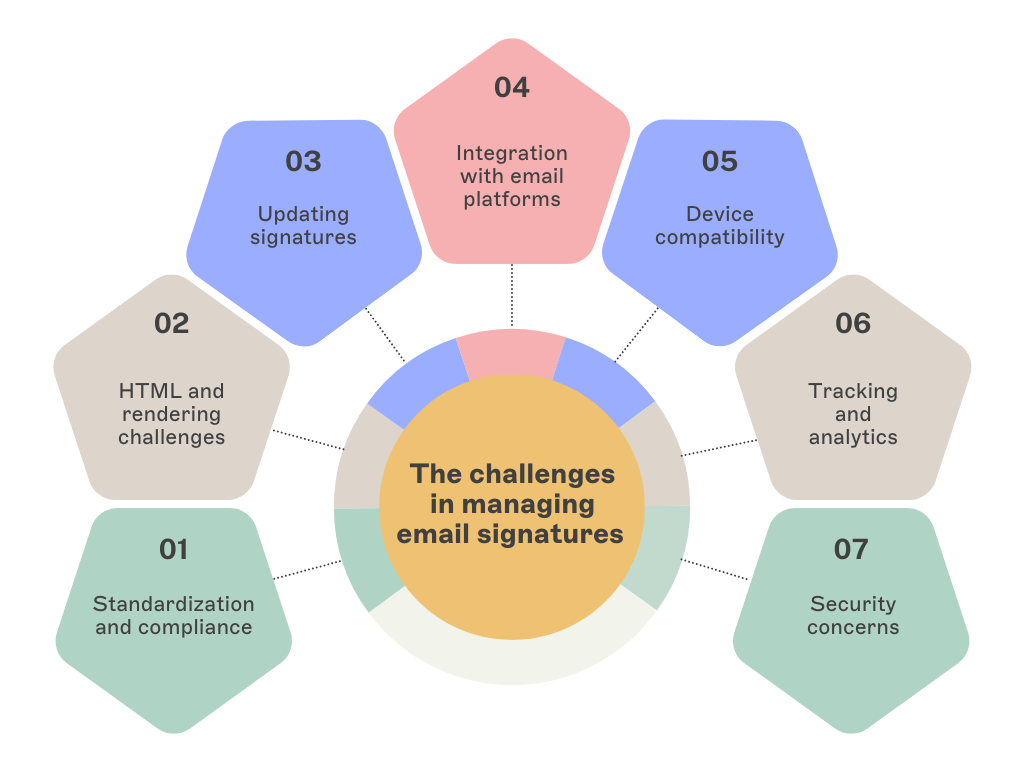
Standardization and compliance: Allowing employees to create or adjust their own signatures leads to inconsistent branding, outdated job titles, and missing legal disclaimers. Large organizations or multi-department teams struggle to keep signatures uniform, which creates compliance gaps and increases administrative work.
HTML and rendering challenges: Email clients interpret HTML differently. A signature built for Outlook may not render correctly on mobile or in Gmail. This leads to distorted layouts, missing icons, or broken formatting—often requiring IT intervention to fix issues across multiple devices and clients.
Updating signatures: Rebrands, marketing campaigns, and staff changes require frequent updates. Without centralized management, IT teams must modify signatures one by one. This slows down rollout times and increases the risk of errors or inconsistent versions being used across the organization.
Integration with email platforms: Outlook, Gmail, mobile apps, and browser-based email each support signatures differently. Ensuring a consistent, professional look across these platforms is difficult without a unified system for managing formatting, assets, and required fields.
Device compatibility: Mobile workforces use various devices, so email signatures must display well on desktops, smartphones, and tablets. However, designs optimized for one device might not work well on others.
Tracking and analytics: Organizations often include banners or links in signatures to support marketing or internal communications. Tracking clicks and measuring performance is difficult without centralized control of URLs, updates, and reporting.
Security concerns: Signatures don’t prevent phishing or stop threats, but inconsistencies can make suspicious emails harder to identify. Keeping signatures accurate and consistent improves communication clarity, reinforces trust, and reduces confusion during security reviews.
Email signature software simplifies management at scale
Manual signature management in Microsoft 365 is slow and difficult to maintain. A centralized platform solves these issues by giving IT one place to create, update, and manage signatures for the entire organization. This approach keeps branding consistent, applies the right disclaimers, and reduces the time spent fixing errors across devices and clients.
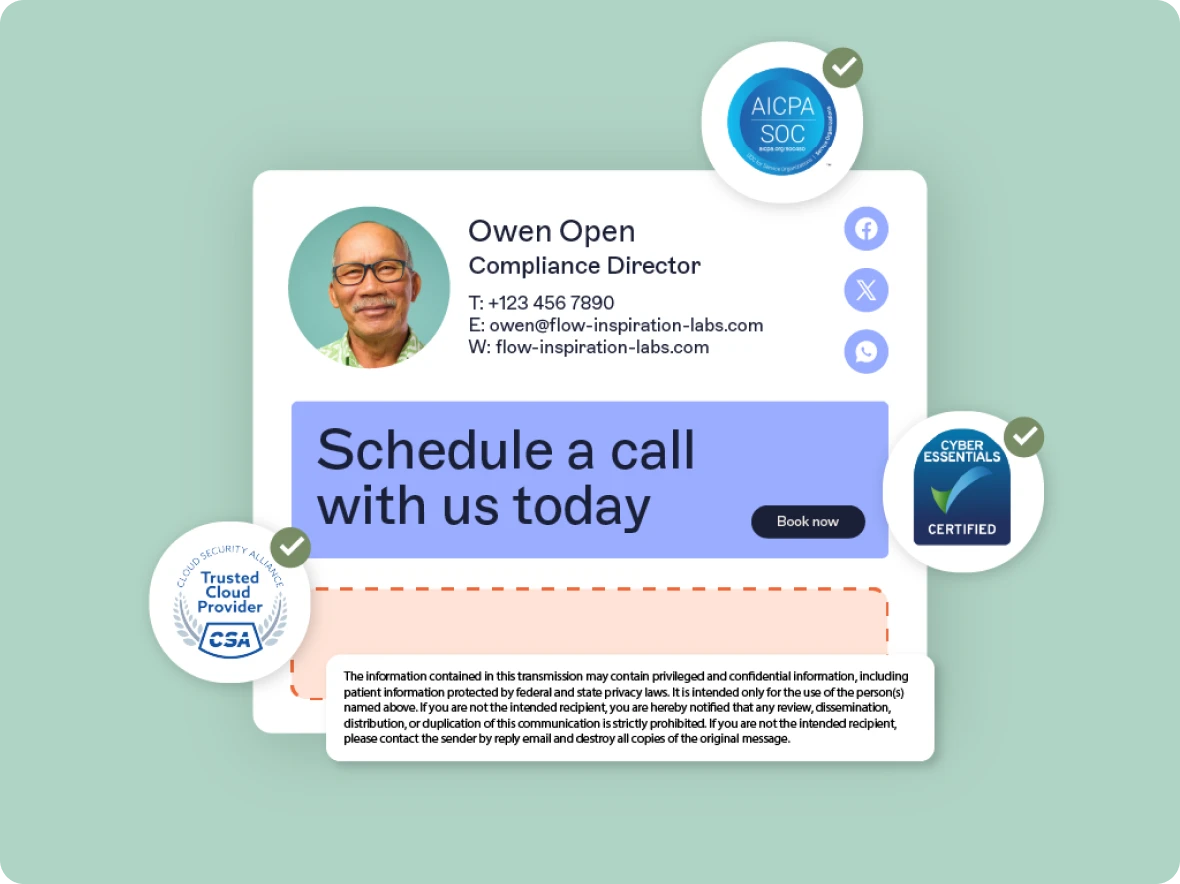 Standard templates also reduce the workload on IT. Marketing teams can manage design and messaging, while IT controls the technical settings. This keeps signatures aligned with brand and compliance needs without constant manual updates.
Security and privacy with Exclaimer
Exclaimer helps organizations keep email communication consistent and compliant. The platform maintains accurate sender details, applies required legal text, and ensures signatures follow the same structure across all messages.
Exclaimer runs on Microsoft Azure, which provides encryption at rest and in transit, strong access controls, and compliance with major data protection frameworks including GDPR, CCPA, and HIPAA. This gives organizations a secure and reliable foundation for managing signature data in the cloud.
Refine your Microsoft 365 instance
Keeping Microsoft 365 compliant and secure requires clear processes and consistent communication. Cloud security frameworks offer direction, but daily practice is what maintains a reliable environment.
Email signatures support this work by providing accuracy, structure, and consistency. When managed centrally, they help teams maintain compliance, reduce errors, and present a unified brand across all communication.
Many organizations use dedicated signature tools to streamline updates, apply the right disclaimers, and reduce manual effort. This approach helps refine how Microsoft 365 operates and creates a more dependable communication experience.
Interested in streamlining your email signature management while boosting security measures and compliance? Explore the difference Exclaimer can make and get yourself a free trial.