Managing Outlook email signatures at scale
12 January 2026
0 min read
TL;DR
Outlook doesn’t offer true centralized email signature management, making it difficult for IT teams to control consistency at scale.
Native Outlook and Microsoft 365 tools rely on user-level setup or basic mail flow rules, both of which break down in real-world environments.
Managing Outlook signatures centrally reduces admin effort, user error, and compliance risk across devices and clients.
As organizations grow, manual and script-based approaches create ongoing maintenance and visibility challenges for IT.
Centralized control gives IT predictable, uniform Outlook signatures without relying on end users.
You manage Microsoft 365. That means uptime, security, and keeping things moving. Manually updating Outlook email signatures doesn’t fit that job description.
But somehow, it keeps landing on your plate. Marketing wants you to deploy a campaign banner. HR wants gender pronouns added for Pride. Legal needs a new email disclaimer put in place by Monday. Without central control, those requests land squarely in your queue.
So instead of focusing on priorities, you’re fielding tickets about formatting issues, chasing inconsistent signatures, and working around Outlook client limitations. It’s repetitive, avoidable, and it’s costing you time. Time you don’t have.
What is Outlook email signature management?
Outlook email signature management refers to how email signatures are created, applied, and maintained across Outlook users in an organization. In most environments, this includes controlling signature content, formatting, and placement while minimizing reliance on individual users.
By default, Outlook stores signatures locally in the email client. Each user manages their own signature settings, which means IT has limited visibility into what’s being sent or whether signatures are being used consistently. This approach works in small teams but becomes difficult to manage as the organization grows.
When Outlook email signature management is handled centrally, signatures follow defined rules rather than user behavior. Updates can be applied consistently, user details stay aligned with directory data, and IT teams don’t need to rely on manual changes to keep signatures accurate.
At scale, effective management is less about design and more about governance. The goal is to maintain predictable, uniform signatures across Outlook desktop, web, and mobile, without adding ongoing administrative overhead.hat Outlook email signature management looks like at scale.
What Outlook email signature management looks like at scale
Outlook email signature management becomes complex as soon as an organization moves beyond a small, static user base. In Microsoft 365 environments, signatures are tied to individual clients, devices, and user behavior, which makes consistency difficult to maintain across teams.

At scale, IT teams need to account for multiple Outlook clients, remote and mobile users, frequent role changes, and ongoing brand or legal updates. When signatures rely on local setup or manual processes, even small changes can create widespread inconsistency.
Effective Outlook email signature management at scale is less about creating signatures and more about controlling how they’re applied. This includes having a single source of truth for signature content, predictable placement in emails, and confidence that every message sent from Outlook reflects the same standards, regardless of how or where it’s sent.
As organizations grow, this model creates friction. IT teams can’t reliably confirm which signature is being used, whether it’s formatted correctly, or if it appears consistently across Outlook desktop, web, and mobile. Even when standards are defined, there’s no native way to enforce them everywhere.
Why managing Outlook email signatures is harder than it looks
Native Outlook signature management relies on user-level configuration and basic Microsoft 365 capabilities. Each Outlook client handles signatures independently, which limits how much control IT teams can realistically maintain across an organization.
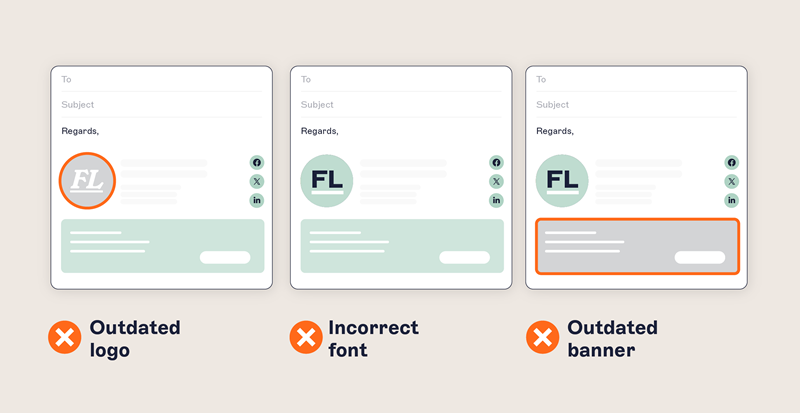
Signature behavior varies by Outlook client
Each Outlook client stores and applies email signatures differently. That inconsistency is built in:
Client | Storage location | Sync behavior | Supports HTML? | Common issues |
|---|---|---|---|---|
Outlook desktop | %APPDATA%\Microsoft\Signatures | No | Yes | Local-only, editable by user |
Outlook on the web | Exchange Online mailbox settings | No | Yes | Can be overwritten by UI changes |
Outlook mobile | Plain text, stored internally | N/A | No | No HTML, no branding elements supported |
No sync between Outlook clients means users often send mismatched or outdated email signatures when switching devices.
Users introduce more risk
Without centralized email signature management, users can:
Delete or disable their Outlook signatures
Reuse outdated email signature content copied from older emails or templates
Use unapproved email signature design or contact details
Leave off required email disclaimers
Providing templates and training helps, but they don’t solve the problem. You don’t have overall control over what people are sending.
Updates are unreliable and IT has no visibility
Manual updates are unreliable. This means IT has no way to track or confirm usage:
Mass emails asking users to update their Outlook signatures rarely work
Login scripts don’t reach remote users or those on VPNs
Even when updates are pushed from the Microsoft 365 Admin Center, they may not propagate to Outlook desktop unless users restart the client.
There’s no clear way to verify adoption or audit compliance.
Native Outlook signature management vs centralized control
Outlook client-side signatures are created and stored locally. They depend on users to apply the correct formatting, update details when roles change, and keep signatures consistent across devices. In practice, this leads to variation, outdated information, and missing signatures, especially when emails are sent from mobile or web clients.
Exchange Online mail flow rules offer a server-side option, but they’re designed for disclaimers rather than full email signatures. They apply content after an email is sent, provide limited formatting control, and don’t allow users to preview how signatures appear in Outlook. Placement can also be unpredictable in replies and forwards.
Centralized Outlook signature management shifts control away from individual clients and into defined rules. Instead of relying on local settings or partial workarounds, signatures are applied consistently based on policy. This approach gives IT teams visibility, predictable behavior across devices, and confidence that Outlook signatures follow the same standards everywhere.
The table below summarizes how native Outlook signature management compares with centralized control in real-world environments.
Capability | Native Outlook signature management | Centralized Outlook signature management |
|---|---|---|
Where signatures are created | Created and stored locally in the Outlook client | Defined and managed from a single central location |
Consistency across users | Depends on individual user setup and behavior | Applied consistently based on rules, not user action |
Cross-device support | Varies by client and device, often inconsistent | Designed to work across desktop, web, and mobile |
Formatting control | Limited and prone to variation | Standardized formatting applied uniformly |
Updates and changes | Requires manual user updates or scripts | Changes can be applied centrally without user involvement |
Visibility for IT | Limited insight into what signatures are actually sent | Clear oversight of signature content and application |
Reply and forward behavior | Inconsistent placement depending on client | Predictable placement across email scenarios |
Ongoing admin effort | Increases over time as environments change | Reduced once centralized rules are in place |
Common Outlook signature management challenges
When native Outlook tools fall short, IT teams often look for ways to manage Outlook signatures centrally using a mix of manual processes and automation. These approaches aim to introduce consistency, but they rarely provide long-term control.
One common method is asking users to manually create or update signatures based on shared instructions. While simple to start, this approach depends entirely on user compliance and quickly breaks down as teams grow or change roles.
Some organizations use PowerShell scripts, Group Policy, or device management tools to push signature files to Outlook clients. These methods can standardize signatures initially, but they require ongoing maintenance. Updates must be redeployed, exceptions handled, and issues resolved when users change devices or Outlook versions.
Exchange Online mail flow rules are sometimes used to apply disclaimers centrally. While useful for adding legal text, they aren’t designed to manage full Outlook signatures. Formatting options are limited, placement can be inconsistent, and users can’t see the final result while composing emails.
Each of these approaches addresses part of the problem, but none offer consistent visibility or predictable behavior across Outlook desktop, web, and mobile. Over time, IT teams are left managing exceptions rather than maintaining control.
File-based deployments are fragile
- Files must be manually placed in
%APPDATA%\Microsoft\Signatureson each device - Works only on domain-joined machines with a persistent connection
- Mobile and remote users are left out entirely
- Updates require re-deployment, with no real-time sync
- Users can still edit signatures, which risks breaking formatting or removing email disclaimers
- No visibility to confirm adoption, enforce policies, or pass audits
- Frequent support tickets related to formatting and delivery issues
PowerShell scripts don’t cover all clients
- Only affects Outlook on the web; desktop and mobile are excluded
- Styling is limited and can be overwritten by users
- Scripts must be run mailbox-by-mailbox with elevated permissions
- No version control, rollback, or preview functionality
- Maintaining scripts becomes an ongoing IT workload
Exchange transport rules create visibility and placement issues
- Signatures are appended at the end of the email thread—not under latest reply
- Signatures aren’t visible while composing
- No support for user-specific fields from Entra ID (e.g., name, title)
- No visibility in Sent Items for verification
- Duplicate signatures often occur when users add their own
- Rules can’t adapt by user role, device, or recipient type
- Formatting frequently breaks on mobile or external clients
Group Policy locks things down—but at a cost
- Users can’t personalize with gender pronouns, working hours, etc.
- Changes require full policy edits—no role-based access controls
- Other teams like Marketing can’t update content directly
- No visibility into compliance or signature performance
- Locked templates often lead to more IT support tickets
Manual methods don’t scale
- No unified interface to manage Outlook email signatures across platforms
- No templating system, automation, or role-based logic
- IT becomes responsible for every minor signature change
- Disclaimers and branding are inconsistently applied
- Each change becomes a project, adding to IT’s backlog
Essentially, the native tools in Microsoft 365 weren’t built for modern IT environments. At best, they were designed to append plain text to the end of an email. They’re not designed for email signature templates that have branded elements and marketing content.
Even worse, these tools are unreliable, increase inconsistency risks, and put IT in a reactive role without delivering the control or visibility needed.
Learn how to create Outlook signatures in Microsoft 365
Find out which approaches you can use to create and manage Outlook email signatures in Microsoft 365—from manual setup to automated solutions.

Operational impact of non-centralized Outlook signature management
Area of impact | What IT teams experience |
|---|---|
IT time and resource cost | • Hours spent managing PowerShell scripts and resolving deployment issues
|
Helpdesk ticket volume | • Signature-related issues create unexpected IT support demand
|
Compliance exposure | • Missing disclaimers increase risk in regulated industries such as legal, healthcare, and financial services
|
Why centralized Outlook email signature management is essential for IT
Centralized Outlook email signature management gives IT the visibility and control that Microsoft 365 environments require. Instead of troubleshooting formatting problems or maintaining fragile scripts, IT manages everything from one platform without owning every detail.
What centralized control allows IT to do
Lower operational burden
- No more mass emails asking for signature updates
- Eliminate script management and deployment
- Slash time spent troubleshooting formatting issues
Apply consistent formatting everywhere
- Use one email signature layout across Outlook desktop, web, and mobile
- Lock branding: colors, logos, fonts, spacing
- Preview signatures inside the compose window
Keep contact details accurate
- Pull data from Entra ID (Azure AD) automatically
- Reflect changes in job title, department, or phone without manual updates
- Sync custom fields like certifications or regional office IDs
Target signatures dynamically
- Different templates for internal vs external, department, country, or device
- Launch scheduled updates for campaigns or seasonal branding
- Ensure legal disclaimers are applied by region or language
Enable stakeholder access without losing control
- Marketing manages banners and promo elements
- Legal updates disclaimers and regulatory notices
- IT controls publishing through role-based access controls (RBAC)
Ensure audit-readiness
- Track changes with version history and logs
- Enforce policies with signature locking
- Simplify ISO, SOC 2, or GDPR readiness
The result: Fewer tickets, consistent signatures, and stronger compliance — with none of the administrative overhead.
Exclaimer: Purpose-built for Outlook signature control at scale
Exclaimer solves the real-world challenges IT teams face when managing signatures in Microsoft 365. Instead of piecing together workarounds, you get a platform with the control, automation, and native integration IT needs.
Area | Summary |
|---|---|
Secure, native Microsoft 365 integration | Connects to Microsoft 365 using OAuth. Syncs Entra ID (Azure AD) data in real time, avoiding duplication or sync delays. |
Server-side stamping for consistency | Applies email signatures after messages are sent. Works across all Outlook clients, users, and locations, enforcing policy without relying on user action. |
Client-side preview via Outlook add-in | Displays email signatures in the Outlook compose window. Helps avoid duplication and uncertainty, and works across desktop, web, and mobile. |
Role-based access and publishing control | Allows controlled delegation of content changes. Supports structured approval workflows, with change logs to maintain accountability. |
Campaign and compliance flexibility | Supports targeted content blocks or disclaimers based on logic. Allows scheduled, time-bound content and different rules for internal and external recipients. |
Enterprise-grade reliability | Certified to SOC 2, ISO 27001, and ISO 27018 standards. Hosted on Azure with global failover and 99.999% uptime, full audit trails, and included onboarding and support. |
Simplify Outlook signature management today
Outlook email signature management becomes difficult to control as organizations scale. Native tools rely on user-level setup and partial workarounds, which makes consistency, visibility, and governance harder to maintain over time.
 For IT teams, the challenge isn’t creating signatures. It’s managing how they’re applied across Outlook clients, devices, and users without adding ongoing admin effort or compliance risk. When signatures are handled centrally, control shifts away from individual behavior and toward predictable, policy-driven outcomes.
Understanding where Outlook’s native capabilities stop and where centralized management becomes necessary helps IT teams make informed decisions about how to manage signatures reliably in Microsoft 365 environments.
Start a free trial to see how much time you can save.