How to add a logo to your email signature correctly
24 February 2026
0 min read
TL;DR
Add your logo through Outlook or Gmail signature settings, then test how it displays on desktop and mobile.
Keep logos between 300–400 pixels wide and under 50 KB to prevent layout and loading issues.
Use PNG or JPG formats and host images over HTTPS if linking externally.
Test signatures in different email clients and dark mode to confirm consistent rendering.
For organizations at scale, centralized email signature management prevents version drift and outdated branding.
Email signature logos shape how your organization appears in every message sent. When done correctly, a logo reinforces brand identity and keeps communications visually consistent across teams and devices.
However, adding a logo to an email signature isn’t simply a matter of inserting an image. Incorrect sizing, unsupported file formats, broken hosting links, and image blocking can all affect how your signature displays. A distorted or missing logo can undermine the professional impression you’re trying to create.
This guide explains how to include a logo in your email signature step by step for Outlook and Gmail. It also covers image size recommendations, file formats, hosting considerations, and troubleshooting tips to help your email signature logos display correctly across desktop and mobile environments.
Using certain types of logos in email signatures
If your logo includes both an icon and the company name, use the full logo in signatures for new emails only. In replies, switch to the icon with a simplified signature layout.
 We recommend only using an icon image on internal emails too. Employees already know your company name after all.
If your logo has the company name built into the design, keep it consistent across all signature types, including new emails, replies, and internal messages. Don’t modify or split the logo. It should look the same in email as it does everywhere else.
How to add a logo to your email signature
The process for adding email signature logos differs slightly between Outlook and Gmail, but the core steps are consistent: insert the image, adjust sizing, and confirm display across devices.

How to add a logo to your email signature in Outlook
The steps below apply to Outlook desktop. In Outlook on the web, signature settings are located under Settings > Mail > Compose and reply.
Open Outlook.
Select File > Options > Mail.
Click Signatures.
Create a new signature or select an existing one.
Position your cursor where the logo should appear.
Click the Insert Picture icon.
Choose a PNG or JPG logo file.
Resize the image using the corner handles to preserve proportions.
Click OK, then Save.
Send a test email and review the logo on desktop and mobile to confirm proper scaling.
How to add a logo to your email signature in Gmail
Gmail supports direct image uploads or hosted image URLs.
Open Gmail.
Click the Settings icon.
Select See all settings.
Scroll to Signature.
Create or edit your signature.
Click the Insert image icon.
Upload your logo or paste a secure HTTPS image URL.
Adjust the display size.
Scroll down and click Save Changes.
Send a test message to verify the email signature logo renders correctly for recipients.
Best practices for email signature logos
Adding a logo is only the first step. To prevent display issues and maintain visual consistency, follow these technical guidelines.
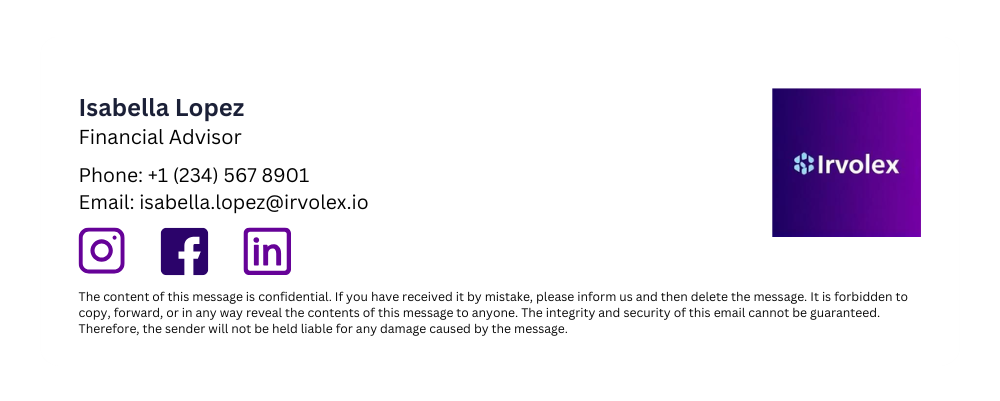
Recommended size and file weight
Email signatures are compact by design. Oversized images can distort layouts or slow message loading.
Width: 300–400 pixels
File size: Under 50 KB
Resolution: 72 DPI for screen
Resize logo files before inserting them. Avoid using high-resolution assets intended for print.
Use supported image formats
Compatibility varies between email clients.
PNG works well for logos with transparent backgrounds.
JPG reduces file size for simple graphics.
SVG isn't consistently supported and may be stripped.
Choose widely supported formats to reduce rendering issues.
Hosting vs embedded images
Logos can be embedded directly or hosted externally.
Embedded images increase email size.
Hosted images must use HTTPS and be publicly accessible.
Some clients block external images until recipients approve them.
Test both approaches to determine which provides the most reliable display in your environment.
Validate display across clients and devices
Email clients interpret HTML differently.
Test Gmail and mobile apps.
Confirm appearance in dark mode.
Testing before organization-wide rollout prevents inconsistent formatting.
Why is my logo not showing in my email signature?
When an email signature logo fails to display, the cause usually relates to image blocking, hosting configuration, file size, or client behavior.

Images are blocked by default
Some email clients block externally hosted images until the recipient allows them. In these cases, the logo will not load automatically.
This is common in Outlook desktop and corporate environments.
The image is not served over HTTPS
Email clients often block images hosted over HTTP.
Confirm the logo URL uses HTTPS and is publicly accessible.
The image link is broken
If the file was renamed, moved, or deleted, the signature will reference an invalid path.
Open the image URL in a browser to confirm it loads correctly.
The file size is too large
Large image files may render inconsistently or fail to load.
Compress logo files and keep them under 50 KB.
Outlook caching behavior
Outlook desktop may cache images locally. After updating a logo, some recipients may continue to see the older version until the cache refreshes.
Restarting Outlook typically resolves this issue.
Dark mode adjustments
Certain email clients modify image rendering in dark mode. Logos with transparent backgrounds or dark elements may appear altered.
Test signatures in both light and dark modes before deployment.
Should you embed or centrally manage email signature logos?
Embedding a logo directly into a signature may work for a single user. Across an organization, it creates control gaps.

When signatures are managed individually, brand assets drift. Logos become outdated, resized incorrectly, or removed altogether. During rebrands, mergers, or compliance updates, replacing image files across hundreds of mailboxes is difficult to coordinate and nearly impossible to verify.
Centralized signature management applies approved email signature logos automatically based on directory data and defined policies. Updates are deployed once and reflected across all users without manual intervention. This reduces version inconsistency and provides greater visibility into what is being sent externally.
For more hints and tips on including images in email signatures, check out How to Create an HTML Email Signature.
Consistently branded email signatures every time
Manual email signature updates create unnecessary risk as organizations scale. Exclaimer delivers centralized email signature management for Microsoft 365 and Google Workspace, giving IT complete control over logos, branding, and compliance elements across every user and device. Approved signatures are applied automatically, eliminating version inconsistency and reducing administrative overhead.
See how it works in your environment. Request a demo to understand how Exclaimer helps organizations maintain consistent, controlled email branding at scale.