How to introduce yourself in an email in 8 simple steps
19 January 2026
0 min read
TL;DR
Keep your introduction short, direct, and focused on what the reader needs to know.
Use a clear subject line, state your name and role, and explain why you’re reaching out.
Share only the details that help the reader understand your message.
Make your next step obvious so the recipient knows how to respond.
End with a simple sign-off and a professional email signature.
Introducing yourself in an email means explaining who you are, why you’re reaching out, and what you’d like the reader to do next. A clear introduction helps the recipient understand your intent quickly, which makes it easier for them to respond.
People often write introductions that are longer than they need to be or don’t get to the point soon enough. A short, direct message works better. The eight steps below show you how to write an introduction that’s easy to read and appropriate for workplace communication, whether you’re contacting someone for the first time or introducing yourself to a team.
The eight steps to introduce yourself in an email
A strong introduction follows a simple structure. These eight steps help you write a message that’s direct, easy to read, and appropriate for workplace communication.
1. Start with a subject line that explains your purpose
A strong subject line helps the reader understand why you’re contacting them.
Avoid vague subject lines like “Hello” or “Checking in.” They don’t explain why the email matters.
Example: Introduction from Alex Chen
2. Use a greeting that fits the context
Choose a straightforward greeting that matches your relationship with the recipient.
Example: Hi Jamie,
3. State your name and your role
Tell the recipient who you are and what you do so they have immediate clarity.
Example: My name is Alex Chen, and I recently joined the product team as a project coordinator.
4. Explain why you’re reaching out
Briefly describe what prompted your email and keep your message focused.
Example: I’m reaching out to introduce myself as we’ll be working together on the Q2 release.
5. Share only the details the reader needs
Give enough background to help the recipient understand how your work connects with theirs.
Example: I’ll be supporting timelines, documentation, and cross-team updates.
6. Be clear about the next step
Let the reader know what you’d like them to do, whether that’s replying, meeting, or confirming a detail.
Example: If you’re available, I’d like to schedule a short call next week.
7. Close the email politely
A simple sign-off keeps the message professional and easy to read.
Example: Thanks, Alex
8. Include a professional email signature
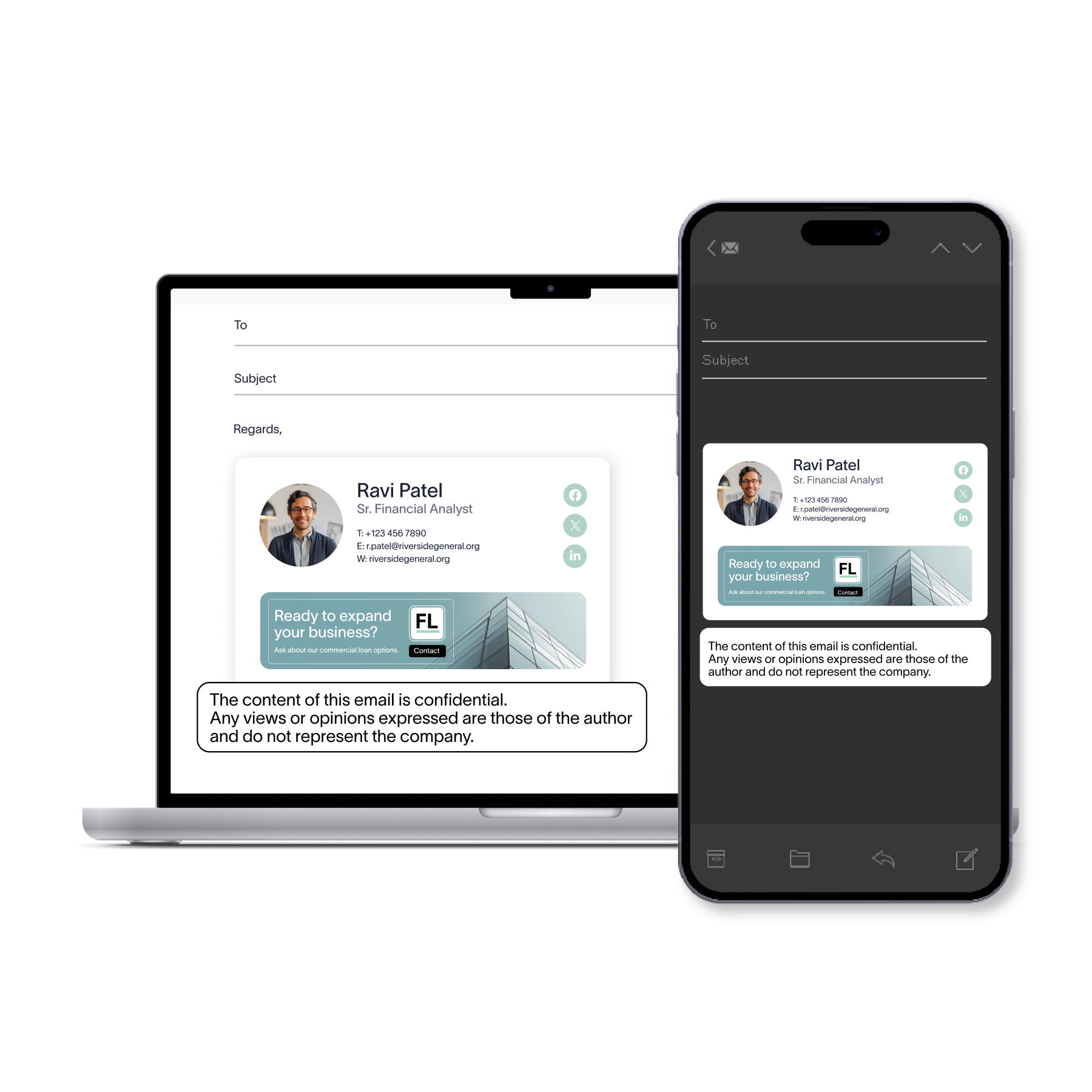
A well-designed email signature gives the reader your contact details and reinforces who you are.
Subject lines that set the right tone
A straightforward subject line helps the reader understand why you’re contacting them. Keep it short and focused on the purpose of your email.
Here are a few options you can use or adapt:
Introduction from Alex Chen
New team member introduction
Connecting about the Q2 project
Introduction ahead of our upcoming work
Quick introduction before Thursday’s meeting
Introducing myself as your new point of contact
Choose a subject line that reflects what the recipient needs to know right away. This makes your email easier to notice and easier to act on.
Examples for common situations
These short templates show how to introduce yourself in different workplace situations. Adapt them to your role or project.
Introducing yourself to a new team
Hi everyone,
My name is Alex Chen, and I’ve joined the team as a project coordinator. I’m looking forward to working with you and will be supporting timelines and documentation. Please reach out if you need anything.
Thanks, Alex
Introducing yourself to a client
Hi Sarah,
My name is Alex Chen, and I’m your new point of contact for the upcoming rollout. I’ll share updates and coordinate next steps with your team. Let me know if you’d like to connect this week.
Thanks, Alex
Introducing yourself to a cross-functional partner
Hi Jamie,
I’m Alex Chen, and I’ll be working with you on the next release. I’d like to set up a short call next week so we can align on priorities.
Thanks, Alex
Cold introduction to someone you haven’t met
Hi Jordan,
My name is Alex Chen. I’m reaching out because I’ll be supporting the next release and would like to understand your team’s process. If you’re available, I’d appreciate a short conversation next week.
Thanks, Alex
Introducing yourself to a new manager
Hi Chris,
I wanted to introduce myself. I’m Alex Chen, and I support project coordination. I’m looking forward to working with you and can share current timelines when you have a moment.
Thanks, Alex
Keep your message clear and easy to read
A good introduction is short and focused. Most people scan emails, so clear writing helps the reader understand your intent right away.
Keep these points in mind:
Do | Avoid |
Use short sentences | Long blocks of text |
Include only necessary details | Sharing background the reader doesn’t need |
Match tone to the situation | Sounding overly formal or casual |
Read your message before sending | Skipping a final clarity check |
Before and after: Clarity in practice
Before: I wanted to reach out to introduce myself and provide some background on the work I do across multiple teams.
After: I wanted to introduce myself. I support project coordination across our teams.
Tip: If you’re unsure whether a sentence is clear, read it out loud. If you need to take a breath, it’s too long.
Common mistakes to avoid
Even a short introduction can lose its impact if the message isn’t clear. These are the mistakes that make emails harder to read and slow down responses.
1. Long paragraphs
Large blocks of text are difficult to read on a screen. Break your message into short, focused sections.
2. Sharing more detail than needed
Extra background can distract from your purpose. Include only the information the reader needs to understand why you’re contacting them.
3. Tone that feels out of place
A message that sounds too formal or too casual can feel disconnected from the situation. A friendly, professional tone works well in most cases.
4. No clear next step
If you need a reply, a meeting, or confirmation, say so. A simple sentence makes it easier for the reader to decide what to do next.
5. Missing contact information
Without your details, the reader may not know how to reach you. A clear email signature gives them what they need.
Before and after: Fixing a common mistake
Before: I wanted to reach out to introduce myself and share some context about the work I do and how my previous projects may relate to our upcoming collaboration.
After: I wanted to introduce myself as we’ll be working together. I support coordination across our teams and can share timelines when you’re available
Quick reference: Do / Avoid
Do | Avoid |
Keep paragraphs short | Writing long blocks of text |
Share only what’s needed | Adding background that doesn’t help the reader |
Use a clear, professional tone | Sounding overly formal or overly casual |
State the next step | Leaving the recipient unsure of what to do |
Include your contact details | Sending an email without a signature |
Add a professional email signature
A professional email signature helps the reader understand who you are and how to reach you. It also gives your introduction a polished, consistent look.

What to include
Recommended details | Purpose |
Full name | Identifies you clearly |
Job title | Gives context for your role |
Company name | Shows who you represent |
Direct contact information | Makes it easy to reply or call you |
Helpful links | Provides quick access to booking pages, websites, or profiles |
Why it matters
A consistent signature makes your emails easier to recognize and helps the reader confirm they’re speaking with the right person. It also prevents confusion when messages are forwarded or viewed on different devices.
Tip: Keep your signature clean and easy to scan. Extra images or long taglines can make it harder for the reader to find your details.
Start every new conversation with clarity
Introducing yourself in an email works best when you keep your message clear, brief, and focused on the purpose of your outreach.
A direct subject line, a simple introduction, and a clear next step help the reader understand what you need and how to respond. When your writing is easy to follow, your introductions feel more confident and create a stronger start to the conversation.
Using Exclaimer to enhance the impact of your business emails
By incorporating Exclaimer in your organization, you can ensure that every email you send comes with a polished and professional email signature. With a range of customizable templates and features, Exclaimer allows you to align your email signatures with your brand identity and maintain consistency across all employee emails.
So, impress clients and colleagues alike with every email by incorporating Exclaimer into your business communication strategy.
Learn more about our email signature management solution and get yourself a free interactive product tour.