How to turn off suggested replies in Outlook
10 December 2025
0 min read
TL;DR
Suggested Replies are short, auto-generated responses Outlook shows beneath certain emails.
You can turn them off on the web, desktop, and mobile versions of Outlook in a few quick steps.
Mobile, web, and desktop apps store this preference separately, so you may need to update more than one device.
If suggestions still appear, check each account, confirm the label (Suggested Replies or Smart Suggestions), restart Outlook, or update the app.
Outlook doesn’t offer a central policy to disable this feature for all users, so each person manages the setting individually.
Outlook shows short, automated replies beneath certain emails. They’re quick to use, but they can also get in the way. If you’d rather not see them, you can turn them off in a few clicks.
This guide shows how to disable Suggested Replies in Outlook on the web, desktop, and mobile so you can keep your inbox focused.
What are suggested replies in Outlook?
Suggested replies are short, auto-generated responses Outlook shows beneath certain emails. They appear when Outlook detects a simple message and offer quick, one-tap replies.
You’ll see them across Outlook Web, desktop, and mobile, though the wording and placement change with each version.
This feature helps Outlook users save time and effort. It offers quick reply options for writing emails. These suggestions appear at the bottom of an email, just above the reply box.
Why turn off suggested replies?
Suggested replies can get in the way if you prefer to write your own messages. They add extra prompts beneath emails, which can feel distracting or unnecessary. In threads where tone matters, automated responses may not fit the conversation.
Some users also turn them off for privacy reasons. The suggestions come from Outlook’s reading of your message, and some people would rather keep their inbox free of automated interpretations.
How to turn off suggested replies in Outlook Web
To turn off Suggested Replies in Outlook Web, follow these steps:
Select Settings in the top right.
Choose View all Outlook settings.
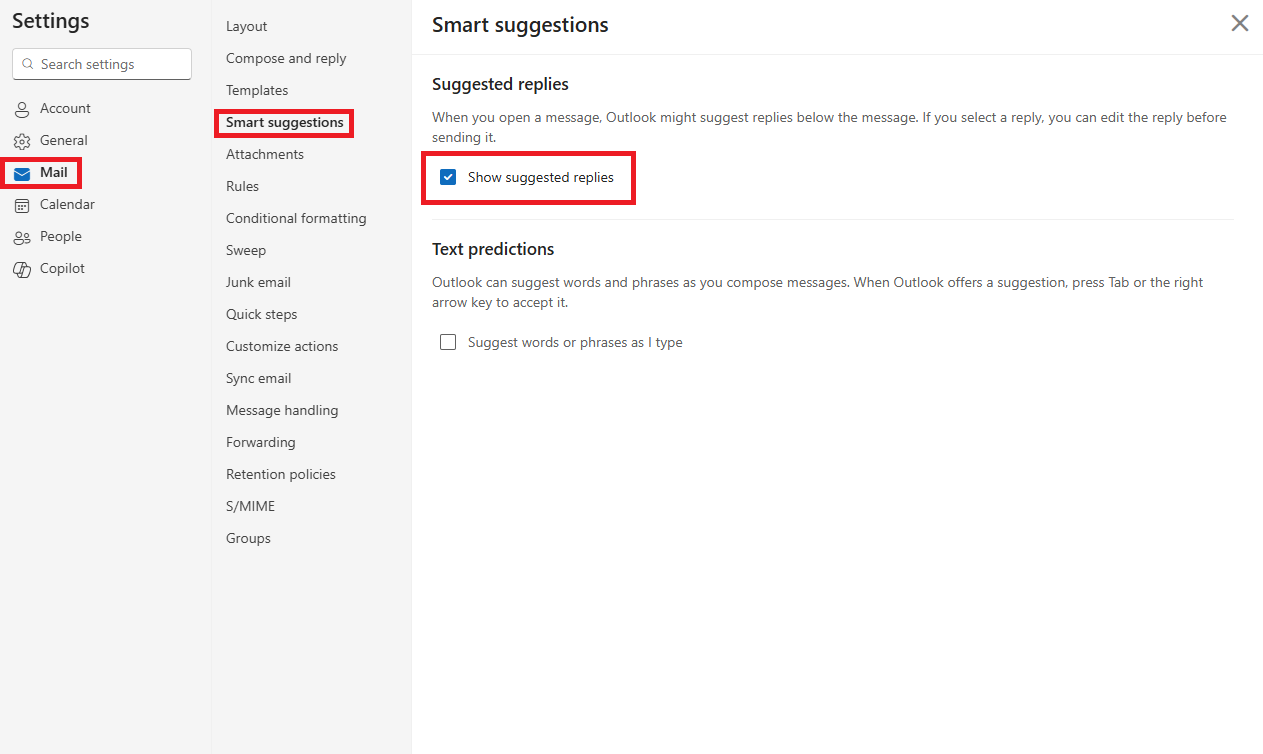
Go to Mail, then Smart suggestions.
Find Suggested Replies and turn the toggle off.
Once you switch it off, Outlook stops showing reply suggestions in your messages.
How to turn off suggested replies in Outlook Desktop
To turn off Suggested Replies in Outlook desktop:
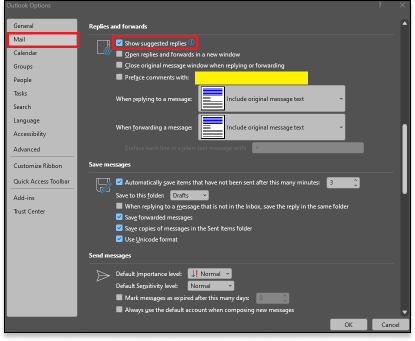
Open Outlook and select File.
Choose Options.
Select Mail.
Scroll to Replies and forwards.
Clear the Show suggested replies checkbox.
Once unchecked, Outlook no longer displays automated reply suggestions.
How to turn off suggested replies in Outlook mobile
To turn off Suggested Replies in the Outlook mobile app:
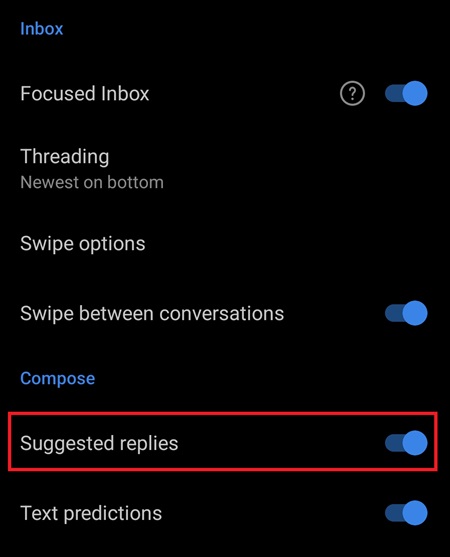
Open the Outlook app.
Tap your profile icon.
Select Settings.
Scroll to Mail.
Turn off Suggested Replies.
After you switch it off, Outlook stops showing automated replies on your phone.
Troubleshooting suggested replies
If Suggested Replies still appear after you turn them off, try these steps:
Restart Outlook. Settings sometimes sync only after a fresh launch.
Check each account. The toggle applies per account, so you may need to update more than one.
Confirm the label. Some versions use Smart Suggestions or Reply Suggestions instead of Suggested Replies.
Update Outlook. Older versions may not save the setting correctly.
Sign out and back in. This forces Outlook to reload your preferences.
If the suggestions continue to appear, your app may be running an older interface that handles this setting differently.
Notes for IT administrators
Outlook doesn’t offer a central policy to turn off Suggested Replies for all users. Each person manages this setting in their own account.
If users report mixed results, they’re likely running different Outlook versions. Some desktop, web, and mobile builds store this preference separately. Direct users to check the toggle in each place they access email.
For teams that want a consistent experience, include this setting in internal guidance or onboarding.
The final word
Turning off Suggested Replies gives you a cleaner, more focused Outlook experience. The steps are quick on web, desktop, and mobile, and each version handles the setting in a similar way. If you support others in your organization, the same guidance applies across accounts and devices.
Once the toggle is off, Outlook stops showing automated replies so you can read and respond without interruptions.
As you explore different ways to boost productivity in Outlook, consider whether your email signatures are up to standard. Do they convey a professional image, and is a consistent template being used by everyone? If not, you need Exclaimer's email signature management platform.
Check it out today by getting a free trial or signing up for an online demo.