The ultimate guide to automatically removing older emails from Exchange and Outlook
3 December 2025
0 min read
TL;DR
Cleaning out old emails manually takes time, especially when inboxes fill up with hundreds of messages each week.
Automating the removal of older emails in Outlook or Exchange helps keep your inbox organized and easier to navigate.
AutoArchive in Outlook and retention policies in Exchange can remove outdated messages on a schedule you choose.
A cleaner inbox improves performance, reduces security risks, and helps you focus on recent, relevant communication.
Tools like rules, folders, and automated sorting make long-term email management simpler for busy users and IT teams.
If your organization uses Microsoft 365, you can also centralize and automate your email signatures with Exclaimer.
Clearing out old email doesn’t need to be a chore. Whether you’re running a business, working in IT, or just trying to keep your personal inbox under control, automating the removal of older messages helps you stay organized and focus on what actually matters.
This guide walks you through simple ways to automatically remove older emails in Exchange and Outlook, using tools you already have.
If your organization runs on Microsoft 365, there’s another area where automation pays off. Exclaimer's email signature manager gives you one place to manage every employee’s email signature, saving IT time and keeping branding and legal content consistent across the business.
Why automate the removal of older emails?
Email management takes more time than most people want to admit. With inboxes filling up fast, it’s easy for important messages to get buried. And while some emails need to stay for reference, plenty don’t—yet they still sit there, adding noise and slowing you down.
Automation gives you a simple way to keep your inbox tidy without constant manual effort. It helps you stay focused, cuts down on clutter, and keeps storage under control.
Here are the key reasons to automate email cleanup:
Save time: Manually sorting and deleting old messages can feel endless. Automation takes that work off your plate so you can focus on what actually needs attention.
Stay organized: A crowded inbox makes it harder to spot the messages that matter. Removing older emails keeps things clean and easier to navigate.
Improve performance: Large mailboxes can slow down your email client. Regular cleanup helps your inbox run smoothly.
Protect privacy: Old messages often contain sensitive information. Automatic removal reduces the chance of outdated data lingering longer than it should.
How to automatically remove older emails from Outlook and Exchange
Once you’ve decided to automate email cleanup, the good news is that both Outlook and Exchange give you built-in tools to do it. Here’s how to set things up with minimal effort.
Using Outlook's AutoArchive feature
Outlook includes AutoArchive, which lets you apply a policy that clears older emails from specific folders.
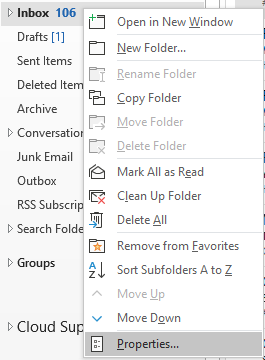
In Outlook, right-click on the folder and select Properties. For example purposes, the below screenshot displays the Inbox folder selected:
Select the AutoArchive tab and select Archive this folder using this settings.
In Clean out items older than, enter 180 days, or whatever the desired amount of days/months/years may be:
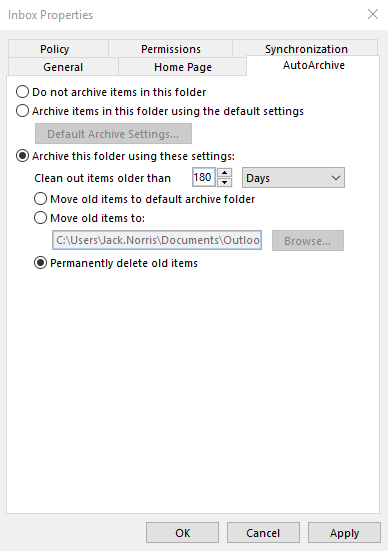
Select the Permanently delete old items option.
Click OK to save the changes and close the window.
Repeat the process for any other folders you want to set an auto-archiving policy for.
Using Microsoft Exchange Server
If you’re running Exchange 2013 or later, retention policies let you automate email cleanup across mailboxes.
To apply a retention policy:
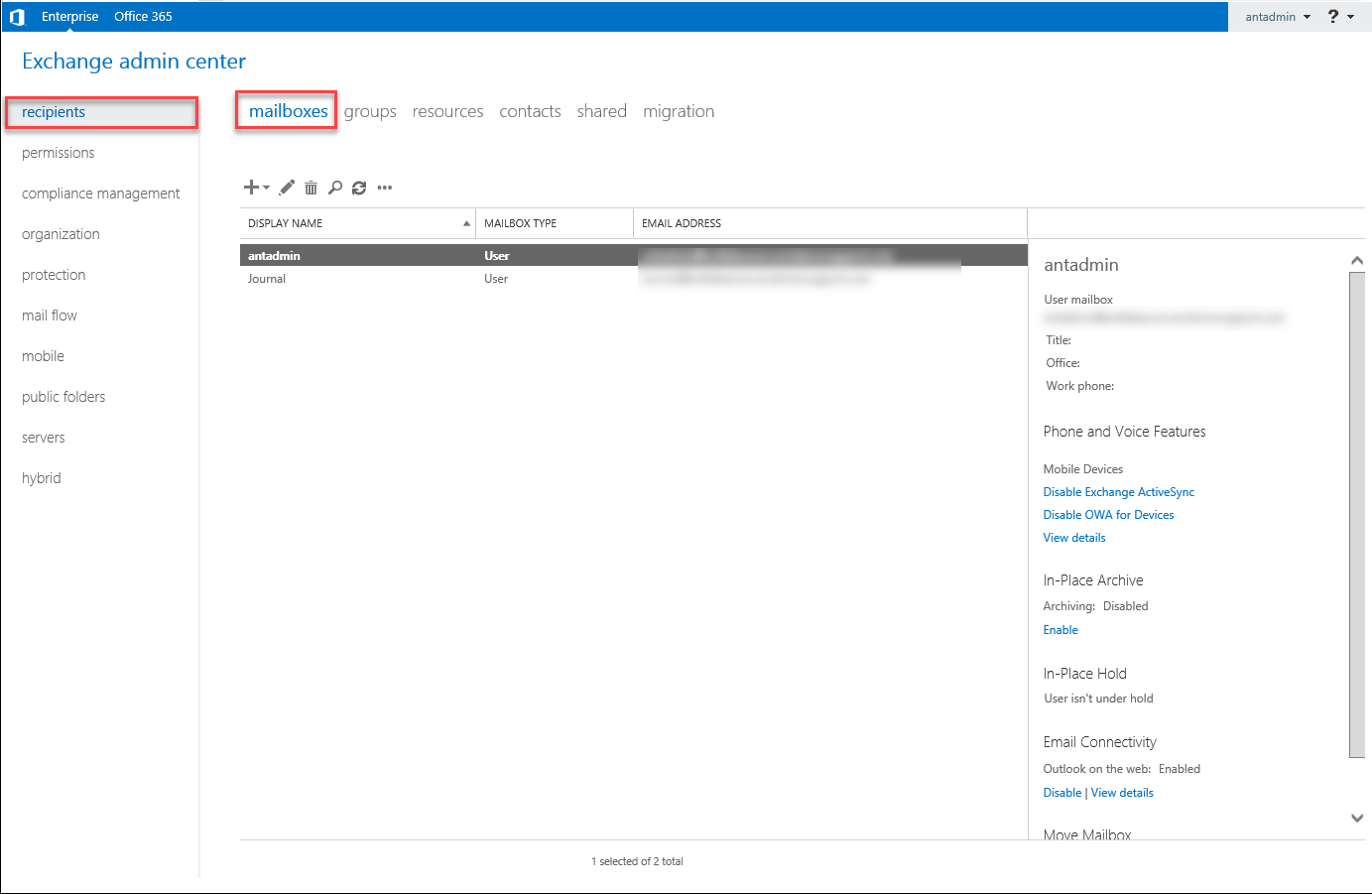
Go to the Exchange admin center.
From the left-hand side tree, select recipients, then select mailboxes:
Double-click the mailbox you want to add the retention policy to. The Edit User Mailbox window is displayed. Select mailbox features.
From the Retention policy drop-down list, select the retention policy you want to apply to this mailbox:
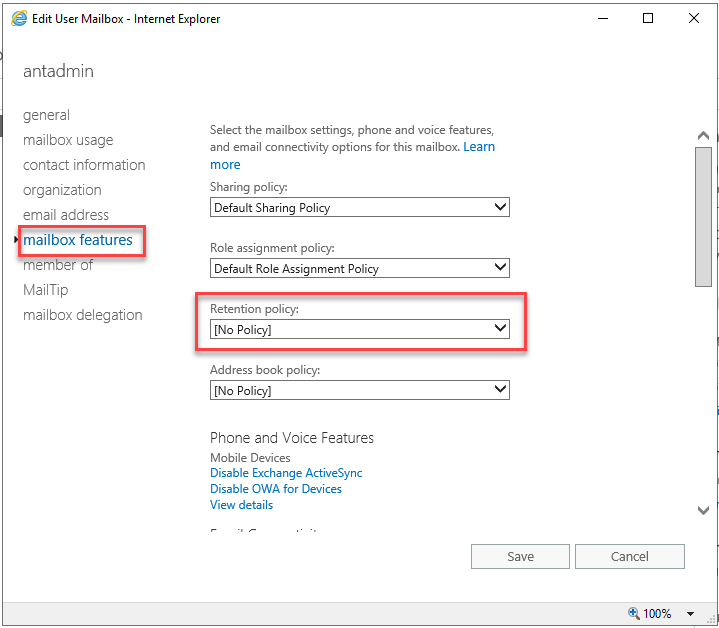
Click Save to save the changes made.
Note: You’ll need to apply a policy to each mailbox that should follow automated cleanup rules.
Creating or editing a retention policy
To create a new retention policy or edit an existing retention policy:
Go to the Exchange admin center.
From the left-hand side tree, select compliance management, then select retention policies.
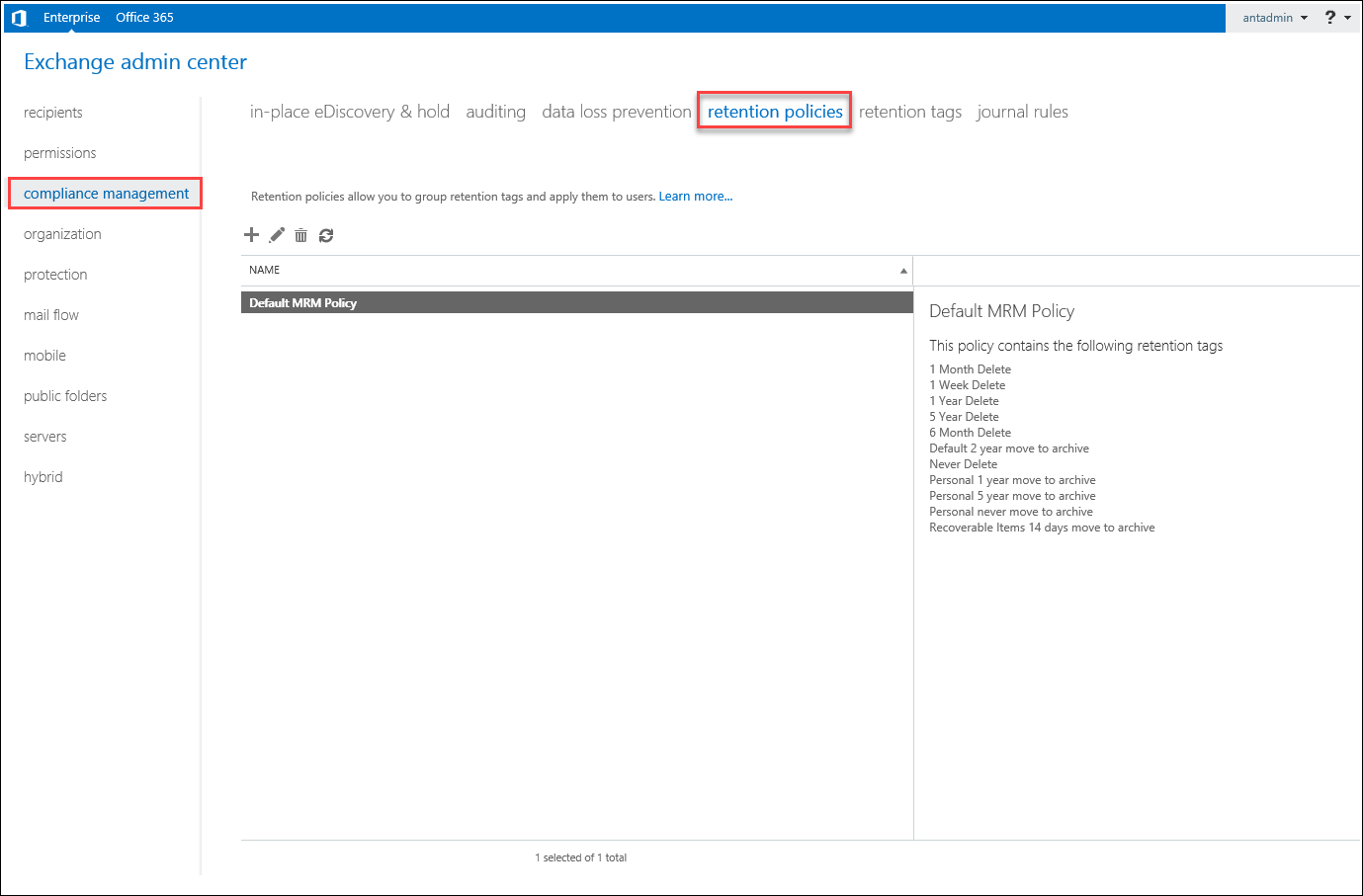
As required, click on Add (plus icon) to create a new retention policy or Edit (pencil icon) to edit the selected retention policy. The retention policy window is displayed:
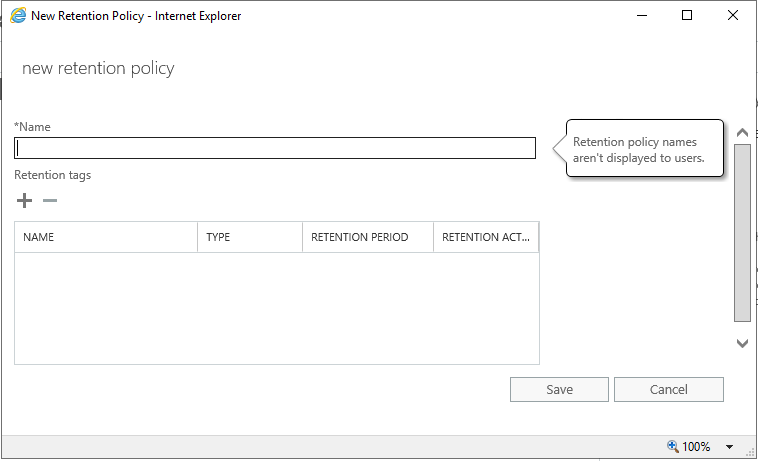
In Name, enter a name for your retention policy.
Click Add to associate the appropriate Retention Policy Tags with it. As required, select the number of days an email can be held for. For example, if you set this to 365 days then any emails more than 365 days old will be deleted.
Click Save to save the changes made.
Additional tips for Exchange and Outlook email management
Use folders and subfolders:
A simple folder structure makes it easier to group related messages and find what you need. Subfolders help you keep specific projects or conversations in one place.Review your inbox periodically:
Even with automation in place, a quick review every month or so helps you catch anything that no longer needs to be stored.Use filters and rules:
Outlook and Exchange can sort incoming mail automatically. Rules keep priority messages visible and reduce noise across your inbox.Centralize email signatures:
If your organization uses Outlook or Exchange, signature management is another task worth automating. Exclaimer's platform keeps every signature consistent by updating contact details, disclaimers, and banners across all users from one platform. It saves IT time and keeps branding accurate.
Conclusion
Automating the removal of older emails in Outlook and Exchange keeps your inbox organized and reduces the day-to-day effort of managing mail.
With AutoArchive and retention policies in place, your system stays cleaner, faster, and easier to navigate. It also supports better information management across your organization.