How to add X (formerly Twitter) to your email signature
23 February 2026
0 min read
TL;DR
Use the official X logo, not the outdated Twitter bird, and download it from official brand resources
Keep the X icon between 24–32px height, use a transparent PNG, and maintain consistent spacing with other social media icons
Add the linked X logo directly in Outlook, Gmail, or Apple Mail, then test across desktop, web, and mobile to prevent rendering issues
Account for image compression, dark mode visibility, accessibility (ALT text), and reply/forward formatting shifts
Manual signature edits work for individuals, but at scale they create inconsistent branding, outdated logos, and formatting drift
If you want to add the X logo to your email signature, you need more than just a link. You need the correct icon, the right size, and formatting that displays properly across Outlook, Gmail, Apple Mail, and mobile devices.
X, formerly Twitter, updated its branding in 2023. Many people still search for “Twitter logo for email signature,” but the current official mark is the X logo. Using outdated icons can make your signature look inconsistent or unprofessional.
This guide covers:
How to add the X logo for email signature in Outlook
How to add Twitter to email signature in Gmail
How to insert an X icon in Apple Mail
Recommended size and file format for the X logo
Best practices for social media icons in email signatures
If you're updating your own signature, these steps will walk you through the process. If you're managing email signatures across a team, you’ll also see where manual edits can create brand inconsistency or compliance gaps.
Let’s start with what you need before adding the X icon.
Where to get the X logo for your email signature
If you’re adding the X logo to your email signature, use the official brand asset. Many people still use the old Twitter bird or download low-resolution icons from image search results. That leads to blurred images, incorrect proportions, or outdated branding.
Download the current X logo directly from the official X brand guidelines page. This confirms you’re using the correct mark and color specifications.
Best file format for the X logo in an email signature
Email clients handle image formats differently. For consistent display:
PNG is the safest option for Outlook, Gmail, and Apple Mail
SVG provides sharper scaling, but some email clients block or fail to render SVG correctly
Avoid JPEG, which can create blurred edges on dark backgrounds
For most users, a transparent PNG works best.
Best size for the X logo in an email signature
If you’re wondering what size the X logo should be in an email signature, follow these guidelines:
24px to 32px height for standard signatures
Keep all social media icons the same height
Maintain file size under 50KB to prevent loading issues
Add 6–12px spacing between icons
This size range works well in Outlook signatures, Gmail signatures, and Apple Mail, and scales properly on most mobile devices.
Test your X icon on desktop and mobile
After adding the X logo to your email signature:
Send a test email to yourself
Check it in Outlook desktop
Check it in webmail
Check it on a mobile device
Some clients compress images automatically. If your icon looks pixelated on mobile, reduce dimensions slightly and re-export the PNG.
For organizations managing signatures centrally, inconsistent icon sizing is one of the most common brand drift issues when users edit signatures manually.
How to add the X logo to an Outlook email signature
If you’re using Outlook, you can add the X logo to your email signature in both desktop and web versions. The process is similar, but image handling behaves slightly differently in each.
Outlook uses Microsoft Word’s rendering engine for signatures. That means image size and alignment matter more than in Gmail.
Add the X logo to Outlook desktop (Windows or Mac)
To add the X icon to your Outlook desktop signature:
Open Outlook
Select File > Options > Mail
Click Signatures
Choose an existing signature or create a new one
Place your cursor where you want the X logo to appear
Click the Insert Picture icon
Upload your X logo PNG (24–32px height recommended)
Click the image
Select Insert Hyperlink
Paste your X profile URL (for example, https://x.com/yourhandle)
Click OK, then Save
Send a test email and check:
Icon sharpness
Spacing between icons
Alignment with text
If you’re adding multiple social media icons in your Outlook signature, place them in a horizontal row beneath your contact information. Keep consistent height across all icons.
Add the X logo to Outlook on the web
To add the X icon in Outlook Web:
Log in to Outlook in your browser
Click the Settings gear icon
Select Mail > Compose and reply
Click inside the signature editor
Use Insert pictures inline to upload your X logo
Highlight the image
Click the Link icon
Paste your X profile URL
Save changes
Outlook Web may slightly resize images automatically. If your X logo looks distorted, resize it before uploading rather than adjusting inside the editor.
Best practices for X and Twitter icons in Outlook signatures
When adding Twitter or X to your Outlook email signature:
Use a transparent PNG
Keep icon height between 24–32px
Maintain consistent spacing
Avoid oversized images
Test on desktop and mobile
Outlook is less forgiving with formatting than Gmail. Small inconsistencies in icon size or spacing are more noticeable.
If you manage signatures across a team, manual Outlook edits often lead to uneven icon sizing and outdated logos over time.
How to add Twitter to your Gmail email signature
If you want to add Twitter to your Gmail signature, you’ll need to insert the X logo as an image and link it to your profile URL.
This works in both personal Gmail accounts and Google Workspace accounts, although Workspace admins may restrict signature editing.
Add the X logo to Gmail (desktop)
Open Gmail in your browser
Click the Settings gear icon
Select See all settings
Scroll to the Signature section
Create a new signature or edit an existing one
Position your cursor where the X icon should appear
Click Insert image
Upload your X logo (24–32px height recommended)
Select the image
Click the Link button
Paste your X profile URL (for example, https://x.com/yourhandle)
Scroll down and click Save changes.
Send a test email to confirm the link opens correctly.
Important Gmail limitations
Before adding social media icons to your Gmail signature, keep these points in mind:
Gmail may compress images automatically
Drag-resizing images inside Gmail can distort proportions
Gmail mobile app does not support inserting image-based signatures the same way desktop does
Some Google Workspace administrators centrally control signatures
If your X logo appears blurry, resize it externally before uploading rather than adjusting it inside Gmail.
Best practices for Gmail social media icons
When adding Twitter or X to your Gmail email signature:
Use a transparent PNG
Keep all social media icons the same height
Maintain consistent spacing
Test in both desktop and mobile views
Gmail strips certain HTML styling. Simpler formatting performs more reliably across devices.
If your organization manages signatures centrally in Google Workspace, manual edits can create inconsistencies across departments and regions.
How to add the X logo to your Apple Mail email signature
Apple Mail allows you to add image-based signatures, including the X logo, directly inside the signature editor. The process is simple, but image handling can vary depending on the recipient’s email client.
Add the X icon in Apple Mail (Mac)
To add the X logo to your Apple Mail signature:
Open the Mail app
Select Mail > Settings
Click the Signatures tab
Choose your email account
Create a new signature or edit an existing one
Drag and drop your X logo PNG into the signature field
Click the image
Press Command + K
Paste your X profile URL (for example, https://x.com/yourhandle)
Save changes
Send a test email to confirm:
The X icon displays inline
The link opens correctly
The image does not appear as a separate attachment
Apple Mail signature limitations
Before adding social media icons in Apple Mail, consider the following:
Apple Mail may convert images into attachments if formatting is altered
Resizing images inside the editor can distort proportions
Some HTML styling may change when the email is received in Outlook
Signature formatting can shift when forwarding messages
To reduce display issues:
Use a transparent PNG
Keep the X logo between 24–32px height
Avoid excessive spacing or complex formatting
Send cross-client test emails
Apple Mail signatures can look correct on Mac but render differently in Outlook or Gmail. Testing across platforms is important.
Best practices for adding the X logo to your email signature
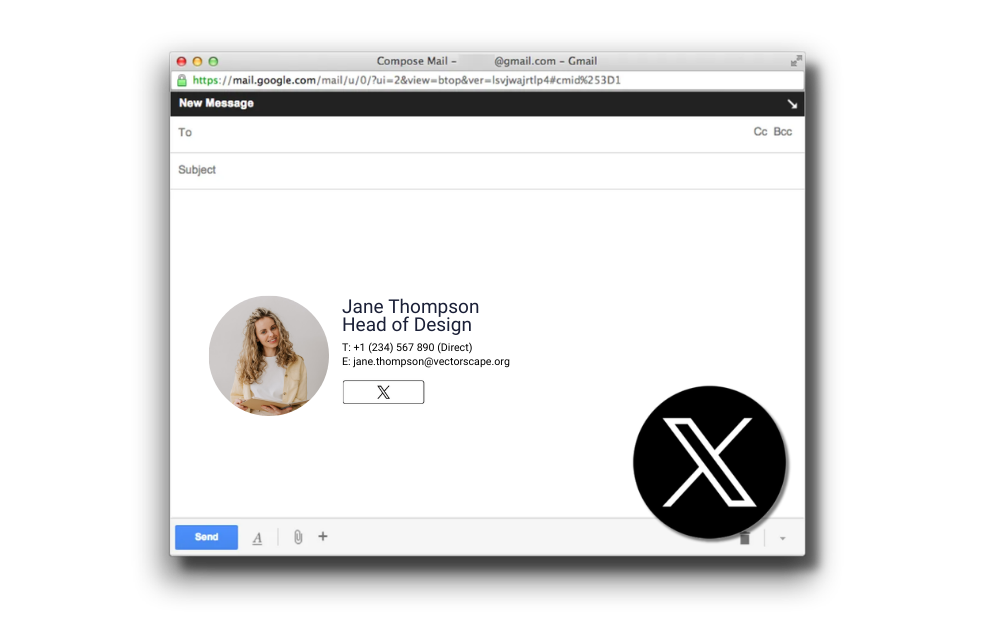
Adding Twitter or X to your email signature is straightforward. Creating a professional result that displays correctly across email clients requires more structure.
Use consistent icon sizing
If you’re including multiple social media icons in your email signature:
Keep all icons between 24–32px height
Use equal spacing between icons
Align them horizontally
Match visual weight across platforms
Uneven icon sizing is one of the fastest ways to make a signature look inconsistent.
Place social media icons beneath contact details
The most reliable structure for a professional email signature is:
Name
Title
Company
Phone | Email
Social media icons row
Avoid placing icons inline with text or above your name. Clear hierarchy improves readability and reduces layout issues in Outlook.
Add ALT text for accessibility
Some email clients block images by default. Adding ALT text to your X logo helps recipients understand the purpose of the icon if images don’t load.
Use simple ALT text such as:
“Follow us on X”
This improves accessibility and helps maintain clarity.
Consider dark mode rendering
Dark mode can invert or obscure certain images. If your X logo uses a dark background, it may disappear in dark mode email clients.
Using a transparent PNG version of the X logo improves visibility across light and dark themes.
Keep file sizes small
Oversized icons increase email weight and can cause formatting shifts in replies or forwards.
Best practice:
File size under 50KB
Avoid unnecessary padding around icons
Export images at final display size
Test across email clients and devices
Before publishing your updated email signature:
Send a test email to Outlook desktop
Check in Outlook Web
Open in Gmail
View on mobile
Email clients render HTML differently. Testing reduces unexpected layout issues.
Best practices for adding the X logo to your email signature
Adding the X logo to one email signature takes minutes. Managing social media icons across hundreds or thousands of users is different.
 When employees edit signatures individually, organizations commonly see:
Mixed use of old Twitter and new X logos
Uneven icon sizing
Incorrect or outdated profile URLs
Formatting inconsistencies between Outlook and Gmail
Signatures that render differently on mobile
Email signatures are part of your brand surface area. If they’re managed locally, consistency declines over time.
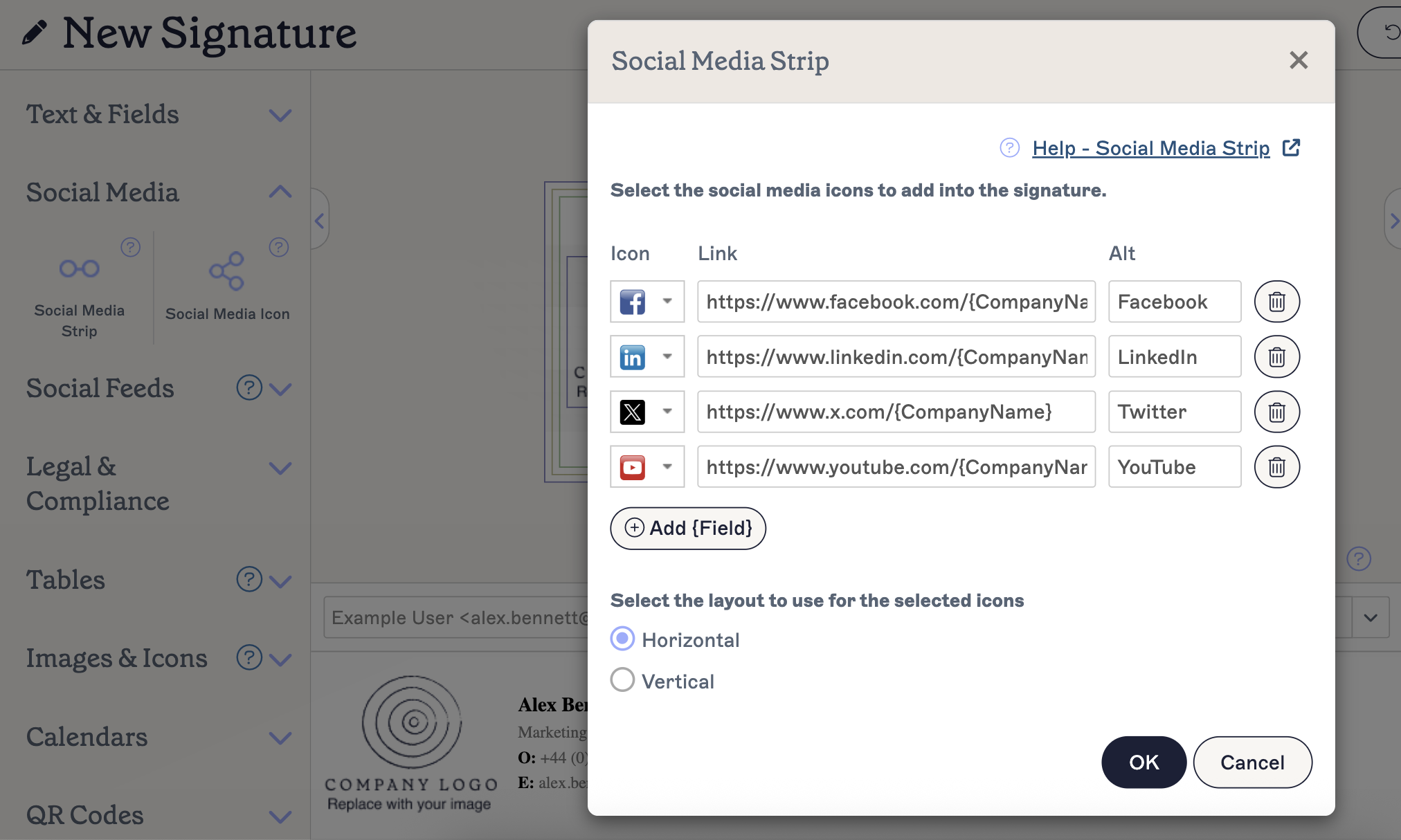
For organizations using Microsoft 365, Google Workspace, or hybrid Exchange environments, signatures can be applied centrally using Exclaimer. That allows teams to:
Standardize icon size and placement
Control approved social media links
Update logos instantly during rebrands
Maintain consistent formatting across desktop, web, and mobile
Reduce manual IT support requests
From incorporating social media icons like X (formerly known as Twitter) to customizing the design of your signatures, Exclaimer makes it easy to maintain a professional and consistent brand image on all business emails.
With over 75,000 businesses already using Exclaimer, start elevating your email game and get yourself a free trial today.