Dark mode in Outlook 365 and its impact on email signatures
20 January 2026
0 min read
Dark mode is standard across devices and apps, but email doesn’t follow the same rules. When Outlook switches to dark mode, it adjusts colors in the message, which can alter how your email signature appears. Many users turn it on without realizing the effect it has on logos, text, and brand elements.
Some signatures hold up well. Others lose contrast, shift colors, or become difficult to read. That’s why not every email signature is ready for dark mode.
What happens to most email signatures in dark mode?
Many email signatures don’t hold up in dark mode. When Outlook applies a dark theme, it adjusts colors in the message, which can break how your signature looks.
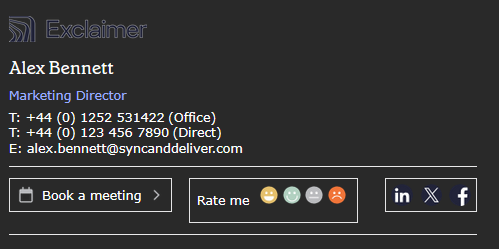 Common issues include:
Dark text turning white
Transparent images disappearing
Background colors inverting
The signature may look unprofessional or hard to read. Most people won’t realize dark mode caused the problem. They’ll just see a signature that doesn’t reflect your brand.
Why’s dark mode an issue for most email signatures?
Dark mode is an issue for many email signatures because Outlook changes colors when a message is viewed in a dark theme. You can’t control who uses dark mode or which client they use, and each client handles color inversion differently.
It’s also a problem because most signatures are designed only for light backgrounds. A template may look fine in light mode, but once Outlook applies dark mode, colors shift and elements can become harder to read. That’s why Outlook dark mode often exposes issues that weren’t visible during design.
Why is dark mode in Outlook so popular?
Dark mode in Outlook is popular because it reduces the visual strain caused by bright backgrounds. It makes reading easier for people who spend long hours in their inbox.
It also improves comfort in low-light environments by limiting blue light and creating a softer contrast. Since many users keep dark mode on by default, more email signatures now appear against a dark theme.
What are the benefits of a dark theme?
Dark themes reduce the strain caused by bright screens, which makes reading easier for people who spend long hours in Outlook. Users with light sensitivity or certain visual impairments often find white text on a dark background clearer.
Dark mode can also help limit screen burn-in on some displays. Because darker pixels work less intensely, they’re less likely to leave permanent marks from static elements.
How to enable dark mode in Outlook365
You can turn on dark mode in Outlook 365 by switching to the Black theme. This option is available to Microsoft 365 subscribers.
Here’s how to enable it:
Go to File in the top toolbar.
Select Office Account.
Choose Black from the Office Theme menu.
Select OK to apply the change.
Return to your inbox to use Outlook in dark mode.
How to turn on dark mode in Outlook 365 for the web
You can turn on dark mode in Outlook 365 for the web without a Microsoft 365 subscription. To enable it:
Open Outlook 365 in your browser and sign in.
Select the Settings gear icon in the top toolbar.
Toggle Dark Mode to switch it on.
Other dark modes
Outlook 365 supports dark mode across devices, and each platform handles it differently. Here’s how to turn it on.
How to enable Outlook dark mode on Mac
Enabling dark mode for Outlook on a Mac is largely the same as on Windows, but a few options have different names:
Open Outlook and select Outlook in the top menu.
Choose Preferences.
Select General, then scroll to Appearance.
Pick Dark. You can also choose System to follow macOS dark mode.
How to enable Outlook dark mode on Android
Outlook can use your device theme or a theme set in the app.
From device settings
Open Settings → Display.
Toggle Dark mode. (Older devices may list this under Accessibility.)
From the Outlook app
Open Outlook and tap your profile icon.
Select the Settings gear icon.
Go to Preferences → Appearance.
Under Theme, select Dark.
How to enable Outlook dark mode on iOS
Switching to dark mode on an iPhone is quick and easy:
Open the Outlook app.
Tap the Account icon in the top-left.
Select the Settings gear icon.
Choose Appearance, then tap Dark.
Outlook can also follow your iPhone’s system-wide dark mode.
Toggle between ‘dark mode on’ and ‘dark mode off’
Outlook lets you switch between dark and light modes while reading a message. Select the sun icon near the reply buttons to view the message in light mode, and select the moon icon to switch back.
This is useful when a message isn’t optimized for dark mode. If inverted colors or faded images make the content hard to read, toggling to light mode restores clarity.
Avoiding dark mode problems with email signatures
Dark mode exposes design issues that many signatures overlook. A centralized solution, like Exclaimer, applies consistent formatting across clients so your signature displays correctly in both themes. Design choices still matter, and a few adjustments can prevent common problems.
Steps you can take
To reduce dark mode issues:
Avoid background colors that may invert.
Use images with transparent backgrounds, so they stay visible on dark and light themes.
Add a light outline to text in images to keep it readable on darker backgrounds.
These changes make your signature more resilient when Outlook applies color adjustments.
Check your signature
Test your signature across devices and email clients to see how it behaves in light and dark mode. Send a few messages, switch themes, and look for changes to color, contrast, or image clarity.
Making dark mode work for your email signatures
Dark mode changes how email signatures appear, and each client handles it differently. Testing helps, but manual fixes only go so far when colors shift and images behave unpredictably.
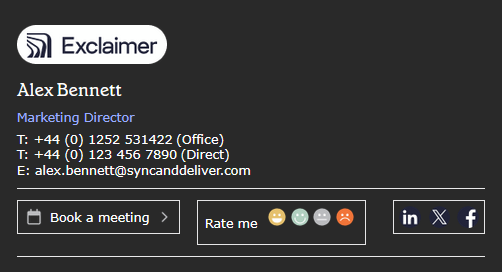 Centralized management gives you more control. Exclaimer applies a consistent signature across devices and themes, so your branding stays clear whether the recipient views it in light or dark mode. It removes the trial-and-error of manual design and keeps every signature aligned with your standards.
If you want to strengthen signature consistency and simplify dark mode challenges, explore how Exclaimer supports teams that manage email at scale.