How to create a custom email signature for business
23 February 2026
0 min read
TL;DR
A custom email signature is a standardized block of branded contact information added to business emails, supporting identity, accuracy, and compliance.
Creating one involves defining its purpose, applying approved brand elements, adding required disclaimers, and testing across devices.
Individual setup in Outlook or Gmail works for single users, but maintaining consistency across teams requires structured oversight.
Poor signature management leads to formatting drift, outdated information, mobile rendering issues, and compliance risks.
At scale, email signatures become a governance function, requiring consistent deployment and control.
Creating a custom email signature is straightforward for an individual. Creating one that stays consistent across teams, devices, and departments is far more complex.
Every business email ends with a signature. That makes it one of the most repeated brand touchpoints your organization controls. Done well, it reinforces brand identity, presents accurate contact information, supports legal compliance, and can even promote campaigns. Done poorly, it leads to inconsistent formatting, outdated details, and unnecessary IT workload.
This guide explains how to create a custom email signature step by step, what elements to include, and how to manage signatures consistently across an organization.
What is a custom email signature?
A custom email signature is a personalized, branded block of information automatically added to the end of business emails.
 It typically includes important information such as:
Name and job title
Company name and logo
Contact details
Social media links
Legal disclaimers
Optional promotional banners or booking links
Organizations use custom email signatures to maintain brand consistency, provide accurate sender information, and meet regulatory or compliance requirements in every email communication.
How to create a custom email signature
Creating a custom email signature for business requires structure, consistency, and clarity. Whether you’re designing a signature for yourself or for an entire organization, the process follows the same core principles.

1. Define the purpose of your signature
Decide what the signature needs to achieve.
Is it strictly informational?
Should it promote a campaign?
Does it require regulated disclaimer text?
Should it include a booking link or feedback survey?
A focused objective prevents unnecessary design clutter and keeps the signature practical.
2. Confirm accurate contact details
Use verified, up-to-date information only:
Full name
Job title
Company name
Direct phone number
Business email address
Website URL
3. Apply approved brand elements
Your custom email signature should reflect your company’s visual identity.
Include:
Official company logo
Approved brand colors
Standard font choices
Consistent spacing and layout
Keep your email signature design clean and restrained. Avoid large image files, decorative quotes, or inconsistent styling between departments.
4. Add required legal disclaimers
Certain industries require specific disclaimer language in all outbound communications.
Disclaimers may vary by:
Region
Department
Communication type
Regulatory environment
Keep text standardized and centrally approved to avoid inconsistencies.
5. Add optional engagement elements
Custom email signatures can support business goals when used thoughtfully.
You may include:
Campaign banners
- Social media icons
Awards or certifications
Webinar or event promotions
Meeting scheduling links
- One-click survey buttons
Use these elements selectively. Overloading a signature reduces clarity and impact.
6. Test across devices and email clients
Signatures can render differently across platforms.
Test formatting and links in:
Outlook desktop
Outlook web
Gmail
Apple Mail
iOS and Android mail apps
Check alignment, image scaling, and link behavior before rolling out broadly.
7. Standardize deployment across users
If you’re creating custom email signatures for multiple employees, individual setup leads to formatting drift over time.
Standardizing deployment across users improves:
Brand consistency
- Accuracy of contact details
Disclaimer alignment
Administrative efficiency
This is the difference between a custom email signature and a controlled communications asset.
Pro tip: When creating a signature from scratch, try building one in an email signature generator to see how each element fits.
Manual vs centralized custom email signature management
Creating a custom email signature for one employee takes minutes. Keeping hundreds of signatures accurate, compliant, and visually consistent over time requires structured control.
Organizations typically choose between manual setup and centralized management.
Manual signature setup
With a manual setup, each employee creates and maintains their own signature within their email client.
This means:
Users paste logos and formatting individually
Contact details are updated manually
Legal disclaimers are copied and reinserted
Changes rely on employee action
Common outcomes include:
Inconsistent formatting between departments
Outdated job titles after role changes
Missing or incorrect disclaimers
Mobile signatures reverting to default formats
Increased support requests during rebrands
Centralized signature management
Centralized management applies custom email signatures through controlled templates and automated rules.
Instead of relying on users, organizations can:
Sync contact details directly from directory systems
Assign different signatures by department, location, or role
Lock disclaimer text
Update branding across all users simultaneously
Maintain formatting consistency across devices
This creates enforceable governance around email communication rather than optional formatting guidelines.
Side-by-side comparison
Approach | Strengths | Limitations |
|---|---|---|
Manual setup | Quick for individuals | Inconsistent over time |
Built-in mail rules | Basic disclaimer insertion | Limited branding control |
Centralized management | Scalable, policy-driven consistency | Requires structured implementation |
When governance becomes necessary
As organizations grow, email signatures stop being a design choice and become a governance issue.
Multiple offices, departments, and regulatory environments introduce variables that manual setup cannot reliably manage.
Standardized deployment transforms a custom email signature from a personal preference into a controlled communications asset.
Common mistakes when creating a custom email signature
Even well-designed signatures can fail if they're not structured carefully. Below are common mistakes organizations make when creating a custom email signature.

1. Adding unnecessary information
Multiple phone numbers, long quotations, legal text blocks, and several competing calls to action reduce clarity.
A signature should:
Identify the sender
Represent the brand
Provide essential contact paths
Anything beyond that should serve a defined purpose.
2. Allowing formatting variations between employees
When users manage signatures individually, minor differences accumulate:
Font substitutions
Inconsistent logo dimensions
Color mismatches
Misaligned layouts
Over time, this creates fragmented brand presentation across departments and regions.
3. Failing to test mobile and dark mode rendering
Many signatures are designed on desktop and never tested elsewhere.
Common issues include:
Broken table formatting
Images that distort or stack incorrectly
- Dark mode inverting brand colors
Links that become difficult to tap on mobile devices
Given the volume of email opened on mobile, rendering inconsistencies undermine credibility.
4. Not updating signatures after role or branding changes
When employees change titles or contact information, signatures often remain outdated.
During rebrands, manual updates may take weeks to complete.
Outdated signatures create confusion, misdirect calls, and weaken brand control.
5. Overusing banners and graphics
Promotional elements can support campaigns, but excessive visuals:
Increase email size
Slow load times
Reduce readability
Increase spam scoring risk in certain environments
Signatures should remain structured and purposeful.
6. Managing disclaimers manually
Legal disclaimers copied into individual signatures create risk.
Inconsistent formatting, outdated regulatory text, or missing clauses expose organizations to avoidable compliance gaps.
Disclaimer control should be systematic, not dependent on individual behavior.
7. Ignoring email forwarding behavior
Email signatures persist in forwarded threads.
Large images, outdated banners, or temporary campaign graphics may remain visible long after they are relevant.
How to create a custom email signature in Outlook and Gmail
Most individuals create custom email signatures directly within their email client. The process is simple, but it relies on each user maintaining their own formatting and updates.
Below are the standard setup steps.
How to create a custom email signature in Outlook (Microsoft 365 desktop)
Open Outlook.
Select File, then Options.
Choose Mail, then select Signatures.
Click New to create a signature.
Enter your contact details.
Apply formatting and insert your company logo if needed.
Assign the signature to new emails and replies.
Save your changes.
Outlook supports formatted text, hyperlinks, and embedded images. However, advanced Outlook 365 signature layouts may render differently on web or mobile versions.
How to create a custom email signature in Outlook on the web
Click the Settings icon.
Select Mail.
Open Compose and reply.
Enter your signature content.
Choose default signature behavior.
Save changes.
The web version supports fewer formatting controls than desktop Outlook. Complex table-based designs may not display consistently.
How to create a custom email signature in Gmail
Open Gmail.
Click Settings, then See all settings.
Scroll to the Signature section.
Click Create new.
Add your contact details and branding.
Insert images or links.
Set default signature behavior.
Save changes.
Gmail hosts signature images within the message. Rendering may differ in Gmail mobile apps or when messages are viewed in other clients.
Limitations of individual email client setup
When signatures are created and managed individually inside Outlook or Gmail:
Each user controls formatting
Updates require manual action per account
Disclaimer consistency depends on user compliance
Mobile apps may override formatting
Brand updates require coordinated employee changes
This approach works for individual users or very small teams. As organizations grow, maintaining consistent signatures across users, departments, and devices becomes progressively harder.
Compliance and legal disclaimer considerations
For many organizations, a custom email signature is a regulatory requirement as well as a branding element.
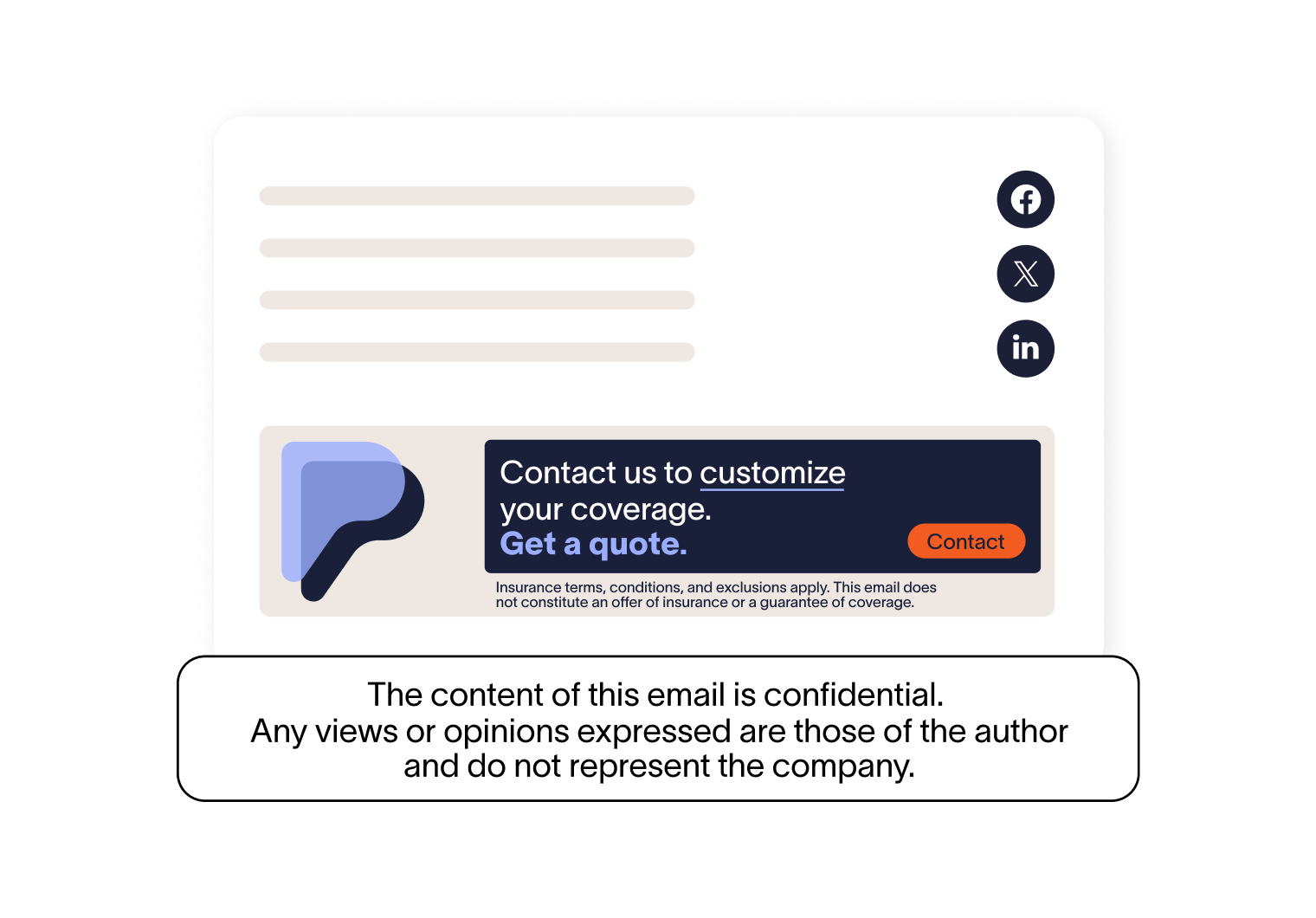 In regulated industries, every outbound email must include approved legal language. This may address liability, confidentiality, financial disclosure, or data protection obligations.
Email signatures often become the mechanism for delivering this standardized text.
When legal disclaimers are required
Email disclaimer requirements depend on:
Industry regulation
Regional data protection laws
Jurisdictional licensing rules
Communication context
Common examples include:
Data privacy notices aligned with GDPR or CCPA
HIPAA-related confidentiality statements in healthcare
Financial disclosure language in regulated advisory services
Jurisdictional registration details in legal communications
Legal counsel typically defines the required wording. IT and communications teams are responsible for applying it consistently.
The operational risks of inconsistent disclaimers
When disclaimer text is manually copied into individual signatures, several risks emerge:
Multiple versions of approved language circulating simultaneously
Delayed updates after regulatory changes
Missing disclaimers on mobile devices
Inconsistent formatting that weakens clarity
Lack of visibility into which version is currently deployed
In audit scenarios, inconsistent disclaimer application creates unnecessary complexity.
Maintaining disclaimer control over time
Regulations evolve. Offices expand into new regions. Business units introduce new services.
Keeping disclaimer language aligned across users requires:
Standardized templates
Controlled editing permissions
Clear change management processes
Version oversight
Key takeaway
A custom email signature may appear simple, but in regulated environments it functions as a controlled compliance channel. Accuracy, consistency, and version control matter as much as design.
Design best practices for a professional custom email signature
A professional custom email signature must balance brand presentation, technical reliability, and readability. Email clients do not render HTML the same way web browsers do. Design decisions should account for that constraint.
 These best practices help maintain consistency across platforms.
Use a structured, single-column layout
Email clients handle simple table-based layouts more reliably than complex multi-column designs.
Recommended structure:
Single primary column
Logo positioned to the left or above contact details
Clear spacing between sections
Consistent alignment
Overly complex layouts increase the risk of rendering inconsistencies across Outlook, Gmail, and mobile clients.
Follow official brand standards precisely
A custom email signature should reflect approved brand guidelines without modification.
Apply:
Official logo files in correct proportions
Standard brand colors
Approved font families with safe fallbacks
Consistent spacing and hierarchy
Stretching logos or substituting fonts introduces visible inconsistencies across departments.
Prioritize accessibility and readability
Signatures must remain legible across devices and display modes.
Best practices include:
Minimum readable font size
High contrast between text and background
Avoiding text embedded within images
Adding ALT text to images for accessibility
Dark mode may invert background colors. Test signature readability in both light and dark environments.
Optimize images for email delivery
Email clients don't behave like modern web browsers.
To reduce delivery and rendering issues:
Compress image files
Avoid excessively wide banners
Host images securely
Use consistent image dimensions
Large or externally blocked images may reduce visual consistency.
Limit calls to action to one primary objective
Including multiple promotional elements reduces focus.
Select one clear engagement action aligned with business priorities:
Book a meeting
Register for a webinar
Download a guide
A focused call to action performs better than competing links.
Design for lifecycle visibility
Email signatures persist in:
Forwarded threads
Archived conversations
Long email chains
Temporary campaign banners may remain visible after they are no longer relevant. Consider duration and update cadence when designing promotional elements.
Turning a custom email signature into a controlled business asset
Creating signatures manually may seem simple. Yet with Exclaimer's email signature software, this process becomes effortless, providing many advantages along the way.
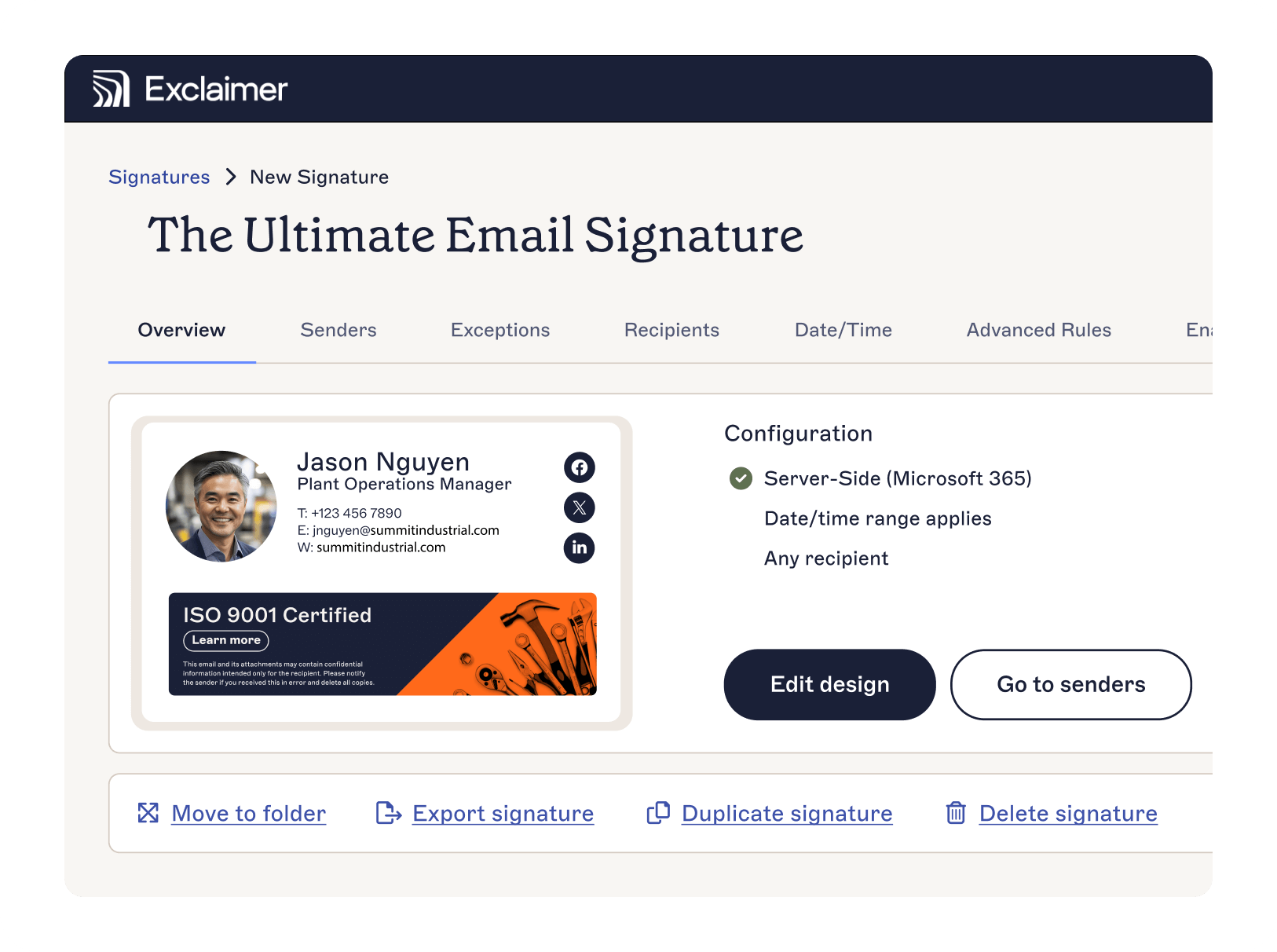 Here are some benefits of using Exclaimer over manually created custom email signatures:
Hassle-free customization
Organizations can easily tailor signature content to their specific requirements with customizable templates. Importing company logos, images, and social media icons empowers users to create visually appealing designs without technical expertise.
Consistency and control
With Exclaimer, organizations can easily maintain consistency across all email signatures. Changes or updates can be made quickly, ensuring everyone uses the same design.
Easy integration with email platforms
Exclaimer integrates with leading email platforms like Office 365 and Google Workspace. This guarantees seamless implementation and usage for organizations of all sizes.
Compliance with legal regulations
Using Exclaimer ensures that all email signatures are compliant with legal requirements. The software automatically includes necessary disclaimers and disclosures according to industry standards.
Centralized management
Streamlining companywide email signature management is effortless with automatic synchronization with a chosen directory service and centralized control. This stops inconsistencies when sending emails from different devices or clients. Plus, it ensures a smooth and efficient signature deployment process.
Quick modifications
With Exclaimer, updates or modifications can be swiftly implemented. Any changes to contact details, images, or logos take minutes to action.
Professional branding
Exclaimer ensures a polished and cohesive brand image on all your email communications. This immediately boosts your credibility and professionalism.
Make a statement with your custom email signature today
Creating custom email signatures is not just about including essential contact information. Each signature can leave a lasting impression, promote content, and encourage continued communication. When used efficiently, email signatures go easily go beyond providing contact details.
For a seamless email signature experience, choose Exclaimer. It simplifies email signature management, saving you time and ensuring a cohesive and polished brand image. Upgrade your digital interactions today with a custom email signature that makes a bold statement.
Get yourself a free trial or sign up for an online demonstration.