How to color code emails in Outlook: The ultimate guide
10 May 2024
0 min read
If you use Microsoft Outlook as your primary email client, you know how important it is to stay organized and efficient. With the abundance of emails we receive on a daily basis, it can be easy to get lost in the chaos if we don't have a system in place. One way to combat this issue is by using color coding in Outlook. This simple yet effective technique can help you quickly and visually identify emails and prioritize your tasks.
At Exclaimer, we help over 65,000 organizations centrally manage professional, compliant email signatures across Microsoft 365. In this post, we’ll walk you through how to use color coding to streamline your inbox and stay focused.
Why does Outlook color code emails?
Outlook's color coding feature allows you to assign specific colors to emails based on various criteria, such as the sender, subject, or keywords. This visual cue helps you quickly identify and prioritize messages without having to read through each one. You can also color code folders in Outlook, making it even easier to navigate your inbox and find what you need.
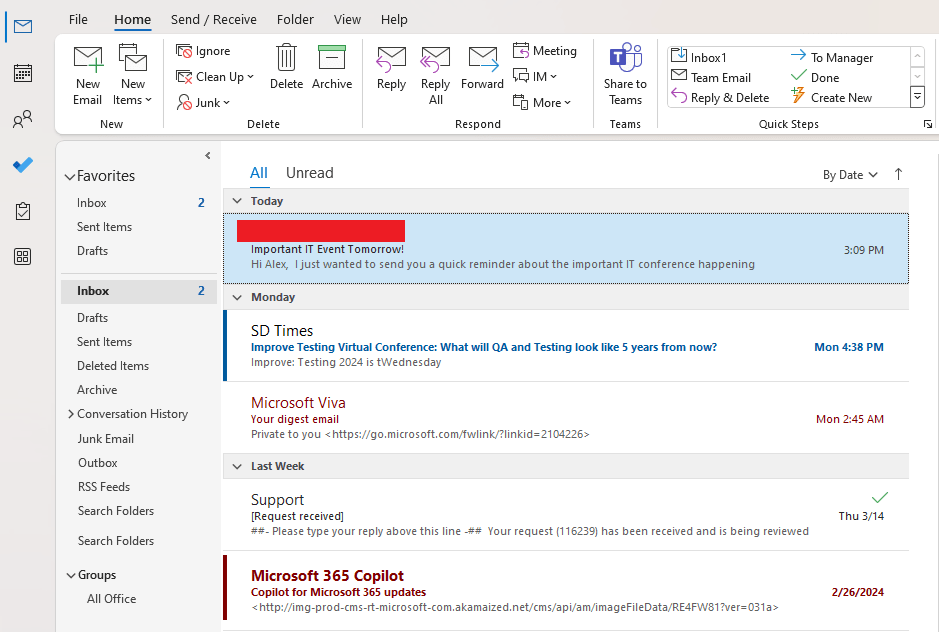
This feature is particularly helpful for those who receive a high volume of emails or have multiple email accounts. It allows you to stay organized and efficient, ultimately saving you time and reducing stress.
The benefits to color coding emails in Outlook
Implementing a color coding system in Outlook offers several key benefits:
Enhanced organization: Efficiently categorize emails, urgent communications, or particular topics to prevent overlooking essential items.
Increased productivity: Use color prioritization to methodically address your inbox, concentrating on the most critical messages initially.
Improved visual navigation: The application of color coding helps you quickly locate specific emails or folders, saving time and reducing frustration.
Customization options: Tailor the color coding system to meet your individual requirements and preferences, whether based on sender, subject matter, or any other significant criteria.
Reduced stress: Implementing a color coding system facilitates quick access to necessary emails, reducing the stress associated with navigating through numerous messages.
How to set up color coding in Outlook
Now that we've established the benefits of color coding emails in Outlook, let's dive into how you can set it up on your account. Follow these steps to get started:
Open Outlook and go to your inbox.
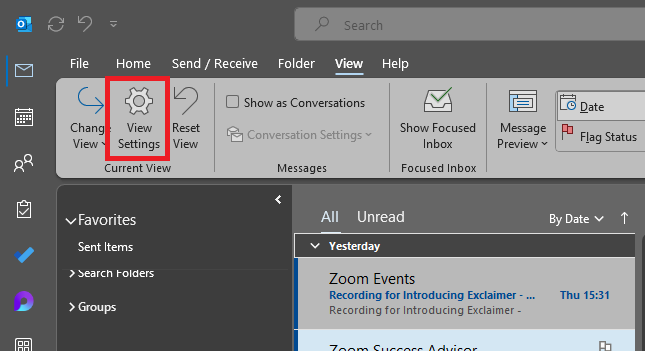
Navigate to View > View Settings.
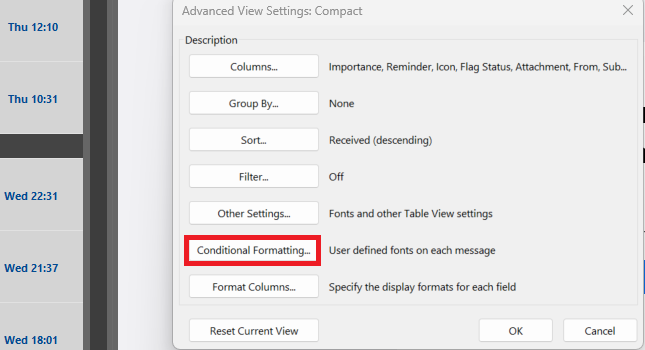
Choose Conditional Formatting.
Select Add within the Conditional Formatting dialog box.
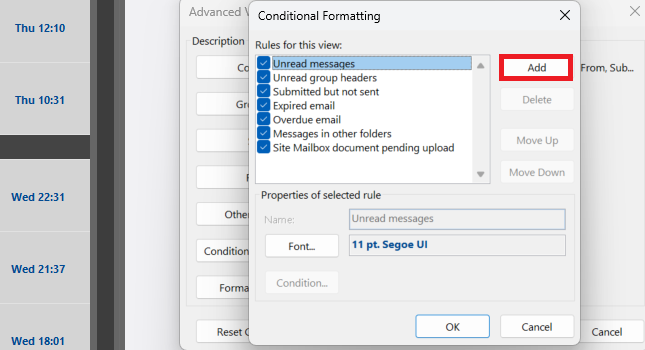
Provide a rule name in the Name: field, then choose Condition.
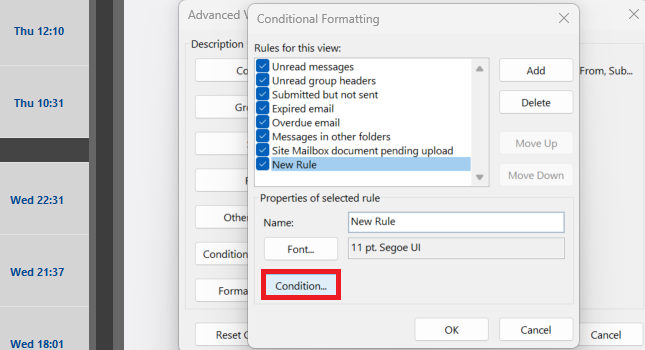
In the Filter dialog, configure your rule's conditions. Select OK.
Within the Conditional Formatting dialog, choose Font.
Choose the appearance for the affected emails.
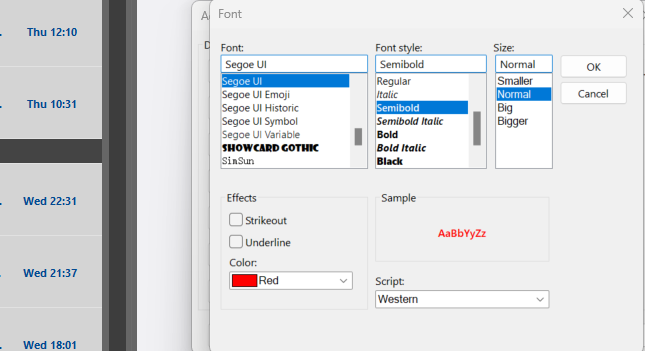
Select OK twice to confirm.
Tips for optimizing color coding in Outlook
To make the most out of color coding in Outlook, here are some additional tips to consider:
Be consistent: Establish a system and stick to it so that you can easily remember what each color represents.
Prioritize strategically: Use colors to prioritize emails based on their level of importance or urgency. For example, you can assign red to urgent emails and green to less pressing ones.
Use multiple criteria: You can combine different criteria when setting up rules for color coding, such as sender and keywords, for even more precise organization.
Regularly review and update: As your email communication changes, take the time to review and update your color coding system to ensure it remains effective.
Don't overdo it: While color coding can be a useful tool, don't go overboard with too many colors and rules. Stick to a few key categories for better organization.
Alternatives to color coding emails in Outlook
While color coding is a powerful tool, it's not the only way to organize your Outlook inbox. Some alternatives include:
Flags: You can use flags to mark important emails or set reminders for follow-up tasks.
Folders and subfolders: By creating folders and subfolders, you can categorize your emails based on topics, projects, or clients.
Rules and filters: Outlook allows you to set up rules and filters that automatically sort incoming emails into specific folders or flag them for follow-up.
Custom views: Outlook allows you to create custom views, which are essentially filters that display specific criteria in your inbox. For example, you could create a view that only shows unread messages from certain senders.
Categories: Assign categories to emails for another layer of organization beyond folders.
Using Exclaimer's hassle-free email signature software alongside color coding
In addition to color coding, consider using an email signature solution like Exclaimer to enhance your Outlook experience even further. With this software, you can create professional and consistent email signatures for all users in your organization, making it easier to brand your emails and communicate important information. It works seamlessly with Outlook and allows you to add visual elements such as your company logo or social media icons, making it a perfect complement to color coding.
Start managing your company's email signatures centrally today. Try our email signature management platform for free or schedule an online demo to see how it works.